Calendars, invitations and CalDAV
The Calendar app keeps your own calendar, a calendar for each group you are in and a room calendar, in one window. This guide covers invitations and responses, repeating events, rooms, importing and exporting .ics files, and connecting a phone or desktop calendar over CalDAV.
Good to know first
- Calendars here are the ones groupforce keeps itself: your own, your groups' and the room calendar
- Invitations reach people inside your workspace; nothing is sent by e-mail
- Calendar apps on phones and desktops connect with CalDAV and an access token (last section)
Your calendars
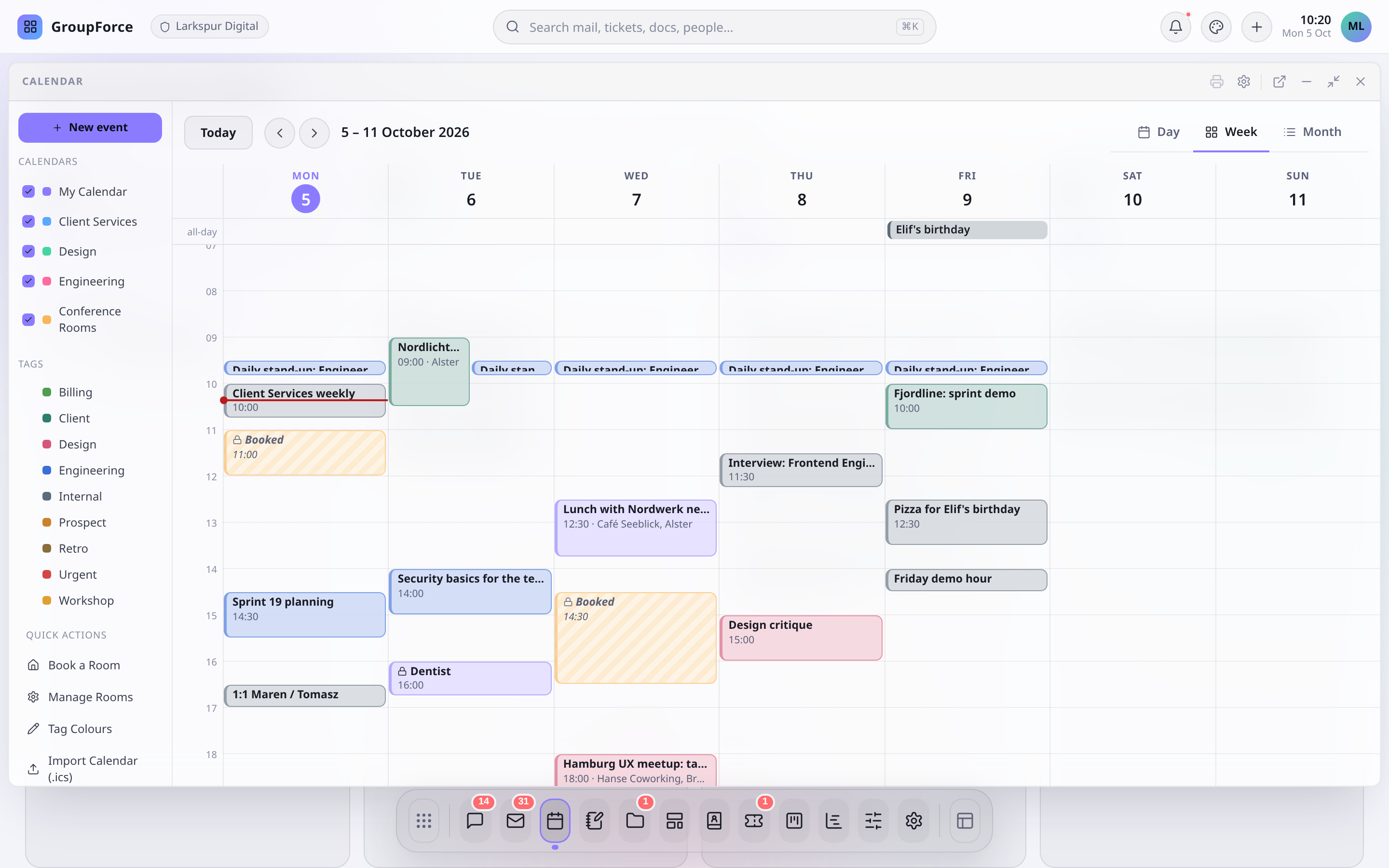
The Calendar window shows several calendars at once. In the left rail each one has a checkbox and a colour; your choice of hidden calendars is remembered on that device.
| Calendar | What is on it |
|---|---|
| My Calendar | Events you own, plus events you were invited to and have not declined |
| One per group you belong to | The group's events, visible to every member. An administrator decides, per group, who may add events and who may manage them (Users, Groups) |
| Conference Rooms | Every room booking in the workspace |
Switch between Day, Week (Monday first) and Month. In the day and week grids, click an empty stretch to create a 60-minute event, or drag across it to choose the length; drag an event to move it and drag its bottom edge to resize, in steps of 15 minutes. Tags can carry a colour; an administrator sets them with Tag Colours in the rail.
An event has a title, calendar, All day, Private, start and end, repeat, location, tags, description and invitees. Choosing a group calendar when you create it, or changing the calendar later, puts the event there.
Private events
Mark an event Private and people who are not the organizer, the owner or someone who accepted it see only a “Private” block that shows the time is taken. Description, location, tags and attendees stay hidden. Workspace administrators do not read other people's personal events either.
Invitations and responses
Add invitees in the event: colleagues, contacts or plain addresses. A colleague gets a notification in the unified inbox (marked “Invitation”), and the event shows up on their calendar at once. They answer with Accept, Maybe or Decline at the top of the event window, and you see their answers in the attendee list and get a notification.
On a group calendar there is no invitee list: everyone in the group is invited, and each member answers in their own time. Members who accept or answer Maybe get the event on their own calendar too; a member who declines still sees it on the group's calendar.
Nothing is e-mailed. An address that does not belong to a workspace member is recorded on the event but never contacted, and answers from outside do not come back. If someone outside your workspace must attend, tell them yourself. A person who declines a personal event no longer sees it in their own calendar, but can still open it from the notification.
Repeating events
Under repeat choose Every day, Every week, Every month or Every year, set the interval, and end it Never, After a number of times or On a date. A series keeps its local hour across daylight saving changes in the time zone it was created in.
Moving, resizing or deleting one occurrence of a series asks Only this event or All events in the series. Choosing the first cancels or moves just that occurrence. Repeat rules that arrive from an imported file but that the form cannot show are kept as they are and listed as a custom repeat.
A change to a single occurrence does not push a live update. A calendar someone else already has open may show the old time until it reloads.
Rooms
Press Book a Room in the rail, pick the room, say what it is for, and choose the day, start and end. A booking is an ordinary event that holds the room. Two bookings can never overlap (back to back is fine): the second is refused with a message saying who has the room, unless that booking is private, in which case it only says the room is booked. A room can be booked only for a single stretch, not for a repeating or all-day event.
Administrators add, edit and remove rooms under Manage Rooms (Workspace settings, Calendar): name, seats and description. A room with upcoming bookings cannot be removed.
Import and export (.ics)
The rail has Import Calendar (.ics) and Export Calendar (.ics).
| Import | Export | |
|---|---|---|
| What it does | Adds the events of an .ics file to My Calendar. An event whose UID is already known is updated if you may edit it, otherwise skipped | Downloads calendar.ics with your own calendar: events you own, plus those you accepted or answered Maybe |
| Limits | 5 MB and 2,000 events per file. Events with no start or an end before the start are skipped; a missing title becomes “(no title)”. You are told how many were added, updated and skipped | Group calendars and rooms are not included. Times are written in UTC with no time-zone definitions, so a repeating series opened elsewhere repeats at a fixed UTC time and may shift by an hour across daylight saving |
| Not carried over | Attendees, organizer, reminders, exception dates and other extras in the file are dropped | Attendees, answers and reminders are not written |
The export looks at the workspace's oldest 5,000 events before it picks yours. In a very large workspace your file can therefore be missing recent events. If an export looks incomplete, tell your administrator.
Connect a calendar app (CalDAV)
Phones and desktop calendar apps can keep your events in step with groupforce. Give the app three things:
| Setting | Value |
|---|---|
| Server | https://<workspace>.groupforce.org/ where <workspace> is your workspace's short name. Just the host; the app finds the rest |
| User name | Anything. It is ignored, though some apps insist on one |
| Password | An access token with the caldav scope, starting with gfpat_ |
There is no screen for creating access tokens yet. A token is created through the API while you are signed in with your password, so ask your administrator or a developer to make one for you. A token that only has read, write or webdav scope does not open calendars, and a caldav token opens nothing else. It can be revoked on its own.
Where to enter it (the server is the same in every case):
| App | Where |
|---|---|
| DAVx5 (Android) | Add account, “Login with URL and user name”; pick the calendars to sync in the account settings |
| Thunderbird | New Calendar, On the Network, CalDAV; location is the server address, then the token when asked |
| iOS / iPadOS | Settings, Calendar, Accounts, Add Account, Other, Add CalDAV Account; server is the host name, token as password |
| macOS | System Settings, Internet Accounts, Add Other Account, CalDAV account, Advanced |
| vdirsyncer | Storage type caldav, with the URL, a user name and the token as password |
The app lists Calendar (your own) and one Group … calendar for every group you are in, named by the first characters of the group's id because the names are not passed on. What you may change in the browser is what you may change in the app: a group calendar you cannot add to refuses a save, and an event you only see as busy is not offered.
Only events cross over, and only the basics: title, description, location, start and end, all-day, tags and the repeat rule. Times are written in UTC. Attendees, invitations and answers, reminders, to-dos and exceptions to a series are not synchronised. The app compares change markers instead of using incremental sync, so large calendars take a full pass.
Changes made from a calendar app skip two checks the web app makes: they are not tested against room bookings, and invitees are not told live. Make room bookings and invitations in the web app.