Documents: files, sharing and notes
Documents is where your workspace keeps its files: your own folder, a shared folder for every group, and the files attached to work items. This guide covers uploading, versions, previews, share links with passwords and expiry, editing office files in the browser, Notes as a separate app, and mounting your files as a network drive.
What you'll need
- Documents and Notes open in the launcher; nothing to install
- To edit Word, Excel, PowerPoint or OpenDocument files in the browser: a workspace administrator has chosen a document editor (see Editing in the browser)
- To mount your files as a network drive: a personal access token with the webdav scope (see the last section)
Where your files live
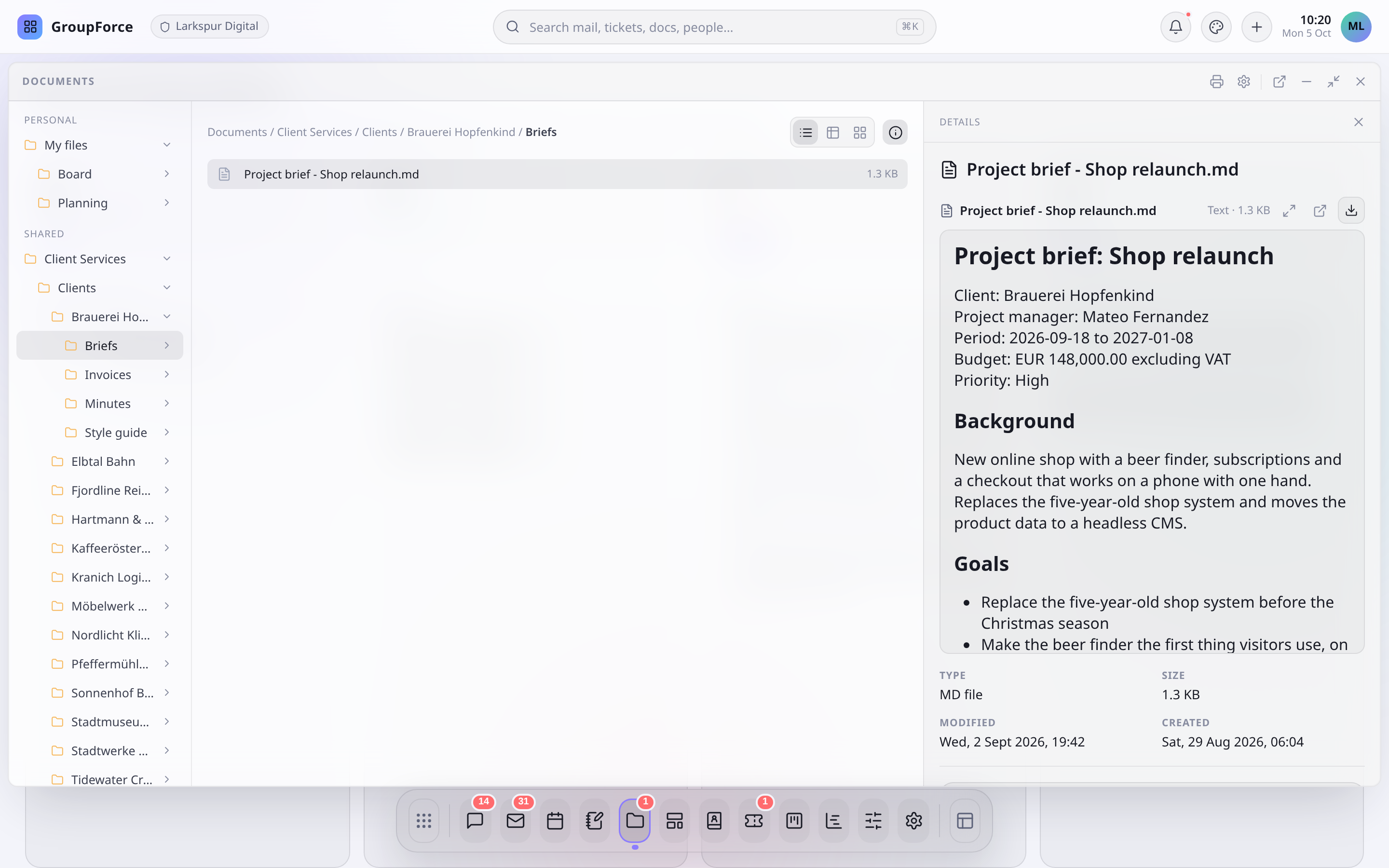
The tree on the left of the Documents window shows the places you can work in:
| Place | What it is | Who can use it |
|---|---|---|
| My files | Your own files and folders | Only you |
| Shared | One folder per group you belong to. It is created the first time someone opens it. | Members of the group, and workspace administrators |
| External Hosts | Storage hosts an administrator has connected. They are listed by name; browsing their files from this window is not available yet. | - |
A group has a folder only while its This group has a shared folder in Documents switch is on. An administrator controls it in Users → Groups; switching it off hides the folder from the group's members within seconds. Files attached to a work item or a note live in a folder of their own that follows the record: you can open them if you can open the record. They show up in the network drive under records.
The main pane shows a folder's contents as tiles (the default), a list or a details table, with folders first and file names in natural order (file 2 before file 10). Double-click or Enter opens a folder, or opens a file in the editor or the preview. Your choice of view and the width of the details panel are remembered in your browser.
Uploading and organising
Drag files from your computer onto the window, or onto a folder in the tree or the pane, or use Upload files in the quick actions under the tree. The Uploads panel shows progress per file and lets you cancel one; a cancelled or failed new file leaves nothing behind. Up to three files go up at once, and a single upload through the browser can be at most 64 MB.
Dropping a file whose name already exists in that folder does not create a second copy: it becomes the next version of the file that is there. The transfer row says "Uploading as a new version". Rename the file first if you want both.
The quick actions under the tree change with what is selected. For a file: Edit or Open (when the editor can take that type), Download, Share link, Version history, Rename, Move to… and Delete. For a folder: Open folder, Upload into it, Rename, Move and Delete. For the folder you are in: Upload files, New folder, and one New … entry per blank document type the editor offers: Word (docx), Excel (xlsx), PowerPoint (pptx) and the OpenDocument text, spreadsheet and presentation formats (odt, ods, odp). You can also drag a file or folder inside the window onto a folder to move it. Rename and move are the same operation; a rename never changes what is inside.
Versions
Every time a file's content changes, whether you upload over it, restore an old version or save from the editor, groupforce keeps the result as a new version. Select a file and open the Versions card in the details panel. It shows the current version with Download and Share link, then the earlier ones with number, date, author, size and a note.
| To do this | Do this |
|---|---|
Add a version by hand |
Click or drop a file on the slot at the top of the card ("Release to add as v6"). It is stored under the file's own name, whatever the dropped file was called. One file at a time. |
Go back to an old version |
Open the version's menu, Restore as new version. You are asked first ("Make v3 the current version, as v6?"). Nothing is lost: the old version stays, and the restore is a new version with the note "restored from a previous version". |
Get an old version |
Download this version. |
Delete a version |
Delete this version, which only workspace administrators see. The current version cannot be deleted, and a deleted number is never used again. |
A restore or delete is refused while the file is open in an editor. If an upload fails as a new version, the panel says nothing changed and offers Try again.
Delete moves a file or folder to Deleted items of the folder it was in. Open Deleted items there to restore it, with its whole history, for 30 days on Basic, 60 on Pro and 120 on Business. After that it is removed for good. Notes are different: a deleted note is not kept.
Previews
Select a file and the details panel shows it without downloading. Maximize fills the desktop with it, Pop out opens it in a window of its own, and Download saves it.
| File type | Shown as |
|---|---|
png, jpg, gif, webp, avif, bmp, ico, svg |
The picture. Tiff is converted to a picture first. |
pdf |
The pages, drawn in your browser. |
Word, Excel, PowerPoint, OpenDocument, rtf and similar |
A PDF the server makes from the file. |
txt, md, csv, tsv, json, code and similar |
The first 512 KB as text; Markdown is formatted and csv/tsv shown as a table. |
Anything else |
"There is no preview for this kind of file", and a download link. |
Previews of office files depend on a converter that the workspace's operator runs. Without it you see "Previews of office documents are not available right now" and everything else still works. HEIC pictures are not previewed.
Share links
A share link gives a file to someone without an account. Select a file, then Sharing → Create link (or Share link in the quick actions). You choose:
| Option | What it does |
|---|---|
| Who can do what | Can view and download (the default), or Can edit in the browser. |
| Expires on (optional) | A day. The link stops working at the end of that day; you cannot pick a day that has passed. |
| Password (optional) | 6 to 72 characters. Give it to people separately: the link and the password should not travel together. |
The new link appears with a copy field, a Can view or Can edit tag, a Password tag if it has one, and its expiry. Revoke ends it. You can have several links to one file with different options. Anyone who has a link can use it, so treat it like a key.
A visitor opens the link in a normal browser tab, enters the password if there is one, and then sees the file name and size with Download, View in the browser or Edit in the browser. An editing guest is asked for a name, which others who have the file open will see; every save by a guest becomes a version noted "edited in the browser through a share link" with that name. Revoking a link, or its expiry day passing, ends an open guest editing session at its next save, and unsaved changes are not accepted.
| Good to know | Detail |
|---|---|
| Files only | Links are for files, not for folders. |
| Editing links need an editor | They can be made only for files in My files or a group folder (not attachment folders), only when the workspace has an editor switched on, and only for types that editor can edit. |
| Guessing is limited | After 5 wrong passwords from one address in 15 minutes, or 40 for the link, further attempts are refused until the window passes, even with the right password. |
| No previews on the link page | Visitors download the file, or open it in the editor's viewer when the editor can show that type. |
| Passwords | A correct password gives that browser two hours of access to the link. |
Editing in the browser
Word, Excel, PowerPoint and OpenDocument files can be opened and edited in a window of the Documents app, with other people editing the same file at the same time. This is off until a workspace administrator chooses a document editor under Workspace settings → Documents → Document editor; until then the Edit and Open actions are simply absent. Choosing None (or switching the app off) cuts an open editor off at its next save.
Double-click a file, or use Edit or Open, and the editor opens maximized. The editor follows your theme (light for the light theme, dark for all others) and your interface language. Saves become versions of the file, and the editor saves regularly while you work. Good to know:
| Situation | What happens |
|---|---|
| Read-only | If you cannot edit, you get a blue notice "Opened to read only" with the reason, for example the file is locked over WebDAV by another program, or the type cannot be edited here. Files in an attachment folder, such as those on a work item, open read-only. |
| Someone else is in it | Documents shows "being edited by …" on the file while it is open in an editor or over WebDAV, and for a few seconds after it closes. |
| Save a copy | In the editor, File → Save copy as opens groupforce's own folder dialog so you pick a folder and a name. |
| Large files | Uploads through the browser are limited to 64 MB, and a save from the editor is limited too (64 MB in the standard setup). Keep documents under that. |
| Mail and comment text | Text files that are kept beside tickets as a record of a mail or a comment are never opened in the editor. |
Notes: a separate app
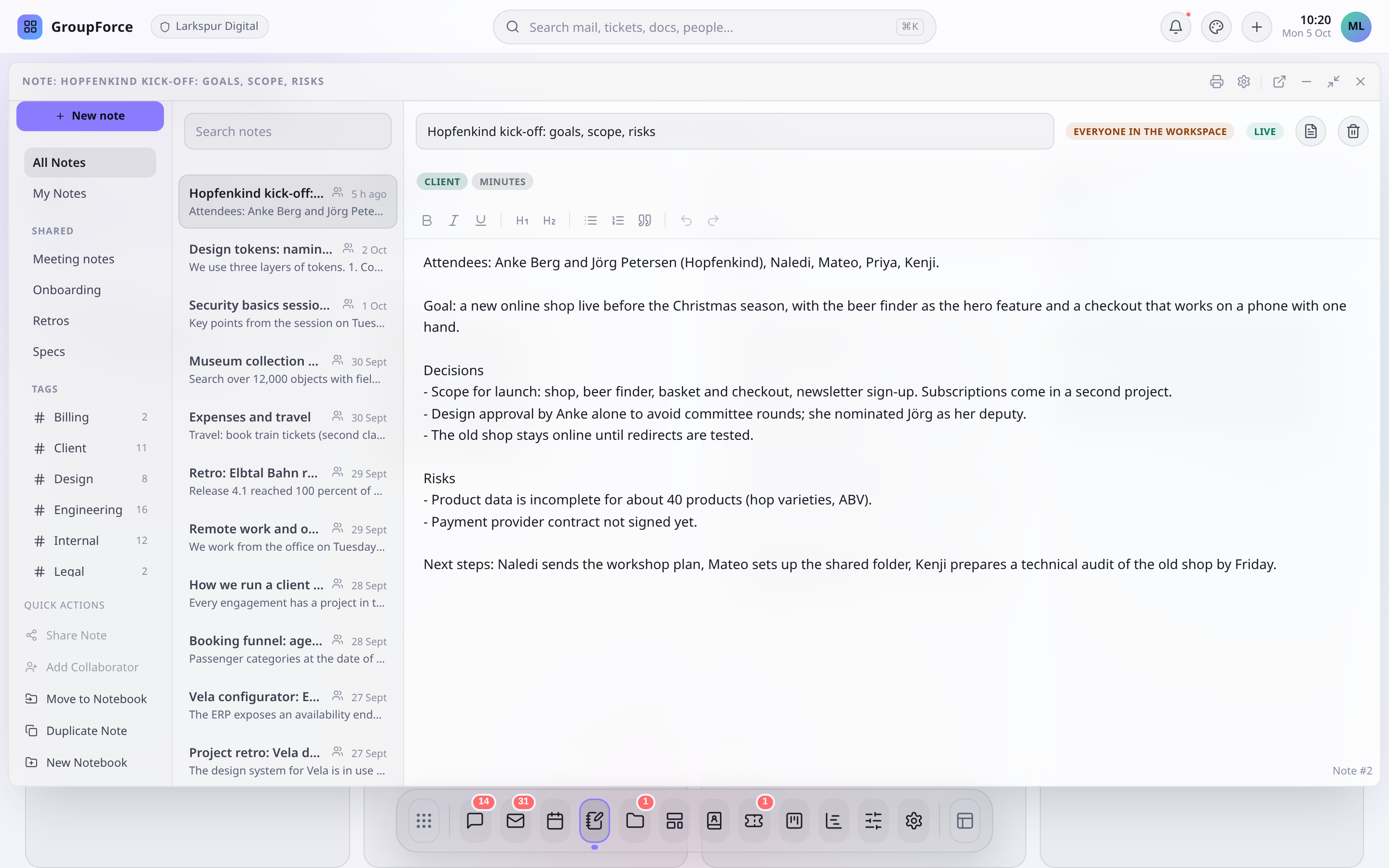
Notes is its own app, not a folder in Documents. A note is a page of rich text that everyone with access edits together, live: you see the others' cursors and their names, and a pill in the corner says whether you are Live, Offline, Connecting or Not connected. The editor has bold, italic, underline, two heading levels, bullet and numbered lists, quotes and undo (which only undoes your own changes).
| Part | How it works |
|---|---|
Notebooks |
The workspace's named buckets (New Notebook, Move to Notebook). A notebook only files notes: it says nothing about who may read what is in it. A note is in at most one notebook. Deleting a notebook keeps its notes. |
Rail |
All Notes, My Notes, the notebooks and your tags. Search finds words in the title and the first part of the text. |
Tags |
On the note, with the workspace's colours. |
Templates |
New note makes a blank note, or use the menu New note from a template when an administrator has made templates. |
Attachments |
Files you attach are kept in an attachment folder; the Attachments button opens them. |
Duplicate |
Duplicate Note copies the text and formatting into a new note, titled "Copy of …". A copy of a restricted note is restricted to the same people. |
Print |
The print button in the window prints the note. |
By default a note is open: every member of the workspace can open and edit it. The owner can restrict it with Share Note or Add Collaborator, which limits it to the people and groups listed. Everyone listed can read and edit; a group includes whoever is in it now and later. On a restricted note nobody else, administrators included, can see that it exists (a note imported without an owner is the exception, which administrators manage). There is no view-only sharing yet, and no way to make someone able to share the note on. People you add are told that it was shared with them.
Any member can delete an open note, and a deleted note cannot be recovered: there is no trash and no version history for notes. Anyone editing it at that moment is disconnected. A restricted note can be deleted only by its owner (an administrator, for notes imported without an owner).
Mount your files as a network drive (WebDAV)
Your files can also appear as a drive in your computer's file manager. You give it three things, the same as for contact sync:
| Setting | Value |
|---|---|
Address |
https://<workspace>.groupforce.org/webdav/. <workspace> is the workspace name from your browser address. |
User name |
Anything. It is ignored. |
Password |
A personal access token (gfpat_…) with the webdav scope. |
A token is made under Settings → Tokens: choose a name, tick the webdav scope and copy the secret, which is shown once. A webdav token opens files only, not mail, contacts or anything else. WebDAV is part of the Pro and Business plans.
Below the address you find three folders. me is your own files, groups has one folder for each group you may use, named like the group, and records has the attachment folders of work items, notes and so on, by type and <ref> <title>. The three top levels are read-only; you create files and folders inside the others. Group folders follow the same rules as in the browser, including the group's Documents switch.
| Client | How |
|---|---|
| macOS Finder | Go, Connect to Server (Cmd-K): the address above, then any name and the token. |
| Windows Explorer | This PC, Map network drive, Connect to a web site: the address above; any user name, the token as password. Windows wants HTTPS for this kind of sign-in (otherwise a registry change), and the workspace address is HTTPS. |
| Linux, GNOME Files | Other Locations, Connect to Server: davs://<workspace>.groupforce.org/webdav/. |
| Linux, davfs2 | sudo mount -t davfs https://<workspace>.groupforce.org/webdav/ /mnt/files |
| rclone | rclone config: type webdav, url as above, vendor other, any user, the token as password. |
| cadaver | cadaver https://<workspace>.groupforce.org/webdav/ |
Copy and move between your files and a group folder (or any two of me, groups and records) is refused over WebDAV. Download and upload instead, or move the file inside the Documents window. Copy and move inside one of them works.
A save from a desktop program is one version: an open, write and close is recorded as one new version. While a program has a file open it is locked, so other people see it as being edited and the browser editor opens it read-only until the lock ends. A lock left behind by a crashed program expires on its own (after 20 minutes by default). If your workspace host was mounted with an older address that has a long id in it, /webdav/<id>/, it still works for now but is being phased out: switch the mount to the address above.