Two ways to build an app
You can build a custom app in App Studio, a builder inside groupforce, or write its files by hand and package them with gfpkg. Both give you the same thing: a signed package with one manifest. This page helps you choose, shows App Studio on one screen, says what each plan includes, and maps the rest of these guides.
What a custom app is
A custom app is a signed package (a .gfpkg file). It holds one manifest, app.json, that declares everything the app adds: its data models, its views, its processes, its automations, its settings and any server code. The package is signed by its publisher. A workspace installs it, and an installed app can do only what its manifest declares: nothing is added that an administrator could not read first, in the install review, before choosing Install.
The manifest sections and their limits are in What an app is made of. Installing, reviewing and updating are in Installing and updating apps.
Both ways produce the same thing
App Studio does not make a different kind of app. It edits the manifest and the files of a package for you, and it signs the result in your browser. A package written by hand is the same thing written by a person. So the two ways are not exclusive, and many apps use both:
- Build in App Studio, then add server code in its Server code part, or take the files and edit them by hand.
- Start from files you wrote and open the app in App Studio to reshape its data, process or views. An installed app is never edited in place: on its card, Make a copy to edit makes a built-here copy that you edit.
The Studio can also open a view that was written by hand. Its visual editor draws what it can read of the view, and the source stays the single truth: a change made in the editor is written back into the code and nothing else in the file moves.
App Studio and code side by side
| App Studio | Code | |
|---|---|---|
Who it is for |
People who build the app for their own workspace. Publishing, and requesting the certificate that publishing needs, are for workspace administrators. | Developers who work in files and a terminal, including ones who publish for other workspaces. |
Where you work |
In groupforce, in the App Studio window. Parts for Data, Views, Processes, Automations, Actions, Roles & access, Settings, Printing, Server code and Test & publish. | Your editor. A folder holding app.json, view sources (views/*.tsx), styles and server/index.js. |
How you test |
Start preview installs the draft into your own preview slot, on test data, visible only to you. Open preview opens it as a window titled "<App> (preview)". | gfpkg verify runs the checks an installing workspace runs; installing the package into a test workspace is the only step that compiles the views and loads the server module. |
How you sign |
With a key made in your browser, protected by a password. The key and password never leave the browser. An operator signs your certificate request. | With a certificate and key you hold, using gfpkg build. A server certificate comes from the operator, or from your own offline or hardware key, through the CLI. |
Server code |
A Server code part, with a starter module. It runs in a test engine in a preview. Publishing it needs a certificate that may ship server. |
Written as server/index.js, declared in the manifest's server section. The certificate must carry the server class. |
Plan |
App Studio is an add-on on Pro and included in Business. Publishing needs the Pro or Business plan. | gfpkg is a tool and is not tied to a plan. Installing the result is open to every plan; signing needs a certificate. |
Which should I choose?
- Your app is data, a process and some views for your own team. Start in App Studio. A template (Approval process, Tracker, Directory or Empty app) gets you to a running preview quickly.
- You need logic the Studio's parts do not express. Still start there if you like, then add server code: a guard on a step, a hook on a model event, a timer or a route. See Server code & sandboxing.
- You ship for other workspaces, work in a repository, or build in CI. Use code and
gfpkg. The package is the same, and signing with your own certificate and key fits a release process. - You are not sure. Build in App Studio. Everything it makes is a package with a manifest, so you can still hand-edit the files later.
App Studio on one screen
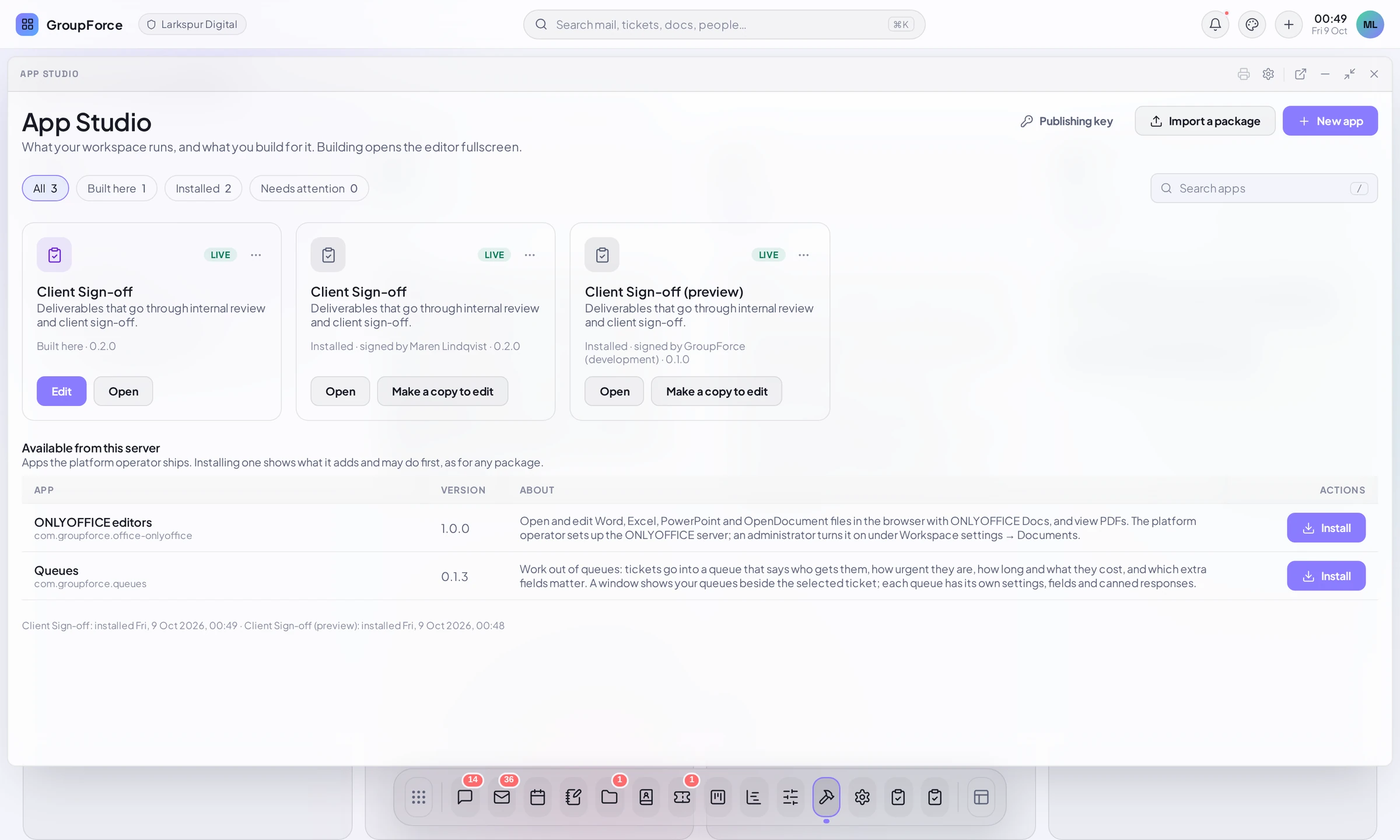
Open App Studio from the dock. Its home lists the apps your workspace runs: apps built here, with Edit and Open, and installed apps, with Open and Make a copy to edit. New app starts from a template, Import a package installs a signed file, and Publishing key opens the key page.
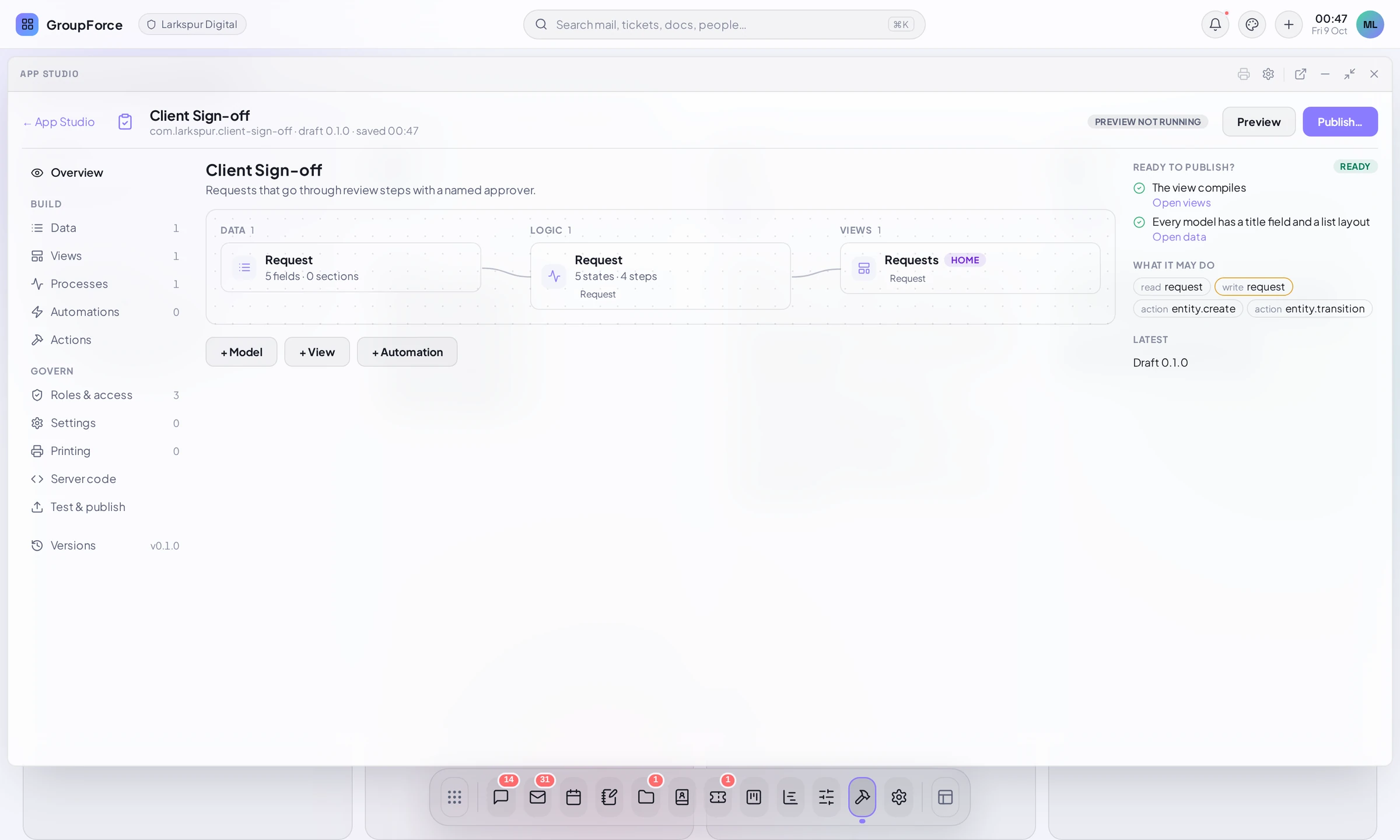
Building opens the editor fullscreen. Its first page is the Overview: a map from Data to Logic to Views, a Ready to publish? list, What it may do, and the buttons + Model, + View and + Automation. The parts are listed at the left in two groups, Build and Govern, followed by Versions.
What each plan includes
Plans decide who may install, who may build and who may use App Studio. A plan that says no is refused with 403 and a sentence naming the plan, not just hidden in a menu. A workspace with no plan information (a self-hosted installation without billing) is allowed everything.
| Basic | Pro | Business | |
|---|---|---|---|
| Install apps someone signed | yes | yes | yes |
| Build and publish your own apps: request a publisher certificate, hold keys, publish a package | no | yes | yes |
| App Studio: drafts, previews, development certificates, publish from a draft | no | add-on | included |
Publishing from App Studio needs the Pro or Business plan as well. gfpkg itself is a tool and is not tied to a plan. Changing to a plan without a feature stops what the feature does, deletes nothing, and leaves apps that are already installed running. App Studio and certificate requests are refused until the plan is back. Prices are in the pricing guide.
The example that runs through these guides
The guides build one app, Client Sign-off (com.larkspur.client-sign-off), for a design agency: a Deliverable goes through internal review and client sign-off. It has a model, a process with rules, an automation that tells a group when a deliverable goes to the client, and a little server code. Screenshots show a sample workspace, Larkspur Digital, and its administrator Maren Lindqvist; it is fictional.
| Part of the guides | Pages |
|---|---|
| Start here | Two ways to build an app, What an app is made of |
| Build in App Studio (pages 3 to 6) | Your first app in App Studio; Data, views and the visual editor; Processes, roles and automations; Test and publish from the Studio |
| Build with code (pages 7 to 10) | Your first app in code; Server code & sandboxing; Work items, events and timers; Extension points |
| Ship and install (pages 11 to 13) | Keys, certificates & signing; Installing and updating apps; Publishing checklist |
If you are building in the Studio, go to Your first app in App Studio. If you are writing files, go to Your first app in code.