Work items: types, assignees and boards
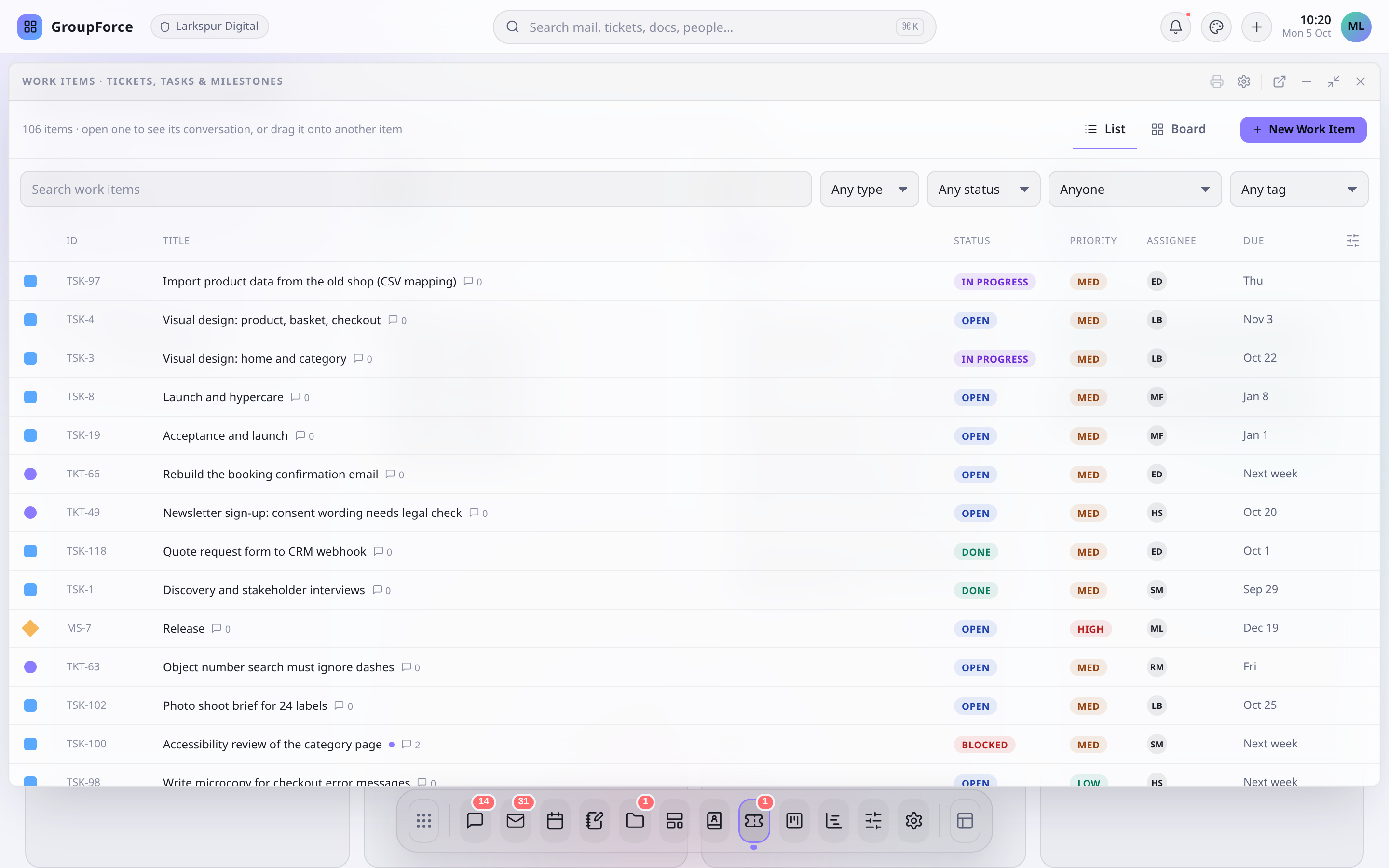
A work item is one record for a ticket, a task, a milestone or an e-mail you saved to handle. It has a status, a priority, people or groups it is assigned to, an optional due date, and a conversation. This page explains what those parts are, who sees an item, and how boards lay the same items out in columns.
1. Types and references
Every work item has a type, and the type gives it a short reference you can say aloud. Numbers are counted separately for each type and are never reused, even after an item is deleted.
| Type | Reference | What it is for |
|---|---|---|
| Ticket | TKT-12 |
Something reported that someone has to deal with. |
| Task | TSK-4 |
A piece of work to be done. |
| Milestone | MS-3 |
A date in a plan. Projects draw milestones on their timeline and Gantt. |
MAIL-7 |
An e-mail saved as something to handle, mostly created by imports. |
You choose the type when you create the item, from the New Work Item dialog, and it cannot be changed afterwards. The same is true of the project an item belongs to. If you picked the wrong one, create a new item.
2. What is on a work item
| Field | Notes |
|---|---|
| Title | Required. |
| Status | One of your workspace's statuses. A new item starts in the first status on the list. See Statuses & workflows. |
| Priority | Low, Medium or High. |
| Start date, Due date | Whole days, not times of day. |
| Project | None, or a project you are allowed to add work to. |
| Assigned to | People and groups, as many as you like (up to 50). |
| Description | Free text. |
| Tags | Up to 20 tags of 40 characters. Edit them in the sidebar of an open item. Admins can give a tag a colour. |
| Reporter | You, automatically. It is who created the item and it counts for visibility, below. |
You can also start a work item from a message in Mail. The new item is linked back to that message.
3. Who sees an item
A work item is visible to its reporter, to the people it is assigned to, and to the members of any group it is assigned to. Everyone else gets "not found", as if the item did not exist. That is why the dialog warns that an item with nobody assigned is visible only to you. Apart from that, workspace administrators read an item only when nobody accountable is left to read it, which is when its reporter is no longer an active account. A project can open its work items to everyone who may open the project, administrators included (see below). Group assignees and admin-only notes walks through this in detail.
By default, being on a project's team does not show you that project's work items, and project roles do not control who may change an item. Anyone who can see an item can also edit or delete it. A project can opt in to showing its work items to everyone who may open the project; those people then see all of them and, as with any item a person can see, may change them. Projects explains the consequences.
4. Assignees and followers
An item can be assigned to several people and groups at once. Assign from the Assigned to field in the dialog, from the sidebar of an open item (the + next to Assigned), or by typing /assign in the comment box. Dropping a contact on the Assigned list assigns the workspace account with the same e-mail address.
Assignment decides who sees the item and who hears about it:
| Who | What they get |
|---|---|
| A person assigned directly | An inbox notice that they were assigned. |
| Members of an assigned group | They see the item and follow it, but no assignment notice is sent for a group. |
| Followers | The reporter, assignees and group members follow an item by default. They get one combined notice when it changes, and one for each new comment. You are never notified of your own changes. The Follow / Following button in the item header turns this on or off for you. |
5. Due dates and overdue
Dates are whole days. In the list a due date shows as Today, Tomorrow, a weekday or a date, and turns red when it is past. Boards show an Overdue pill on the card. An item whose status means Done or Cancelled is never overdue, whatever its date. In the comment box, /due offers Today, Tomorrow, Next week, No due date, or a date you type as YYYY-MM-DD.
6. Comments and history
Opening an item shows its conversation next to the details. Comments and changes (status, assignees, links, files) are merged into one timeline that you can filter by All, Comments, History or With files. A divider marks what is new since you last opened the item. On each comment you can Reply, Make task (creates a task with the same assignees and posts a card for it) or Copy link to comment.
The comment box takes @mentions, files, links and cards of other records, and the commands /status, /priority, /assign and /due, so you can change the item without leaving the conversation. Chat & calls covers conversations on records, including admin-only comments and calls about an item.
7. Finding items in the list
The Work items window opens on a table. Narrow it with the search box (title, description, reference, assignee names, tags), the type, the status (Any, Not finished, or one status), the assignee (Anyone, Assigned to me which includes your groups, Unassigned, a person or a group) and, once some items carry tags, a tag. Your type, status, assignee and tag choices, the columns you show and your sort order are saved with your account and follow you to other browsers. The search text is not saved. A print button in the title bar prints the open item from a template.
8. Boards
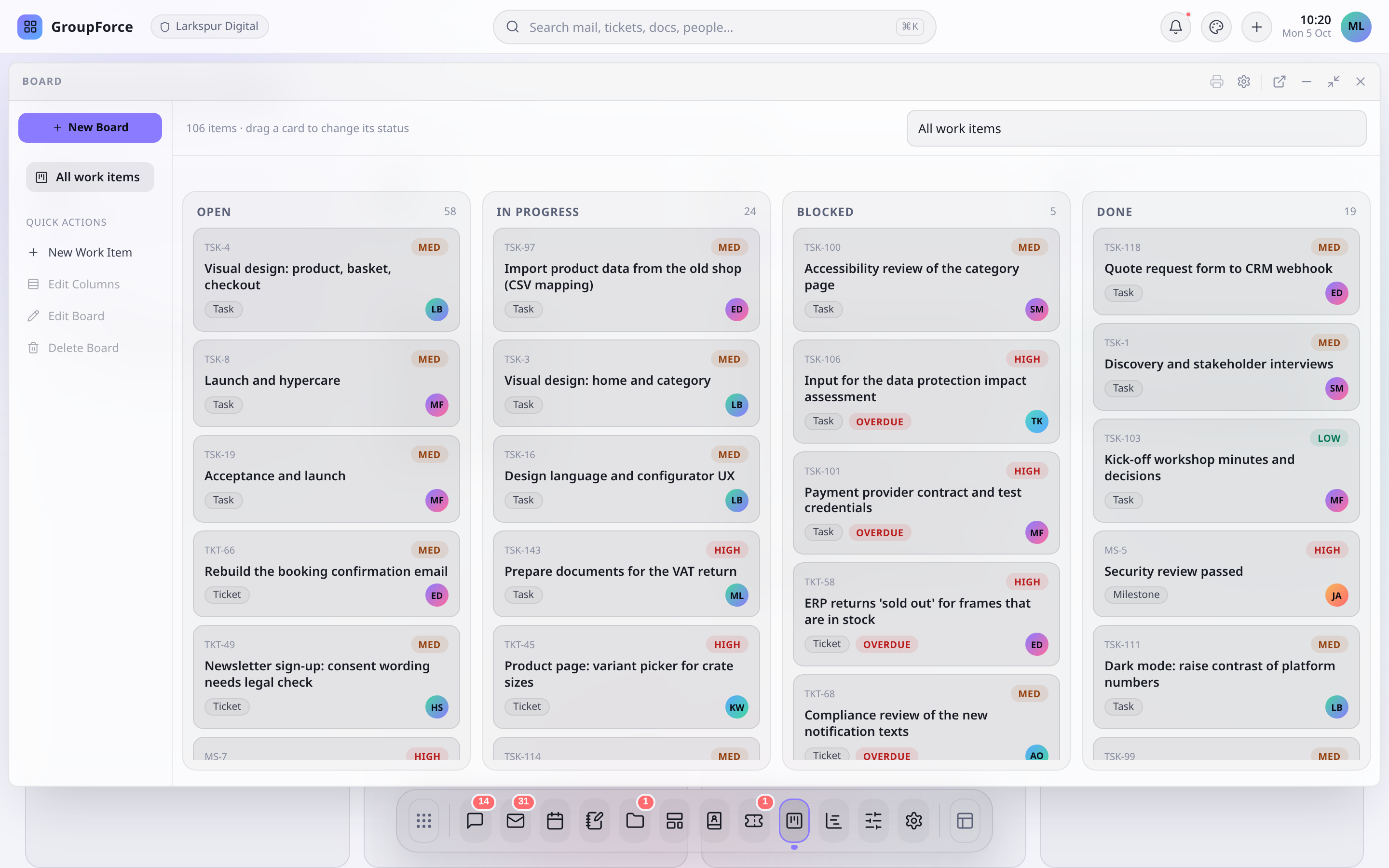
A board is a saved view of work items as columns. It stores no cards of its own: a card sits in the column that matches the item's current status (or assignee), so a change made anywhere, in the list, on the Gantt or by a colleague, moves the card on every open board.
| Board | What you get |
|---|---|
| All work items | The built-in board in the Kanban window: one column per status on your workspace's list. A Project drop-down above it narrows it to one project. It cannot be edited or deleted. |
| Saved boards | Made with New Board: a name; Shows all work items or one project; and Columns are either Statuses (you tick which) or People (a column per person you pick, plus optionally one for work nobody has). |
| Board tab | In the Work items window, next to List. It shows the first saved board's columns (a drop-down appears when there are several boards) over the items that pass the window's current filters. With no board yet it offers Create a board. |
Drag a card to another column, or focus a card and press Alt+Left or Alt+Right. On a status board the card takes that status. On a people board the person is added to the card's assignees and the others stay, so a card can appear in two columns. Dropping on the unassigned column removes the people but keeps assigned groups. Click a card to open the item. In the Kanban window, a card whose status has no column on the board lands in an Other column, which you cannot drop onto.
Edit Columns, Edit Board and Delete Board are available to the board's creator and to administrators. Deleting a board never touches its work items. Removing a column does not either: its cards move to Other.
Boards are simpler than you might expect. A board cannot store a filter: the only ways to narrow a board are its project and, in the Work items window, the filter bar. What a board can do is cut its columns into rows: Swimlanes by Assignee, Priority, Tag or Project, with a row for each value the cards have (by Priority, all the usual priorities are always there) and a last row for cards with none (Unassigned, No priority, Untagged, No project). A card with several assignees or tags is in several rows, and a board by person already has a column for each person, so it has no rows by assignee. A saved status board does not gain a column when you add a status later, although the built-in board does. And a new or changed board made by a colleague may not appear until you reopen the window.
What's next
Statuses decide what the columns are and what counts as finished. Next: Statuses & workflows. For planning work across people and dates, see Projects.