Projects: members, roles and the Gantt
A project groups work items under a plan: dates, a team, a few figures, and a Gantt chart. Access is by role. Who is on the team, and what their role allows, decides who can open the project and what they can change. This guide covers the roles and the rules, and where projects behave differently from what you might assume.
1. What a project is
Projects live in the Projects window: a table of every project you may open, or a timeline of the dated ones. Each project has a number of the form P-2026-0001 (the year, then a counter), a status, dates, a team, and a page of its own. Work items belong to a project through their Project field. That field is set when the work item is created and cannot be changed afterwards.
Create one with New Project: a name, start and end date, priority, description and tags. You become its owner. A project has the statuses your workspace defines for projects, Active and Archived to begin with; see Statuses & workflows.
2. Who can open a project
A project is open to three kinds of people: its owner (whoever created it), workspace administrators, and members who hold a role on it, whether added as a person or through a group. A project you cannot open does not appear in your lists, and opening its link says it was not found, so its name is not revealed either.
Under Who can see it, a person who manages the team can instead choose Everyone in the workspace. That gives every member read access. The other choice, Its team only, keeps access to the three kinds of people above.
A separate choice decides who sees the project's work items. In the project's dialog, Who can see its work items is Only those assigned to them by default: being on the project does not open its work items, and a person sees the ones they report or are assigned to. Choose Everyone who can open the project and anyone who can open the project sees all its work items, assigned to them or not, and may change them too: being able to see an item means being able to change it. Changing the choice needs the right to manage the team. Existing and imported projects keep the default.
Being listed is not the same as having access. A member added with No role is shown on the team list but cannot open the project.
3. Roles and rights
A role is a set of rights. Anyone who holds a role on a project, directly or through a group, has the combined rights of all their roles. The owner and administrators have every right.
| Right | What it allows |
|---|---|
| See the project | Open its page, figures and team. Every other right includes this one. |
| Add work | Add work items, milestones and sub-projects to it. |
| Edit details | Change name, dates, status, progress, priority and time. Also archives and restores the project. |
| Delete the project | A right a role can carry. The Projects window has no delete button yet. |
| Manage the team | Add and remove members, change their roles, and choose who may see the project. |
| See the budget | Planned and spent budget become visible. Without it the budget is not sent to you at all. |
| Edit the budget | Change the budget figures. Includes See the budget. |
A new workspace comes with three roles you can use on any project:
| Role | Rights |
|---|---|
| Project manager | Everything. |
| Member | See the project and add work to it. |
| Viewer | See the project. |
Administrators edit these workspace-wide roles in Workspace settings → Projects. A single project can also have roles of its own: on its page choose More actions → Roles. Anyone who may manage the team can do that. Two rules keep roles safe. Nobody can create or hand out a role containing rights they do not hold themselves, so managing the team is never a way to gain more. And a role that someone still holds cannot be deleted.
To add people, open the Team tab (or the digest panel) and choose Add member. Pick one or more people or groups and a role. Choosing a member's role chip changes it later.
4. Which change needs which right
| You change | You need |
|---|---|
| Name, description, dates, tags, priority, progress, actual dates, time | Edit details |
| Budget figures | Edit the budget |
| The team, roles, and who can see the project | Manage the team |
| Add a work item, milestone or sub-project | Add work |
| Archive or restore | Edit details |
The edit dialog disables or hides what you may not change, so a person who may change only part of a project can still save the form.
5. Projects and their work items
A project's team does not automatically see its work items. Work items keep their own rule: you see an item if you reported it, it is assigned to you or to one of your groups, or you are an administrator. A team member with the Member role sees the project but only their own items in its Gantt and Work items tab. Counts on the portfolio (open, overdue, done) are counted over the items you can see, so the same project can show different numbers to different people. Project rights such as Edit details also do not govern who may change a work item: anyone who can see an item can edit or delete it. That is current behaviour and an open product decision.
Practically: when you want a team to work on a project's items, assign the items to the team's group.
6. Figures: progress, time and budget
| Field | How it works |
|---|---|
| Progress (%) | Optional, set by hand. Left empty, the project shows work done divided by work done plus open, from the items you can see. |
| Planned time, Time spent | Typed in hours (40, 2:30) and shown as hours and minutes. |
| Actual start, Actual end | Separate from the planned dates. |
| Budget | Planned and spent, in the workspace currency. Only people with See the budget see it. An administrator chooses the currency in Workspace settings → Projects. |
| Priority | Low, Medium, High or Urgent. |
7. The portfolio
The table is filtered, sorted and grouped on the server, so it stays quick with many projects. The left rail has six saved views:
| View | Shows |
|---|---|
| All projects | Every project you can open. |
| Mine | Projects you are on, yourself or through a group. |
| Active | Projects that are not archived. |
| Needs attention | Still going, with late work, or past the end date with work left. |
| Ready to archive | Still going, past the end date, nothing open. |
| Archived | Finished projects. |
You can search by number, name or member, filter by status, started year, member, tags and has (overdue work, no work items, no dates, no team), group by status or year, and switch between List and Timeline. Selecting a row opens a digest with counts, dates and the team. In Ready to archive with no other filter, Archive all N archives the lot after confirmation; archived projects stay searchable and can be restored one by one.
8. The project page and the Gantt
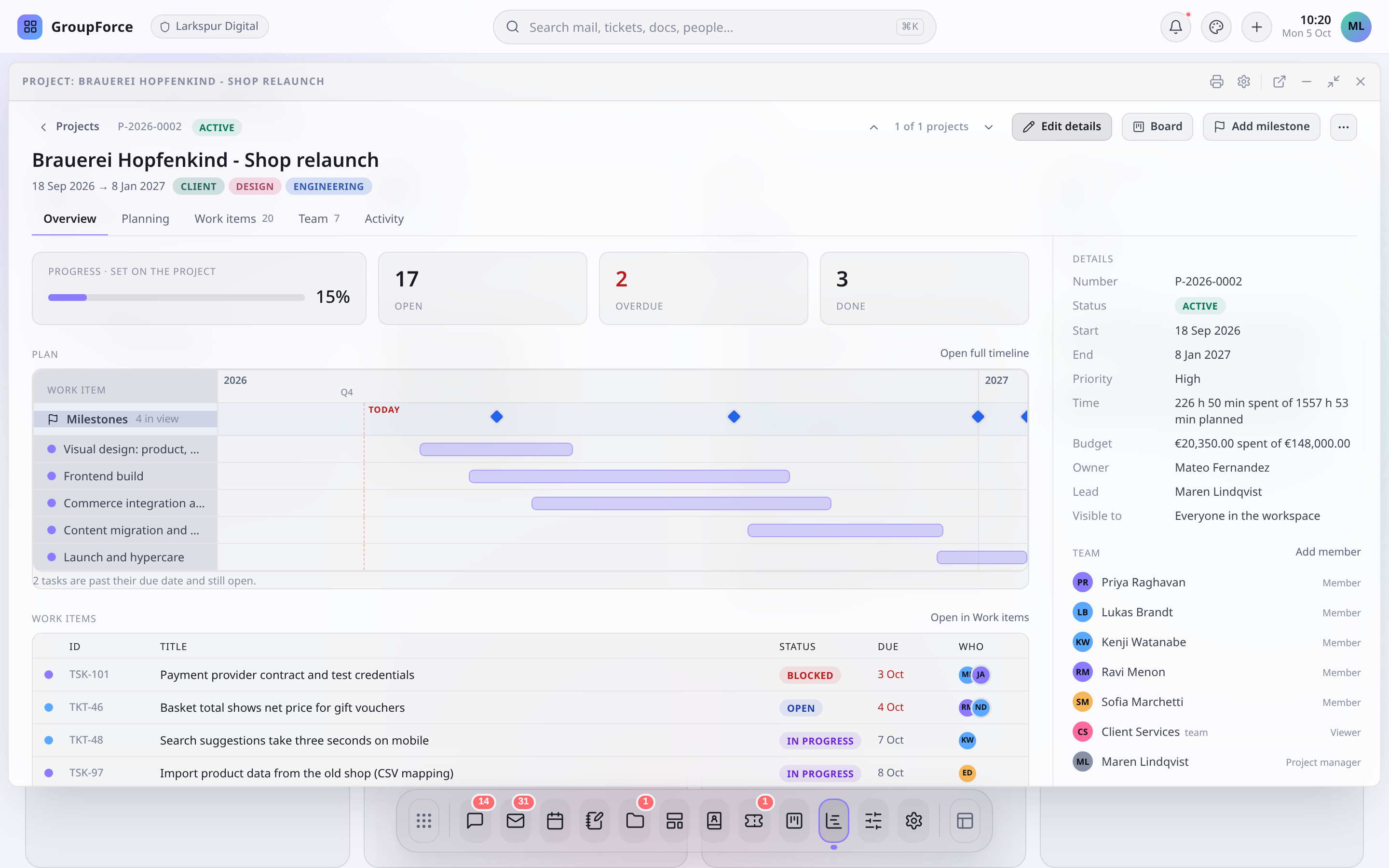
Open a project (Enter, double-click, or Open page) to get its page. The tabs are Overview, Planning, Work items, Team and Activity. Board opens the Kanban window on this project, and Add milestone adds a milestone work item with a name and a due date.
Planning is the Gantt chart. Each work item you can see is a bar from its start date (or the day it was created) to its due date. The bar is filled by what its status means: Done fully, In progress halfway, Not started empty. Choose a Zoom (Week, Month, Quarter, Year), group bars by None, Status, Assignee or Type, show a Milestones lane, Hide done, and set the Range (around today, everything, or a year). Work without a due date is listed in the Unscheduled panel because it cannot be drawn.
The Gantt is read-only. Clicking a bar opens the work item; you cannot drag a bar to reschedule it. Change the dates on the item. The Activity tab is built from the items themselves (mail linked, work added, work moved to done, milestone set) and is not the audit history.
What's next
Work items and boards: Work items: types, assignees and boards. Next in the docs: Documents: files, sharing and notes.