Administering your workspace
A workspace administrator decides who is in the workspace, what they can reach, and how the apps behave. This page walks through each control: roles, people and groups, the settings tabs, organization visibility, tags, apps, access tokens and their scopes, and what the console shows. Everything here is in Workspace settings unless it says otherwise.
Before you start
- You hold the Administrator role in the workspace. Members can open most of these screens and read them, but the server only accepts changes from administrators.
- You know where it lives: Workspace settings has one tab for each app that has settings (People, Groups, Contacts, Notes and so on).
- For plan, seats and invoices, see the console at console.groupforce.org: it is covered at the end of this page.
The Administrator role
A workspace has exactly one role, Administrator. Everyone else is a Member. There are no finer-grained admin roles: what an administrator can do, every administrator can do.
The first administrator is the person who bought the workspace. To add another, open Workspace settings → People, open the person, and turn on the switch under Role. The console's Workspace page does the same thing under Administrators with Add administrator, and offers Remove next to each administrator as long as there is more than one. The workspace always keeps one: the last administrator cannot be deactivated or marked inactive.
In some apps administrators also see more than members do: every organization in Contacts, every project, and the records of every installed app. In the others a member sees only what the app's own rules give them.
You cannot change your own role or status from People. The buttons are not offered on your own row, so you cannot lock yourself out by mistake. Ask another administrator.
What each settings tab controls
| Tab | What you decide there |
|---|---|
People |
Add users, change a person's status, role, password, group membership and visibility, see their sign-ins and mailboxes, and remove them for good. |
Groups |
Create groups, choose members and delegates, set what a group's shared address book and calendar allow, the default group, and a shared folder in Documents. |
Contacts |
Whether address books share their organizations or each keeps its own. |
Notes |
Note templates. A template is copied into a new note; the default one is used for New note. |
Calendar |
Rooms. People book them from the Calendar, and two bookings of one room cannot overlap. |
Documents |
Which document editor opens Word, Excel, PowerPoint and OpenDocument files, and a list of file locks you can break. |
Printing |
Print templates: the layout of the PDF the print button makes for each kind of record. |
Work items |
Statuses of work items and projects, in the order they are offered, and what each one means. |
Projects |
Project roles that every project offers, and the workspace's one currency for project budgets. |
Tags |
The colour each tag is drawn in on work items, projects, notes and app records. |
Apps |
Install, switch on or off, configure and remove apps. |
People: adding, pausing and removing
Add user asks for a full name, a login, an email, an initial password, and a checkbox to make the person an administrator. Give the password to them privately; they can change it in their own settings. Passwords are 8 to 72 bytes long. Your plan's seat count limits how many active accounts the workspace can hold: when you reach it, adding another is refused with "the seat limit is reached". Add seats in the console (see Seats and proration).
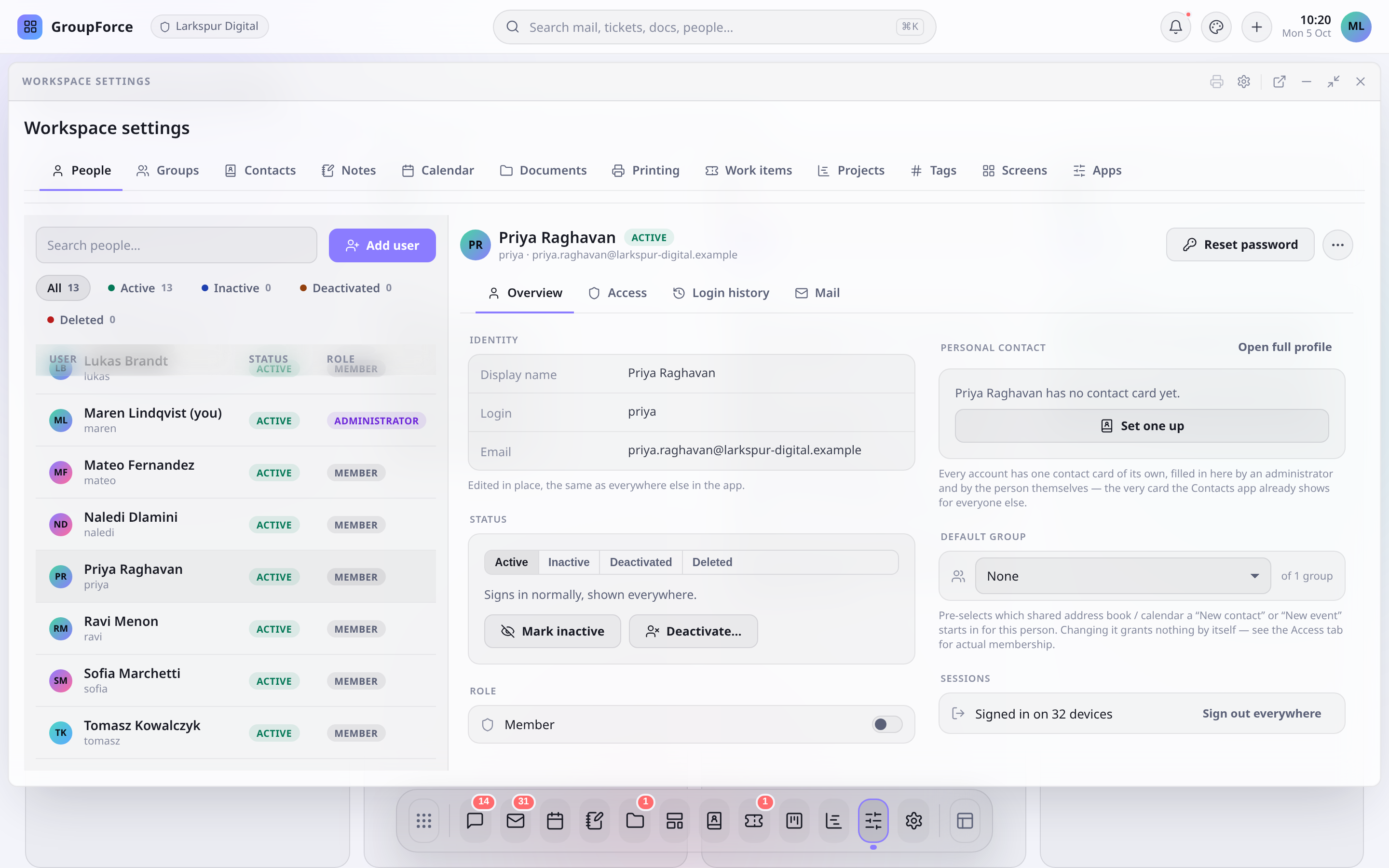
Click a person in the list to open them beside it. The card has four tabs: Overview (identity, status, role, personal contact card, default group, sessions), Access (group membership, password, visibility), Login history and Mail.
The four statuses
| Status | What it means |
|---|---|
Active |
Signs in normally and is shown everywhere. Counts against your seats. |
Inactive |
Paused on purpose: a leave of absence, a seat put on hold. Cannot sign in. Still shown in the directory, marked "Inactive". Not offered when assigning work. |
Deactivated |
Signed out everywhere at once, and cannot sign in. Their records stay. Reactivate any time to undo it. |
Deleted |
A grace window before purging, shown only under the "Deleted" filter. Reactivate to undo it. An account must be deactivated or inactive before it can be deleted. |
Deactivating, marking inactive or deleting an account ends all its sessions and all its personal access tokens in the same step. Reactivate brings the account back but not the tokens: the person signs in again and creates new ones.
Reset password (top of the card) sets a new password directly, without the old one. The person is signed out everywhere and their access tokens stop working. Sign out everywhere under Sessions ends browser sessions only; tokens stay valid. The Invisible switch under Access hides an account from the directory and from people pickers and @mentions. It is separate from status: a shared-inbox or service account can be active and invisible. Invisible is not an access rule.
Purging an account
Purge is the end of the road and only works on a deleted account. It removes the account from every group and erases it. The dialog first lists what the person still owns, and lets you choose another active person under "Give what they owned to".
What happens to what they own depends on the app:
| App | On purge |
|---|---|
Mail, Contacts |
Moved automatically to the person you choose: mailboxes (with their connection details) and the contacts and lists they own. |
Work items, Calendar, Documents, Notes |
Counted, and purge is refused while any remain. Reassign or delete them first, as you would today. |
Chat, Calls |
Not checked by purge. |
Purge cannot be undone. If a part of the move fails, nothing is half-moved: the purge is refused and the dialog shows the server's reason.
Mailboxes and signatures on someone's behalf
The Mail tab of a person lists the mailboxes they have connected. As an administrator you can add, edit, test and disconnect any of them, and open one to set its connection details, sender addresses, signature, away message and filter rules for them. Passwords stay encrypted and are never shown to anyone, you included.
Login history and the record of changes
The Login history tab shows the last 50 sign-in attempts on that account, newest first: when, from which IP address, with which device, and the outcome. Outcomes are "Signed in", "Wrong password" and "Account was inactive". An attempt with a login that does not exist is never listed, since there is no account to attach it to. A person can read their own history; an administrator can read anyone's.
Each record (a work item, a note, an event and so on) has its own history of who changed what, which anyone who can read the record can see. There is no workspace-wide audit view for administrators today.
Groups and delegates
A group is a named set of people. Work can be assigned to it, notes can be shared with it, and it owns a shared address book and calendar that every member sees. Names are unique regardless of capitals. Open Groups to create one with a name and description; the name and description are edited in place afterwards.
| Setting | Effect |
|---|---|
Members |
Who is in the group. Administrators and the group's delegates can change this list. |
Delegates |
People who may add and remove this group's members, and nothing else, without being administrators. Only administrators choose delegates. A delegate manages members from the Groups app, which shows only the groups they are a delegate of. |
Make default |
At most one group is the default. Every new account joins it automatically. |
Permissions |
Four switches: members may add contacts, may change and delete any contact, may add events, may change and delete any event. Everyone in the group sees the shared book and calendar. Whoever adds a contact or event can always change it. |
Documents |
Whether the group has a shared folder in Documents. Switching it off hides the folder; the files are kept and come back when you switch it on. |
Usage |
What still points at the group. A group that work items, projects, notes, contacts, events or files still use cannot be deleted; you are told which, and nothing changes. |
Each person also has a Default group on the Overview tab. It only decides which shared address book or calendar "New contact" and "New event" start in. It grants nothing; membership does.
Organizations and address books
Under Contacts you choose how organizations (the companies contacts work for) behave. There are two choices:
| Choice | Effect |
|---|---|
Shared across address books |
One organization serves every address book. Someone sees an organization when they see a contact in it. A new, empty organization is visible only in the address book it was made in. |
Separate for each address book |
Every address book, each person's own and each group's, has its own organizations. A contact moved to another address book takes its organization along. |
Switching asks you to confirm, and says what will happen. Going to separate copies every organization into each address book that uses it. Going back to shared merges organizations with the same name into the oldest one and moves their contacts; the organizations' own fields are not merged. Administrators see every organization either way.
Tags
Tags are free text that anyone can put on work items, projects, notes and app records. The Tags tab gives a tag a colour, so it looks the same everywhere: pick the tag, pick a colour, or choose "No colour". A tag with no colour is shown plain.
Statuses, projects and currency
Under Work items there are two lists, one for work items and one for projects. Each status has a name, a colour and what it means, which decides whether work with that status counts as finished. Boards, the dashboard and the Gantt chart read the meaning from there. You can reorder statuses, and the first one offered is where new items start.
A status can be archived: it is no longer offered, but items already in it keep it and history keeps its name. To archive one that is in use, you choose the status its items move to. Only a status nothing has ever been in can be deleted outright.
Under Projects, the Project roles list holds the roles every project offers. A project is open to its owner, to administrators, and to members who hold a role on it, and each role says what its holders may do. A project can add roles of its own. Currency sets the one currency project budgets are in.
Installing and managing apps
Apps add views, record types and processes to the workspace. They are built in App Studio or written as packages, and App Studio is also where you manage them: its home lists the apps built here, the apps installed, and, under Available from this server, the apps your platform operator ships. Import a package takes a package file. An app installs only from a package signed through groupforce's authority; nothing else installs. Installing is open to every plan; building and publishing apps, and App Studio itself, depend on the plan.
Before anything is installed, a dialog shows the app's name, version, publisher and the certificate it was signed with, what it adds, and what it asks to be allowed to do. If it runs code on the server, the dialog says so. A package that is refused lists every problem found. Installing an app that is already there is allowed only when the new version is higher and the publisher is the same; to replace an app from another publisher, uninstall it first.
| In the app's menu | What it does |
|---|---|
| Switch | Turns the app on or off for everyone. A switched-off app's records can be read, not changed. |
| Open | Opens the app's window. |
| Settings | Shown if the app declares settings. Each is a choice the app cannot make for you: for example which group plays a role in the app's steps. Only administrators change them, and a step that needs a setting nobody has set is refused. |
| Make a copy to edit | Makes a draft of the app in App Studio. An installed app is never edited in place; the copy is. |
| Browse records | Browse the records the app holds. |
| Who can use the records | Choose, per record type, the groups that may read and change the records and hear about changes. Administrators always can. |
| What it may reach: work items, projects | Shown only for an app that asks to read or change work items or projects. Until you choose, the app reaches none of them. You choose per entity and per right: nothing, only the items of chosen projects (and optionally items that belong to no project), or every item, which includes items people cannot see. Every change is logged. |
| Uninstall | Removes the app for everyone. Installing it again brings it back, but not the records it held: those are deleted with it. |
If you build apps yourself, start at Building custom apps; Installing and updating apps goes through the review dialog line by line.
Rooms, documents and printing
Calendar → Rooms lists the rooms people can book. Removing a room is refused while it has bookings to come; past bookings stay on the calendar. Documents lets you pick the editor for Office files from the editors your installed apps offer; with none installed you are told so. The File locks list shows locks that programs have placed on files in a mounted folder. If a program crashed and left one behind, break it to let others save. Breaking a lock that is genuinely in use lets two people overwrite each other.
Printing lists the layouts the print button in a window's title bar uses. Each kind of record has a built-in one. To make your own, upload an ODT text document (up to 5 MB, checked when you add it) with tags where values go; download a built-in one to start from it. Anyone who had chosen a template you delete prints with the default again.
Personal access tokens and their scopes
A personal access token (PAT) lets a script, a file-sync client or a calendar app act as one person without their password. Tokens are made under Settings → Tokens: choose a name and the scopes (each has a line in plain words) and an expiry (one year by default), then copy the secret, which is shown once. A person sees their own tokens and can revoke them; an administrator can switch the list to every token in the workspace and revoke any of them. A token cannot make another token. On the Basic plan only the contact and calendar sync scopes can be chosen. Scripts can also make one through the API: Using the HTTP API.
A token always belongs to one account and can never do more than that account can. Its scopes can only narrow it:
| Scope | Lets the token |
|---|---|
read |
Read through the HTTP API (GET, HEAD, OPTIONS) and open the realtime connection. |
write |
Use every other method of the HTTP API. It does not include reading: a token that must do both needs both scopes. |
webdav |
Mount the person's files over WebDAV. Nothing else. |
carddav |
Sync contacts with an address-book app. Nothing else. |
caldav |
Sync events with a calendar app. Nothing else. |
Things worth knowing as an administrator:
Tokens have no expiry. The owner or any administrator can revoke one, but there is no list of tokens, so revoking needs the token's id. To cut off everything a person holds in one step, deactivate them or reset their password: both stop all their tokens at once. A person changing their own password ends their sessions but leaves their tokens alone. A token cannot create another token; creating one requires a sign-in.
If the workspace is suspended for non-payment, every token stops working, administrators' included, and so do realtime connections and mounted folders. Administrators can still sign in to the console to put things right.
What the console shows
The console at console.groupforce.org is where an administrator manages the subscription. Sign in with the workspace's sign-in name, your login and your password. Only administrators of that workspace can use it. It has four pages:
| Page | What it shows |
|---|---|
Overview |
A greeting, a "To do" list when something needs you (for example a failed payment), recent activity, and a getting-started checklist. |
Plan and seats |
Seats in use and bought, a preview of what a change would cost before you confirm it, and the plan options. |
Billing |
Payment method, billing details, and every invoice with a PDF download. |
Workspace |
Name, administrators, a data export request, and cancelling the subscription. |
The side menu also has links back to the workspace and to its people. How buying, paying, renewing and cancelling work is in Buying and paying for a workspace.
The console can add and remove administrators, but not other people: use Workspace settings → People for that.