Keys, certificates & signing
Every app is a signed package, and the signature is the reason a workspace can trust it. This page says what a signature says, then takes the two ways to become someone whose packages workspaces will install: in App Studio, with a key made in your browser, or with the gfpkg command line.
What's inside a .gfpkg
A package is a plain ZIP: app.json, the files it names, and META-INF/statement.json plus META-INF/signature.json. The statement lists the app's id, its version, the time it was signed, and the SHA-256 of every file. The signature is an ECDSA P-256 (ES256) signature over that statement, with the publisher's certificate chain beside it. The public chain is not secret and travels in every package.
Reading one back is deliberately defensive: 50 MB per package, 2,000 files, 20 MB per file and 100 MB unpacked in all. Sizes are counted while unpacking, so a zip bomb is caught by what comes out, not by the header. No path may leave the package, and case collisions, symlinks, encryption or a stray extra META-INF entry fail the read outright. Two builds of the same folder differ in the signing time, so the bytes are not identical.
What a certificate says
Three things live inside the certificate itself, signed by the authority your workspace trusts. The package being installed decides none of them:
| It says | How |
|---|---|
| Who | The subject: an organization and a name. |
| Which namespace | A subject alternative name URI, gf-ns:com.acme. An app's id must equal a namespace or start with it plus a dot: com.acme.field-ops yes, com.other.x no. |
| What it may ship | Extended-key-usage OIDs under the authority's arc: the class. |
| OID suffix | Class | Covers |
|---|---|---|
<arc>.1 |
ui | Views, components, styles, models, processes, automations, extensions: everything that runs in the browser sandbox or is plain data. |
<arc>.2 |
server | Code that runs on the platform's own servers: routes, hooks, guards, timers. A server certificate also covers ui. |
<arc>.3 |
dev | The development class, used only for previews (see below). Never accepted when installing. |
A manifest that declares server code but is signed with a certificate that carries only ui is refused: not silently downgraded, not partly installed. The arc itself is configuration, never hard-wired: development uses a public example arc, and a production installation sets its own, so a certificate built for the example arc cannot be replayed against a real workspace.
Certificates are short-lived: 365 days by default. An installed app keeps running after its certificate expires, but publishing an update needs a valid one, and it must come from the same signing organization as the version installed.
Becoming a publisher
A workspace trusts only the certificate authority its operator configured: neither a workspace administrator nor a developer can add another root, and an unsigned package is never an option. So everyone who publishes asks that authority for a certificate, and the operator decides. What differs is how the request is made.
| You tell the operator | The operator decides |
|---|---|
| Your organization, and a contact they can reach | Whether to issue a certificate at all, after whatever vetting they do |
The reverse-DNS namespace you control, such as com.acme |
That the namespace is yours and not already another publisher's |
| Whether you ship views and data only, or server code too | Which classes the certificate carries; server is granted separately because that code runs on the operator's machines |
- Path 1, in App Studio. You make a key in your browser and send a certificate request; the operator signs it. For a key held in a browser the class is normally
uionly. - Path 2, with the CLI. You hold a key and certificate made with
gfpkg. This is the way to aservercertificate, and the way for CI and hardware keys.
Both need the Pro or Business plan to ask the platform for a certificate (see the end of this page).
Path 1: the Keys wizard in App Studio
On the App Studio home, Publishing key opens the key page. It is a wizard of four steps, set up once per person; a finished step can be opened again, one not yet reached cannot. A strip above the step names the key and lets you unlock or lock it.
- Create the key. Give it a name and a password, repeat the password, choose Create key. It takes a few seconds: the password is stretched to be slow to guess. You can also Import key file.
- Save the encrypted key. Download key file saves it, and Keep in this browser or Remove from this browser controls the copy the browser holds. The step is done when you check the file: choose it and open it with your password. Skip the check exists; it is not forced.
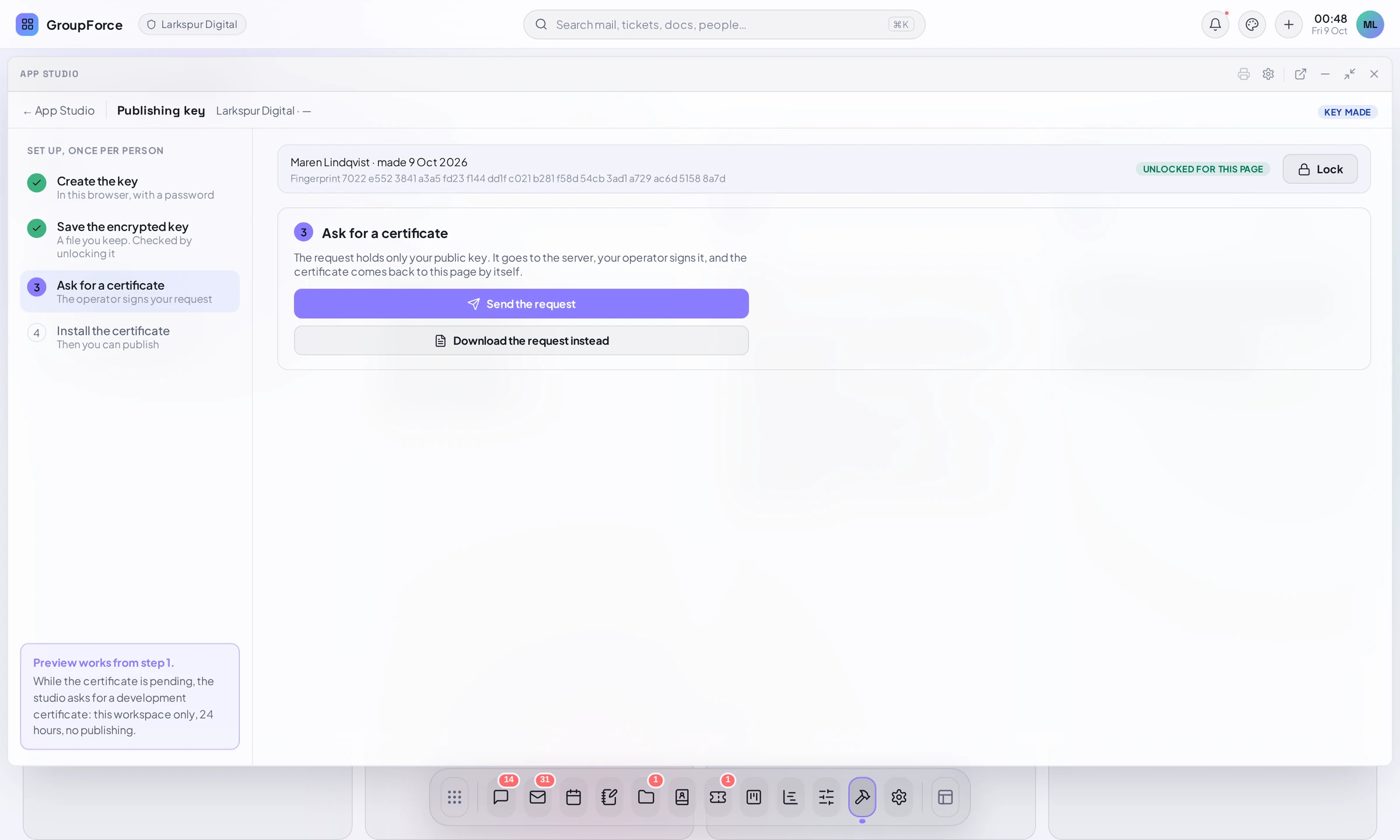
- Ask for a certificate. Send the request builds a certificate request in the browser, signed by the unlocked key, and sends it to the server. Download the request instead gives you the file for an operator who is not reached through the server.
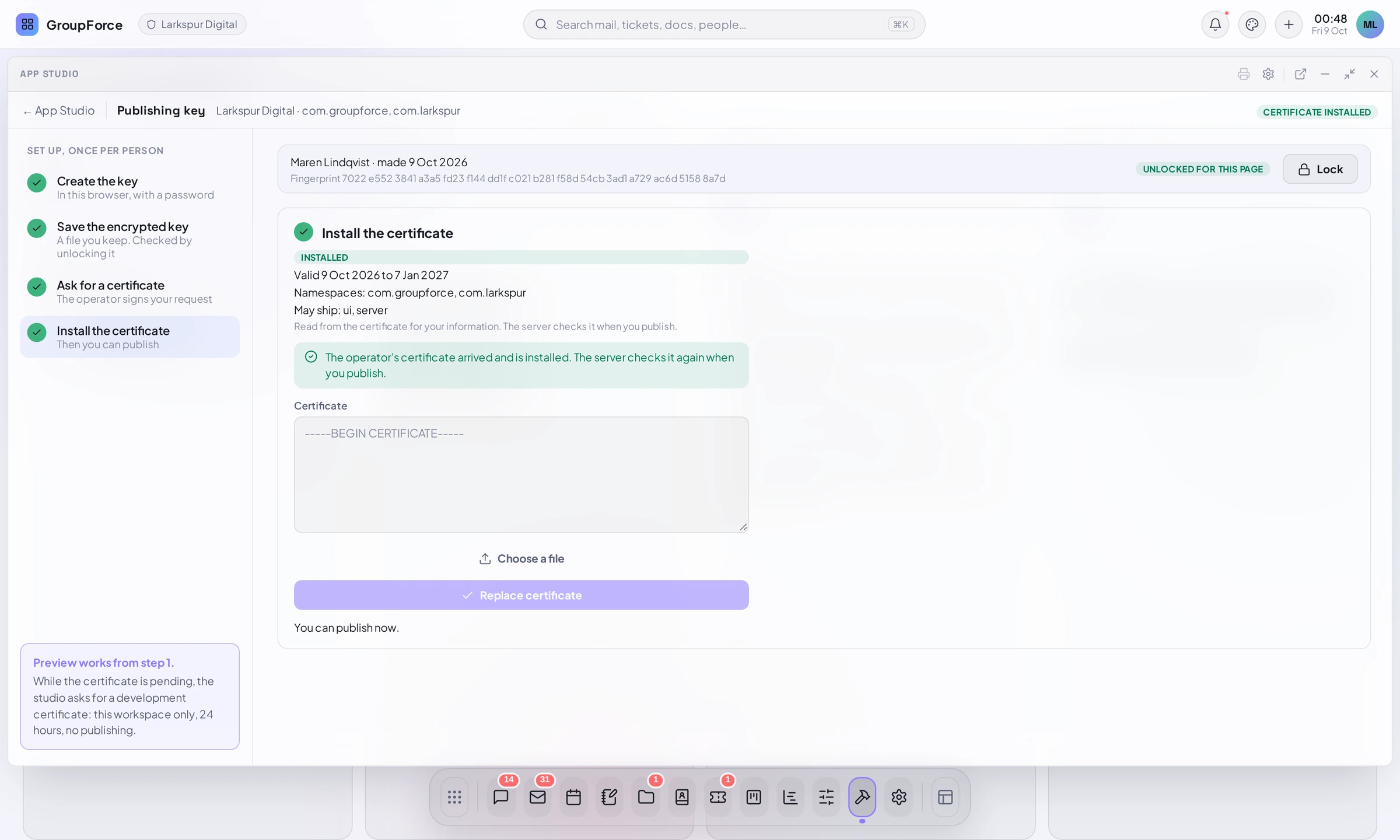
- Install the certificate. You paste nothing: when the certificate comes back, the browser reads it, checks it is for this key, is not a development certificate and has not run out, stores it and shows what it says: Valid dates, Namespaces and May ship. One that fails the check is shown with the reason and is never installed.
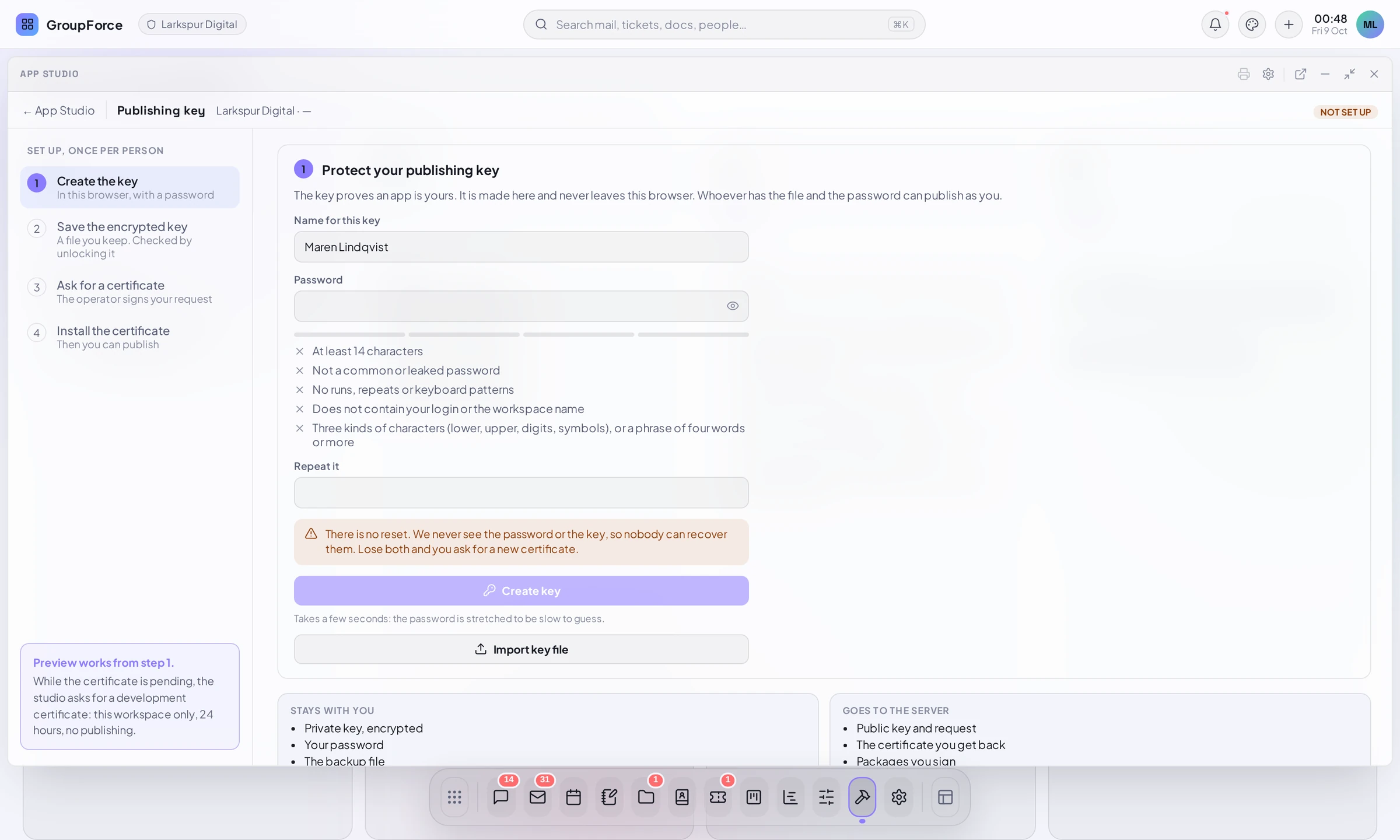
Password rules
The server never sees the password, so these rules are a guard in the page; the real protection is the cost of the key derivation. The page shows each rule live:
- At least 14 characters
- Not a common or leaked password
- No runs, repeats or keyboard patterns
- Does not contain your login or the workspace name
- Three kinds of characters (lower, upper, digits, symbols), or a phrase of four words or more
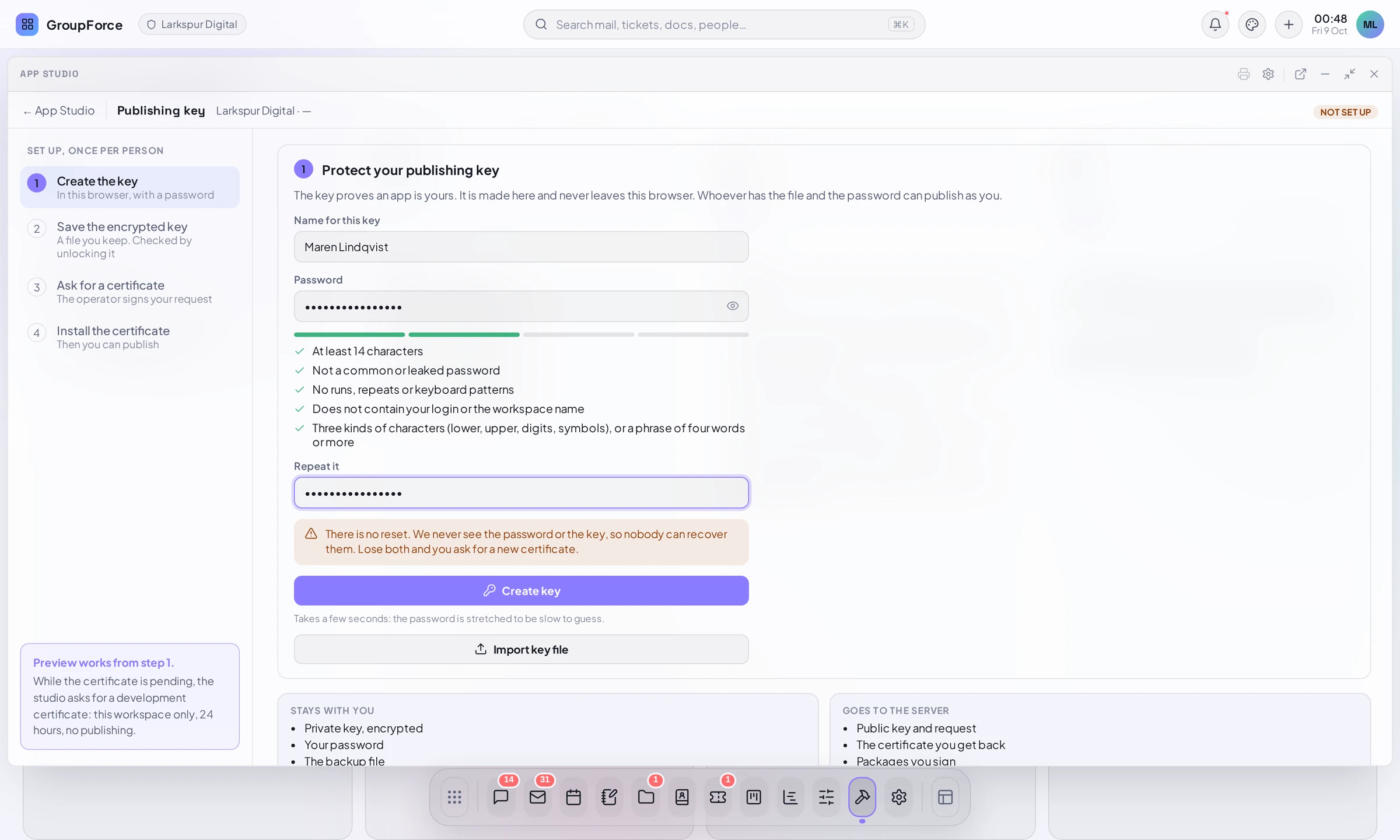
There is no reset. groupforce never sees the password or the key, so nobody can recover them. Lose both the key and its saved file, or forget the password, and you ask for a new certificate with a new key. Whoever has the file and the password can publish as you, so keep both safe.
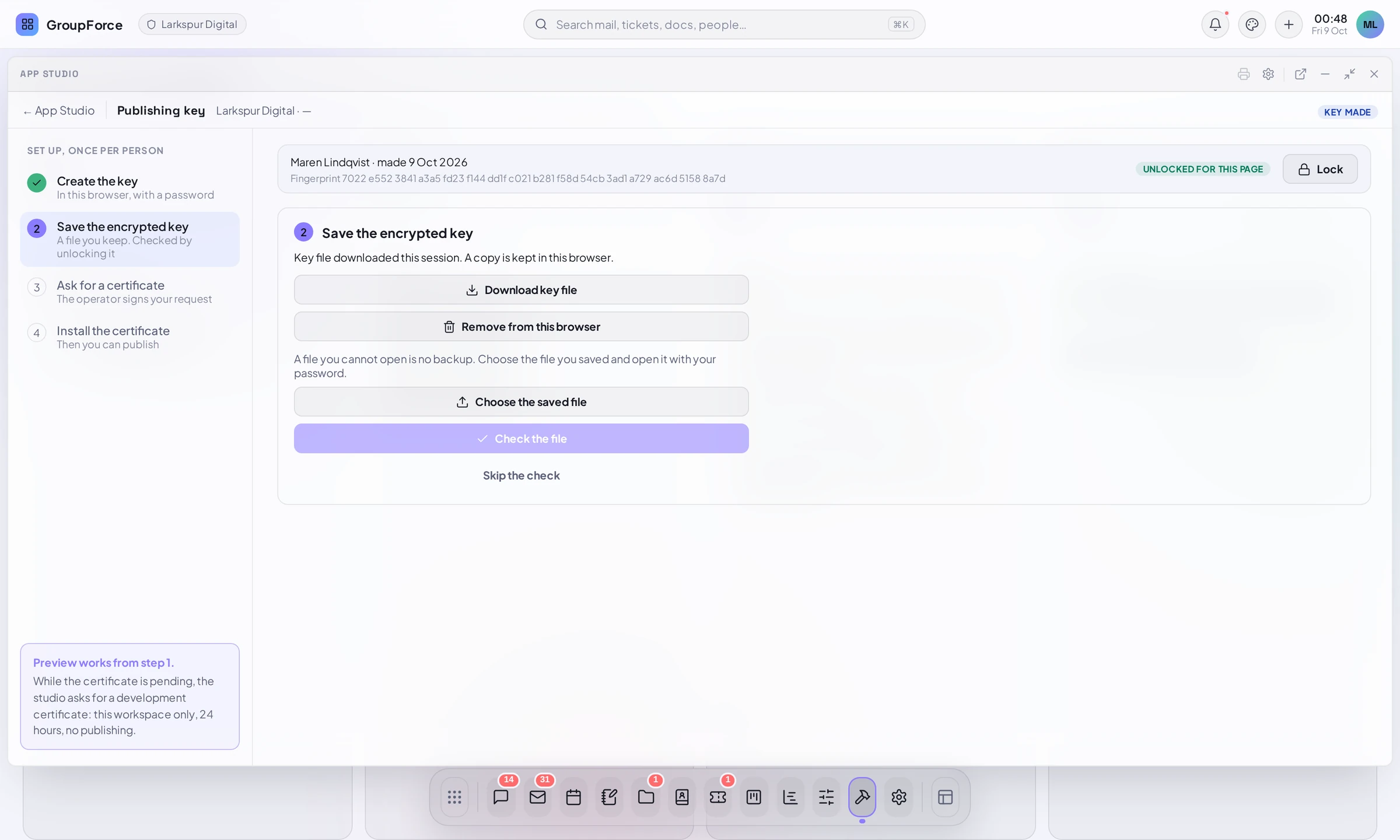
The request and the certificate
A request holds only your public key and proves you hold the private key; it carries no password and no private key. The page then waits, looking every few seconds and when you open it. While it waits you can Check now, Download the request, Withdraw the request, or install a certificate you were given as a file with Have the certificate as a file? Install it by hand. Asking again for the same key is the same request.
What the operator does
In a real installation a person signs your request. The operator has a certificate queue, with every workspace's requests under Waiting, Issued, Refused and All, and a log of every request. Opening a request offers three answers:
- Sign and deliver (under "Sign with" the authority), when groupforce has an authority to sign with: the operator sets name, organization, namespaces (suggested
com.<workspace>, what App Studio gives a workspace's own apps) and days. The class is alwaysui: a browser key never getsserverhere, whatever is typed. - Deliver a certificate signed elsewhere: download the request, sign it with
gfpkg ca sign-csron the offline authority, paste the PEM. This is how a key gets aservercertificate. - Refuse, with a reason.
You see the answer on the Keys page. A refusal shows its reason and Send the request again, which reopens the same request. An issued certificate installs by itself. A delivered certificate needs no operator login because it authenticates itself: it must chain to the trusted authority, be valid now, not be revoked, be a package-signing certificate that is not a development one, and match the key you requested. Publishing checks it again. The server stores only public things: requests and certificates.
Automatic issuing in development
A development installation can be set up to sign every request the moment it arrives, so Send the request ends with the certificate installed at once and the page says the development authority issued it. That is what the screenshots on this page show. It is a development setting: groupforce refuses to start with it in a production environment, and the operator's queue shows a warning banner while it is on. An operator who may answer requests can pause it, so requests wait in the queue again until the next restart.
The operator also chooses which classes an automatic certificate carries, ui by default. The screenshots show ui, server because this installation is set to both. An installation set that way hands server certificates to anyone who may develop apps, with no review, which is why production does not. Do not expect it on a production installation: there an operator signs, and a server certificate comes through the CLI or a hardware key.
The development certificate for previews
A preview needs a signed package too, and you may not have a production certificate yet. So Preview works from step 1: while the certificate is pending, the Studio asks for a development certificate for your public key and signs the preview package in your browser with your own key. The server never signs a package.
- It is valid for 24 hours at most, bound to this workspace and your account, and is issued only to a workspace administrator, at most 20 an hour.
- It comes from a separate development authority that production never trusts, so it cannot mint a package a production workspace installs.
- It carries the
devclass:uicapabilities. A package signed with it installs only into your own preview slot, is never publishable, and installing it elsewhere is refused withdev_certificate. - Server code in a preview is the one exception to
uionly, and only for the development verifier: it runs when the container engine is on, in the preview's own records, with notifications delivered to you alone, in the test engine. It never counts as aservercertificate.
Path 2: the CLI and offline keys
gfpkg is the tool for the operator and for authors who hold their own keys. The commands:
| Command | What it does |
|---|---|
gfpkg ca init |
Makes an authority: a self-signed root, or with --intermediate-of an intermediate. Keep its key offline. |
gfpkg ca issue |
Issues a publisher certificate and key under an authority: --ns namespaces, --class ui and/or server, --days (default 365). Writes key.pem and cert.pem. |
gfpkg ca sign-csr |
Signs a request made elsewhere, such as the one App Studio builds. Nothing in the request but the public key is used: subject, namespaces, classes and validity are the operator's flags. Never class dev. |
gfpkg build |
Validates the manifest, checks it against the certificate (class, namespace, key, validity), signs, and writes the package. With --root it also runs the server's whole verification. |
gfpkg verify |
Runs the checks an installing workspace runs against a root you give. |
gfpkg inspect |
Shows what a package claims, marked NOT VERIFIED. Trusts nothing. |
gfpkg ca issue --ca ca --out acme \
  --cn "Acme release" --org "Acme Ltd" \
  --ns com.acme --class ui,server --days 365

gfpkg build --dir ./field-ops \
  --cert acme/cert.pem --key acme/key.pem \
  --root groupforce-root.pem \
  -o field-ops.gfpkg
gfpkg verify --root groupforce-root.pem field-ops.gfpkg
Keep key.pem secret. If the key of a certificate leaks, tell the operator: the certificate goes on a revocation list the servers re-read without a restart, and packages signed with it stop installing. Revocation is checked when a package is installed or updated: an app already installed keeps running. Revoking an authority revokes everything it issued.
The build fails if the manifest's id falls outside the certificate's namespace, or if it declares server code and the certificate carries only ui. Check that before assuming the tool is broken. The build includes every regular file in the folder, including editor backups, and a symlink is an error: build from a clean folder.
Why an install is refused
Every workspace runs the same checks at install, and a refusal names the reason:
| Reason | What it means |
|---|---|
malformed |
Not a valid package: bad ZIP, a path leaving the package, over the size limits. |
unsigned / untrusted |
No signature, or the chain does not lead to a trusted root, or the certificate is not a package-signing one. |
expired / revoked |
The certificate is out of date (verification uses the current time, not the signing time), or is on the revocation list. |
tampered |
A file differs from what was signed, or one was added or is missing. |
class / namespace |
The manifest declares server code without the server class, or the id is outside the certificate's namespaces. |
manifest / unsupported |
The manifest is invalid, or needs a newer contract than this workspace offers. |
dev_certificate |
Signed with a development certificate, which is for previews only. |
Who may get which class
| Key | Class it normally gets | Where it comes from |
|---|---|---|
| A key made in App Studio, in a browser | ui |
The operator signs your request in the certificate queue; signing there is always ui. |
| An offline or hardware key, or a CI key | ui or ui,server |
gfpkg ca issue or ca sign-csr by the operator. |
| A browser key in a development installation set to issue both classes automatically | ui, server |
The development authority, automatically. Never in production. |
| Any key, for a preview | dev |
The development authority, for 24 hours, this workspace and account. |
So in production, an app with server code is signed with an operator-issued server certificate, and the installing workspace still reviews it: the install review carries a warning for server code.
What plans gate it
A workspace whose plan says no gets 403 with a sentence naming the plan.
| Plan | What it opens |
|---|---|
| Building and publishing (Pro, Business) | Certificate requests (create, list, deliver, withdraw) and publishing a draft. Without it the operator has nothing to sign. |
| App Studio (add-on on Pro, included in Business) | Drafts, previews, development certificates and publishing from a draft. |
| Installing apps (every plan) | Installing a signed package. |
gfpkg is not tied to a plan. Prices are in the pricing guide.