A quick tour: your first hour in groupforce
This is the first hour in a groupforce workspace: how to get in, what the screen is made of, which apps are there, and where your own settings live. Nothing here needs set-up beyond an account that someone has already made for you.
1. Sign in
Your workspace lives at https://<workspace>.groupforce.org, where <workspace> is the short name your organisation chose when it signed up. Open that address and you get the sign-in screen with three fields:
| Field | What to enter |
|---|---|
| Workspace | The short name of your organisation's workspace (the same <workspace> as in the address). The browser remembers the last one you used on that device. |
| Login | The login your administrator gave you. It is not necessarily your e-mail address. |
| Password | The initial password your administrator gave you, or the one you have set since. The eye icon shows what you typed. |
The sign-in form asks for the workspace even when you opened it from your workspace's own address, so type it if the field is empty. Sessions last 24 hours; after that you are shown the sign-in screen again with the note "Your session ended". Several wrong passwords in a row are refused for a while ("too many failed sign-in attempts; try again later").
Change the initial password first: user menu (top right) → Settings → Password. You enter the current password, the new one twice, and all your sessions end, so you sign in again with the new password. A password is 8 to 72 bytes long. There is no "forgot password" link on the sign-in screen: if you are locked out, your workspace administrator sets a new one for you (see Inviting your team).
2. The desktop
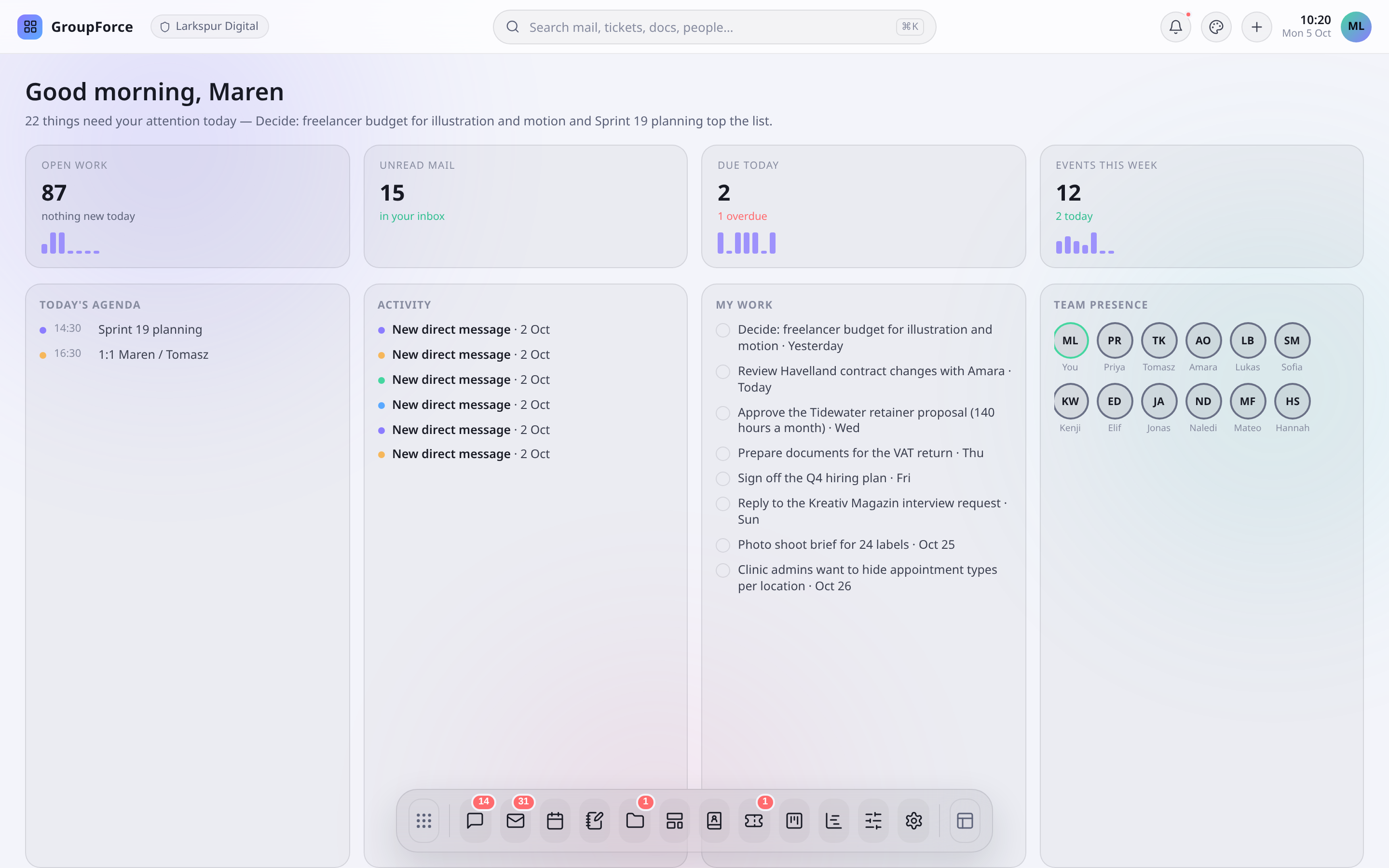
groupforce is one browser page that behaves like a desktop. Every app opens in a window that you can drag, resize, minimise and maximise; several can be open at once. When you come back, the windows you left open are restored where you left them.
| Where | What is there |
|---|---|
| Top bar, left | The brand and your workspace's name. |
| Top bar, middle | The search box: "Search mail, tickets, docs, people…" (see below). |
| Top bar, right | Notifications bell, theme switcher, a + menu to start something new, a clock, and your account menu. |
| Account menu | Profile, Settings and Sign out. |
| Bottom: the dock | One icon per app. The first button opens the launcher with every app; the last one arranges windows. |
| Behind the windows | Your dashboard: a greeting and an overview of your day. |
The dock
Click an app's icon to open it. Click it again while it is in front and it minimises; click it while it is minimised and it comes back. Small marks under an icon show how many windows of that app are open (up to three), and a count on Mail, Calendar, Work items and so on shows unread notifications for that app. Hold the pointer on an icon for a moment to list its windows.
- Reorder the dock by dragging an icon sideways, or with Alt plus the left or right arrow key on a focused icon.
- Right-click an icon for Open, New window, Move left / Move right and Remove from dock (or Show in dock).
- The launcher (the dock's first button) lists every app, including ones you took out of the dock, and has its own search field. Your dock arrangement is saved to your account, so it follows you to other browsers.
A window can be popped out into its own browser window. Those die with the page: if you close or reload the tab while one is popped out, your browser asks you to confirm first.
The dashboard
The dashboard under the windows is built only from things you are already allowed to see. It greets you ("Good morning, <first name>"), shows four numbers, and four small panels.
| Tile or panel | What it counts |
|---|---|
| Open work | Work items you can see that are not done. |
| Unread mail | Unread messages in your Inbox folders; "no mailbox connected" if you have not connected one. |
| Due today | Your open items due today or earlier; the line under it says how many are overdue. |
| Events this week | Calendar events from Monday on, with how many are today. |
| Today's agenda | Today's events in time order; a row opens Calendar. |
| Activity | Your newest notifications; a row opens the record. |
| My work | Up to eight open items assigned to you or to one of your groups, soonest due first. The circle marks one done. |
| Team presence | Up to twelve active colleagues, with a green ring for those who have groupforce open. |
3. The apps
What you see in the dock depends on your workspace, but a standard workspace has these:
| App | What you do there |
|---|---|
| Chat | Channels and direct messages, plus a conversation attached to a record such as a ticket or a note. Voice and video calls are started from a channel with its Start a voice call and Start a video call buttons. |
| Read and send mail from external mailboxes you connect (IMAP and SMTP), with folders, signatures, filters and vacation replies. Notifications also arrive in its unified inbox. See Mail & inbox. | |
| Calendar | Personal and group calendars, invitations, recurring events, rooms to book, import and export. See Calendar & scheduling. |
| Notes | Notebooks of notes that several people can edit live, with sharing. |
| Documents | A folder tree with personal, group and per-record folders, versions, share links and editing of office files in the browser. See Documents & notes. |
| Contacts | Address books (personal, group, shared), organisations and distribution lists. See Contacts, chat & calls. |
| Work items | Tickets, tasks and milestones with statuses, assignees (people and groups) and followers. See Work items & kanban. |
| Kanban | Boards of the same work items. |
| Projects | Projects with roles and a plan. See Projects. |
| Settings | Your personal settings (below). |
Two more appear only for some people: Workspace settings for administrators, and Groups for people who are a delegate of a group (they can add and remove that group's members). Apps your workspace has installed from signed packages show up as extra icons next to the built-in ones; see Building custom apps.
4. Search, the plus menu and notifications
- Search. Press Cmd+K (Ctrl+K on Windows and Linux) from anywhere. Type at least two letters; results are grouped by kind (work items, contacts, notes, documents, events, mail, chat messages and more) and only show what you may see. Enter opens the highlighted hit in the app it belongs to.
- The + menu starts a new Contact, Mail message, Event, Ticket, Task or Note without first finding the right app.
- The bell shows how many notifications are unread. Click one to mark it read and open its record. Mark all as read clears the list, and Show older loads earlier ones.
5. Your settings
Account menu → Settings opens a small window with four tabs:
| Tab | What it controls |
|---|---|
| Appearance | Theme, accent colour, and whether windows animate when they open and close (and for how long). |
| Documents | Language, regional format for dates and numbers, and measurement units used by the office editor. Each can stay on Automatic. |
| Printing | Which print template you use for each kind of record, where the workspace offers more than the default. |
| Password | Change your own password. |
Account menu → Profile opens your own contact card, the one colleagues see in Contacts.
If you administer the workspace, Workspace settings (in the dock or launcher) holds everything that is set once for everybody: People, Groups, and tabs for Contacts, Notes, Calendar, Documents, Printing, Work items, Projects, Tags and Apps. People and Groups are covered in Inviting your team.
The settings window does not list your sessions or devices. Personal access tokens, which phones and sync clients use instead of your password, are made under Settings → Tokens. Ask your administrator if you need to be signed out everywhere: they can do it from your entry under People.
6. Where to get help
groupforce has no built-in help window. The guides in these docs are the manual: start with the one for the app you are in, and see Moving your team over if you are bringing mail, calendars and contacts from elsewhere. Things that only an administrator can change, such as accounts, groups, statuses and installed apps, are found in Workspace settings, so ask your administrator first. Billing and subscription questions belong to the workspace administrator's console at console.groupforce.org, which also gives [email protected] as the address to write to.