Connect your mailbox and work with mail
groupforce Mail works with the mailbox you already have. You give it the details of your existing IMAP and SMTP accounts, and it reads and sends through them. This guide covers connecting a mailbox, folders, writing and sending, signatures, filters and the away message, and linking a message to a work item.
Before you start
- An e-mail account you already have, with its incoming (IMAP) and outgoing (SMTP) server names
- The account password, or an app-specific password if your provider does not allow normal passwords for mail programs
- To use filters and the away message: a mail server that offers ManageSieve (details below)
Your mail stays on your own mail server
groupforce does not host mailboxes and it does not import your mail into a new store. The Mail app is a client for the mailbox you already have: it signs in to your own IMAP and SMTP servers with your login, shows what is there, and sends through your SMTP server. Moving a message, marking it read or deleting it is done on your mail server first, so your phone and any other mail program agree.
To show mail quickly and to make it searchable, groupforce keeps a working copy of the messages it has fetched: the headers, the original message and its text. Disconnecting a mailbox stops groupforce from using it and removes nothing from your mail server. groupforce also deletes its working copy of that mailbox: the messages, attachments, folders and search entries. Weekly backups made earlier keep it until they expire, after eight weeks. Connecting the same server again fetches everything anew, as a new mailbox.
A mailbox belongs to one person. A workspace administrator can set up, test and change a mailbox's settings and rules, and its owner can see them, but cannot open its mail or send from it.
Connect a mailbox
The first time you open Mail with nothing connected, a banner offers Connect a mailbox. Later, open the settings (the gear on a mailbox heading in the left rail) and use the + button, labelled “Connect a mailbox”. You can connect up to 5 mailboxes.
| Field | What to enter |
|---|---|
| Email address, Your name | The address, and the name recipients should see |
| Login name, Password | Your mail login. The login name follows the address until you change it. The same login is used for IMAP, SMTP and Sieve |
| Incoming mail server (IMAP), Port | Host such as imap.example.com. With the encrypted-connection box ticked the port is set to 993, otherwise 143 |
| Outgoing mail server (SMTP), Port | Host such as smtp.example.com. Encrypted: 465, otherwise 587 |
groupforce signs in to both servers before it saves anything, so a wrong password or host is reported right in the dialog and nothing is stored. Passwords are stored encrypted and are never shown again. Sign-in is by password only: there is no OAuth, so if your provider requires it, create an app-specific password.
A mail server on a public address must use an encrypted connection; an unencrypted login is refused. Servers on private network addresses are refused as well unless your workspace's operator has allowed them. Once a mailbox is connected, its server settings can be changed by a workspace administrator only (in Workspace settings, People, the person, Mail). To change them yourself, disconnect and connect again.
Reading mail
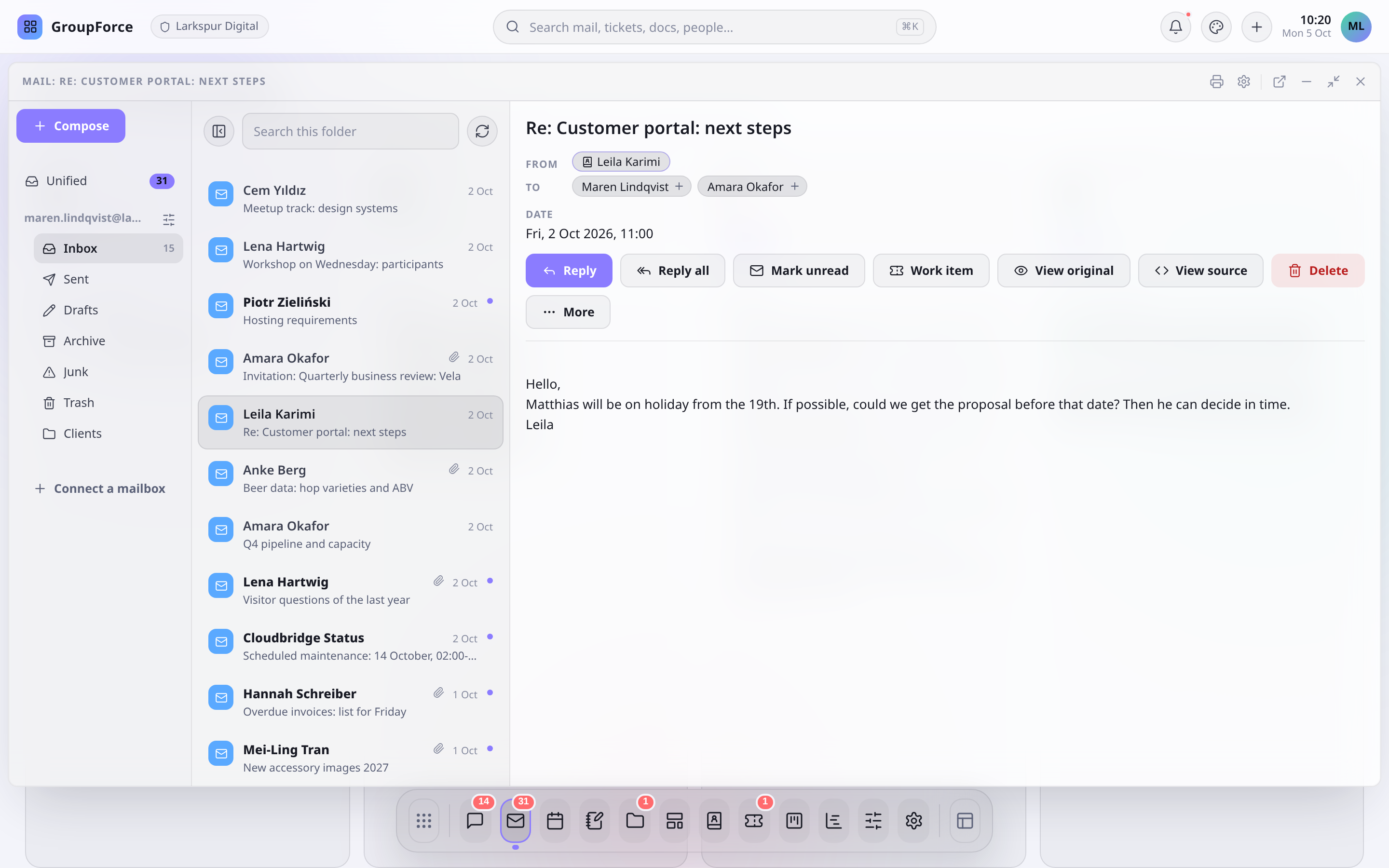
Mail opens on the unified inbox: the 50 newest Inbox messages of each connected mailbox, mixed newest-first with your notifications (assignments, mentions, reminders, invitations). It works even with no mailbox connected, showing notifications only. Pick a folder in the left rail to see its newest 50 messages and load older ones. The search box filters only what is already loaded.
New mail in the Inbox appears as it arrives. Opening an unread message marks it read on your mail server too.
A message opens in a reduced view: paragraphs, lists, tables, quotes, links, addresses and signatures are kept, but none of the sender's styling, scripts or images reach your screen. A link whose text says one thing and points elsewhere shows its real target next to it. Quoted text and signatures in replies are folded. When you need the sender's own layout, choose View original (sanitised, in a locked frame, remote images blocked) or View source for the raw message.
The copy in groupforce only grows. New messages are fetched, but things you do in other mail programs afterwards, such as marking a message read or deleting it, may not show up here. Changes you make in groupforce do reach your mail server and your other programs. A folder you subscribe to is brought in whole, newest messages first, in the background (the list says how far it has come); the Inbox is copied in full.
Folders and drag-to-move
Each mailbox in the rail shows its Inbox and the folders you subscribed to, as a tree with unread counts. You choose the folders in Folders in the mailbox settings: a checklist of what your server has (the Inbox is always on). Subscribing is also done on the server, so your other mail programs see the same subscriptions. Other subscribed folders are checked about once a minute.
| To | Do this |
|---|---|
| Move a message | Drag it from the list onto a folder in the rail, or use More, then Move to folder |
| Copy a message | Hold Ctrl (Option on a Mac) while dragging, or use More, then Copy to folder. The dragged item shows a duplicate mark |
| Delete a message | Delete moves it to your Trash folder; if it is already there, or you have no Trash, it is deleted for good. The dialog says which |
In Folders you can also tell groupforce which folders are your Sent, Drafts, Trash and Junk folders; Automatic uses the server's own marking or the usual names. Check the mail server for folders refreshes the list. Moves and copies work within one mailbox, one message at a time. You cannot create, rename or delete folders from groupforce.
Writing and sending
Compose, Reply and Reply all open the New Message window. Pick the sender in From (shown when you have more than one address), add recipients as pills (typing suggests contacts), and use Cc and Bcc when you need them. The editor has bold, italic, underline, lists, quote and link. Every message goes out as plain text plus a formatted version.
Attach files with the paperclip or by dropping them on the window: up to 25 files and 18 MiB in total. You can also drop a record from another window, and groupforce asks how it should travel: as a file (a mail as .eml, a document as itself), as a contact card (vCard), as an event (.ics), as a PDF printed from a template, as a JSON snapshot, or as a link that stops working after a time you choose (15 minutes to 7 days). Sending to another groupforce installation is listed but marked as coming later.
Drafts are not saved: closing the window with text in it asks you to discard. Sending happens at once through your SMTP server, with no outbox, so a connection that drops at the last moment can report an error for a message that was in fact delivered. And groupforce does not file a copy of what you send in your Sent folder. Providers that do it themselves (Gmail, for example) will show it; a plain self-run mail server may not.
Signatures
Open the mailbox settings, then Signatures. You can keep several named signatures per mailbox (for example “Short” and “Full”) and mark one Use by default. When a mailbox has more than one, the New Message window offers a choice, including none. The signature is added when the message is sent, after a standard “-- ” line, so receiving programs can fold it. Signatures are plain text. A default signature set on your person is copied into a mailbox once, when you connect it; after that each mailbox's signatures are its own.
Filters and away message
Away message and Filters (under Mail handling in the mailbox settings) are not run by groupforce. They are turned into a Sieve script and installed on your own mail server, so they keep working when nobody has groupforce open. That needs a server that offers ManageSieve on its usual port, and many hosted providers do not. groupforce asks the server first and tells you if it is not available, with a Check again button.
| Setting | What you can choose |
|---|---|
| Away message | On or off; until you turn it off, or between two dates (inclusive); subject and message; which of your addresses it answers for; how often one sender gets a reply (1, 3, 7, 14 or 30 days); optionally also forward a copy |
| Filter conditions | Sender, Recipient, Subject, Body or a named header, each: contains, does not contain, is, or matches (wildcards). Match all or any |
| Filter actions | Move to folder, Keep in inbox, Keep and mark important, Forward a copy to, Discard. Rules run top to bottom; Stop processing further rules ends the run |
| Built in | Mail your server flagged as spam is skipped by every rule and never gets an away reply |
To start a rule from a message, open it and choose More, then Filter messages like this. Press Save and install: the script goes to your server first, and if the server refuses it, its own explanation is shown and nothing is saved.
groupforce installs one script named “groupforce” and makes it the active one. A mail server runs only one active script, so a script you wrote elsewhere (in webmail, say) is switched off, not deleted, and nothing asks first. If you rely on your own script, leave Filters and the away message here alone. Clearing everything here removes the “groupforce” script again and leaves any other active script as it is.
Attachments and previews
Each attachment appears as a tile under the message. Opening one shows a preview window, with a download option; downloads are always saved as files, whatever type the sender claimed. Office documents are previewed when your workspace has document conversion set up, otherwise download them.
Turn a message into a work item
Press Work item on an open message. Work items opens with the title set to the subject and the description filled with the From, To, Cc and Date lines and the message text (cut at 8,000 characters). When you save the item it is linked to the message: the link appears under Linked in the work item's sidebar and opens Mail at that message. Links can only be made from the mail side; the link picker on a work item does not offer mail.
What Mail does not do
| Not available | Detail |
|---|---|
| Conversation threading | Messages are listed flat, newest first. Replies still thread at the recipient's end |
| Saved drafts | Nothing is stored until you send |
| OAuth sign-in | Password or app-specific password only |
| A copy in Sent | Not filed by groupforce (see above) |
| Following other mail programs | Read marks and deletions made elsewhere may not show up here |
| Folder management | No creating, renaming or deleting folders; no moving between mailboxes |