Contacts: address books, the card and CardDAV
The Contacts app is your address book: people and companies who are not groupforce users, kept in your own book or in a book your group shares. This guide covers how the books work, what is on a contact card, tags, lists and organizations, and how to connect a phone or desktop app so your contacts follow you.
What you'll need
- Contacts open in the launcher; nothing to install
- To connect a phone or desktop app: a personal access token with the carddav scope (see the last section: there is no screen for tokens yet)
Address books: yours and your groups'
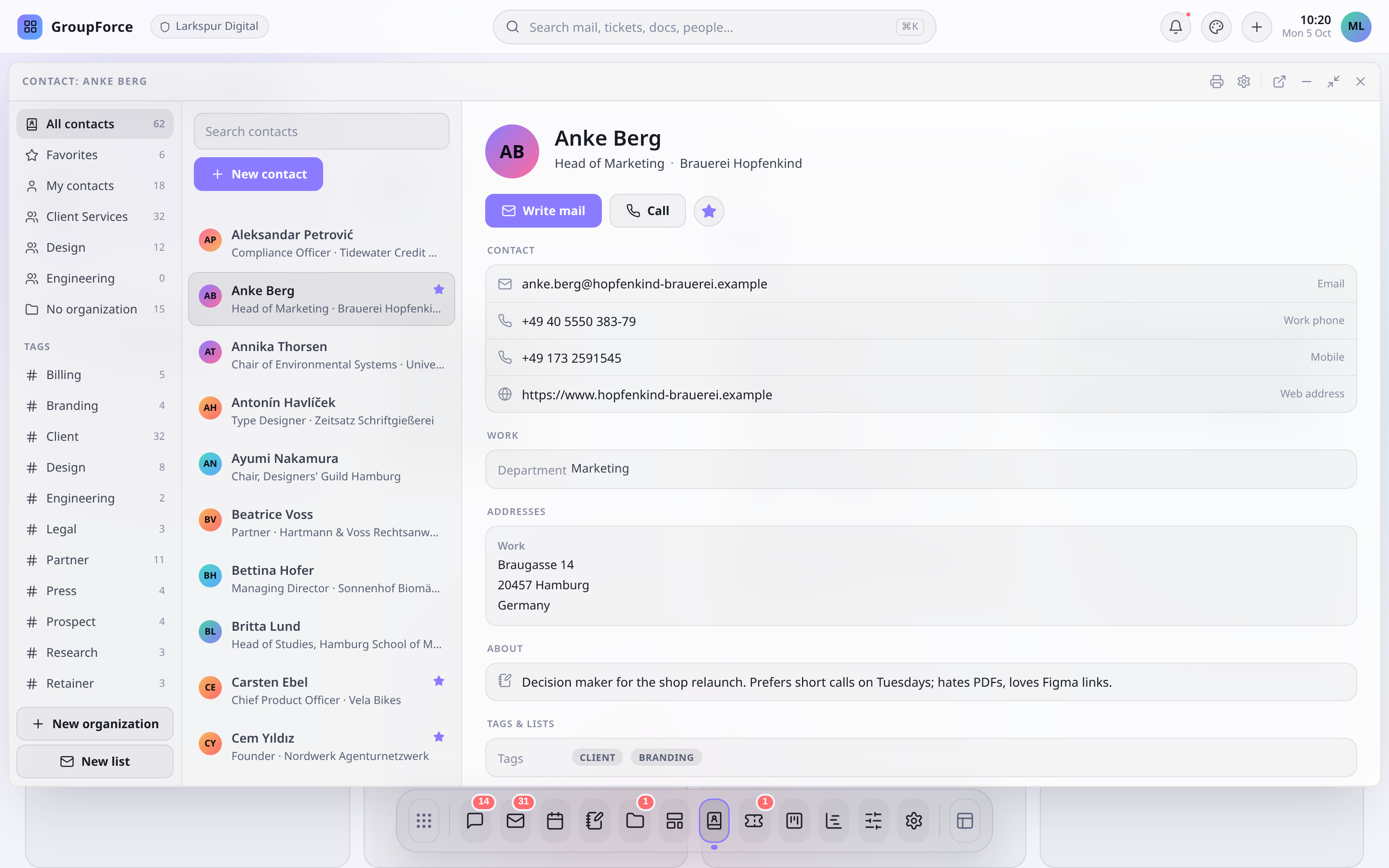
Every contact lives in exactly one address book. There are two kinds. My contacts is your personal book: only you see what is in it, and you may change all of it. Every group you belong to also has a shared book, which every member of the group sees. The left-hand rail of the Contacts window lists them: All contacts, Favorites, My contacts, one entry per group, and No organization. Below those come your tags, your lists and the organizations. Every entry shows a count.
| Where the contact is | Who sees it | Who can change it |
|---|---|---|
| My contacts | Only you | You |
| A group's book | Every member of the group | The person who added it, and everyone in the group if an administrator allowed the group to manage its book |
| Nobody's (rows brought in by a migration without an owner) | Administrators | Administrators |
Administrators do not see other people's personal contacts. The one exception is a person's own Profile card, which administrators can read.
Putting a contact into a group's book needs two things: you are a member of the group, and an administrator has allowed that group to take contacts (Users → Groups). If no group of yours is allowed yet, the New contact form says which groups cannot take contacts yet and where an administrator switches that on. To move a contact later, change Address book in the card's Record section, or drag the contact onto an address book in the rail.
The contact card
Pick a contact in the list to see its card. Everything on the card is edited where it stands: click a value, change it, press Enter. The name and each postal address open as one group of fields with a single Save and Cancel. A contact you may not change shows read-only and says so at the bottom.
The card is built from sections, and empty fields are not drawn. Instead each section ends with a row of dashed Add … chips for what is missing; click one and that field opens ready for typing.
| Section | What it holds |
|---|---|
Header |
Avatar, name (with salutation, middle name, suffix and nickname), job title and organization. Under it: Write mail, Call, the favourite star and More. |
Contact |
E-mail, phones (work, mobile, home and more), fax, web address. Each row has copy, mail or call actions. |
Work |
Department, role, room, assistant and the assistant's phone. |
Addresses |
Work address and Home address: street, second line, postal code, city, region, country. |
About |
Birthday (the age is worked out for you) and notes. |
Tags & lists |
Tags, and the distribution lists the contact is on. |
Linked |
Events, mail, conversations, calls and work items that mention the contact's addresses, plus links you made. |
Record |
Which address book the contact is in, and when it was added. |
More holds Copy as text and Delete contact…. The star marks a favourite; it is yours alone, nobody else sees it, and Favorites in the rail lists your starred contacts. Search above the list matches name, nickname, e-mails, phone numbers, title, organization, department, role, city, postal code and assistant.
New contact is deliberately short: a name (or just an e-mail), one e-mail and one phone to start. A name or an e-mail is required, and e-mails must look like e-mails. Everything else, such as name parts, department, role, fax, web address and either postal address, sits behind an Add … chip. If you have a choice of address books, an Address book picker appears in the footer.
There is no photo on a contact card: the contacts service stores no pictures.
Tags and distribution lists
Tags are free words you type into the card's Tags field, separated by commas. Every tag in use appears in the rail with a count; click it to see the contacts that have it.
A distribution list is a named set of contacts. Create one with New list: a name, the address book it belongs to and its members. Open a list in the rail and Write to list starts a new mail addressed to every member. You can also add a contact to a list by dragging it onto the list, or with Add to a list… on the card. Some things to know:
| Fact | Detail |
|---|---|
| A list is not a mail address | Nothing can be sent to the list by name. Write to list just fills a new message with the members' addresses. |
| Lists belong to a book | A list in a group's book can be changed by whoever may change that book; a list in My contacts only by you. |
| What you see | A list shows only the members you are allowed to see; members you cannot see stay on it. |
| Size | Up to 5,000 members per list. |
| Changing a contact | Lists hold the contact itself, so a changed address is changed in every list. |
Organizations
An organization is the company a contact works for. Choose it in the card's header, or drag the contact onto the organization in the rail; drop it on No organization to detach it. Create and rename organizations with the dialogs in the Contacts window. Deleting one asks first and says what happens: its contacts keep their details and lose only the organization.
Who sees an organization: you see one when you can see at least one contact in it, or when it is in your own address book and still empty. Renaming changes the name every contact in it shows, so you need permission to change every contact in it. Deleting an organization that still has contacts is refused for ordinary members; an administrator's delete first detaches the contacts.
Workspace administrators choose how organizations behave across address books under Workspace settings → Contacts:
| Setting | Effect |
|---|---|
| Shared across address books | One organization serves every address book. Someone sees an organization when they see a contact in it; a new, empty one only in the book it was made in. |
| Separate for each address book | Every address book, each person's and each group's, has its own organizations. A contact moved to another book takes its organization along. |
Switching this setting rearranges all organizations at once: separating copies them into the books that use them, sharing merges same-named organizations into the oldest one and removes the others (their own fields are not merged). The settings screen asks you to confirm and reports what it did.
Use your contacts on a phone or desktop app (CardDAV)
Any address-book app that speaks CardDAV can keep your contacts in step with groupforce, and it works in both directions: what you change in the app arrives in the browser and the other way round. groupforce's CardDAV support is written for DAVx5 on Android, Thunderbird, the iOS and macOS Contacts apps and vdirsyncer. You give the app three things:
| Setting | Value |
|---|---|
Server |
https://<workspace>.groupforce.org/: just the host, without a path. <workspace> is your workspace name, the part of the address you use in the browser. The app finds the rest by itself (/.well-known/carddav points it to /carddav/). |
User name |
Anything. It is ignored, but some apps insist on one; use your login. |
Password |
A personal access token that starts with gfpat_ and has the carddav scope. |
There is no screen for creating tokens yet. A token is made through the API from a signed-in session: POST /v1/tenants/{tenant id}/pats with a body such as {"name":"Phone","scopes":["carddav"]}. The answer shows the token once; copy it then. A token cannot create another token, so use a password sign-in for that step, and keep a separate token per device so you can revoke one without touching the rest. Until a token screen exists, ask your workspace administrator for help if the API is not something you use.
A token with only the read, write or webdav scope does not open contacts sync, and a carddav token opens nothing else. A token of another workspace is refused, so a token leaked from one workspace cannot be tried against another.
| App | Where to enter it |
|---|---|
| DAVx5 (Android) | Add account, Login with URL and user name: base URL as above, your login, the token as password. Then choose which address books to sync in the account's settings. |
| Thunderbird | Address Book, New CardDAV Address Book: user name, then the host as location; it asks for the password (the token). |
| iOS and iPadOS | Settings, Contacts, Accounts, Add Account, Other, Add CardDAV Account: server <workspace>.groupforce.org, user name, token as password. |
| macOS | System Settings, Internet Accounts, Add Other Account, CardDAV account; under Advanced give the server address. |
| vdirsyncer | Storage type carddav, url = "https://<workspace>.groupforce.org/", username, password = "gfpat_…". |
The app lists your personal book, Contacts, and one Group … book for every group you belong to. Group books are named after the first eight characters of the group's id, not the group's name, so if you belong to several groups tick the ones you want in the app and check the contents. What you may read and change in the app is exactly what you may in the browser: a group book you may only read stays read-only, and a save to it is refused.
What does and does not cross over
The vCard mapping is lossy. These are the known limits of the sync today; they are the same as in the product's own documentation.
| Limit | What happens |
|---|---|
| Large address books | The service lists at most 1,000 contacts across all the books you can see. If you see more than that, the book in the app is incomplete, without a warning. |
| Organization name | The organization a contact belongs to is not sent to the app, only the department. A contact the app creates or changes cannot be moved to another book or given an organization. |
| Fields the app does not know | Assistant, assistant phone and room have no vCard counterpart; they are kept when the app saves a contact. Properties groupforce does not store, such as photos, are dropped. |
| One value per slot | Each phone, e-mail, web and address slot keeps one value. A phone number with no recognised type becomes the work number; an e-mail without the home type becomes the work e-mail. |
| Tags | Sent as the vCard categories. A card that arrives without categories leaves the tags as they are. |
| Change detection | There is no incremental sync report: the app compares the book's change marker and the cards' version tags, which is what the apps above do. |
| Not offered | Creating or renaming address books from the app. |
If the app reports a certificate problem or cannot reach the address at all, the fault is on the workspace's side, not yours: ask your administrator whether contact sync is set up for your workspace.