Chat & calls: channels, records and calls
Chat is where a workspace talks: channels, direct messages and threads. The same conversation machinery sits under every work item, so a comment on a ticket and a message in a channel behave alike. Calls are not a separate app any more. You start one from inside a conversation, and it shows up as a message there.
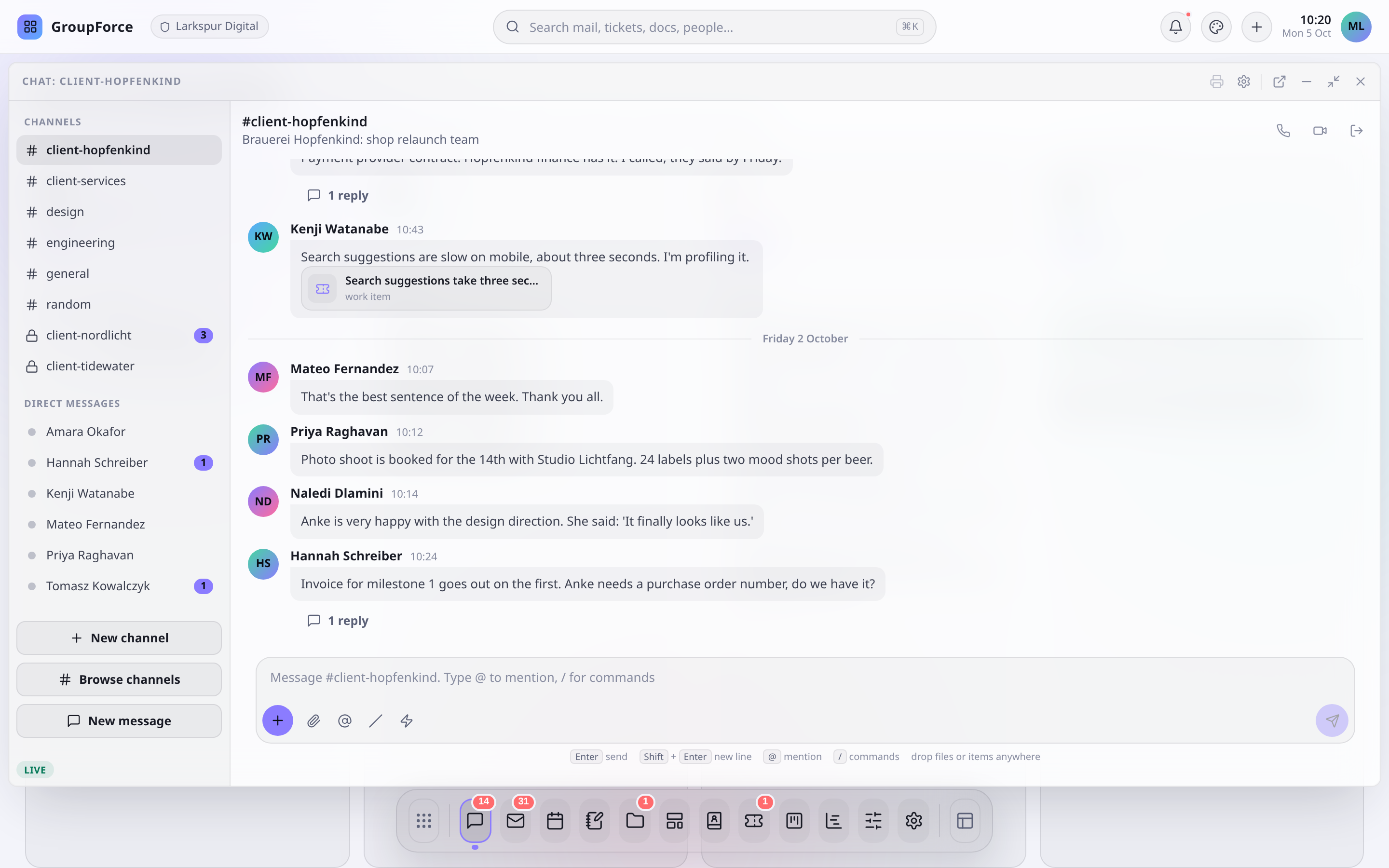
1. Channels and direct messages
Open Chat (the window is titled Team Chat). The rail lists your Channels (a # for public, a lock for private) and your Direct messages, each with an unread count; people in direct messages have a dot for whether they are online. At the foot of the rail, a pill says whether the live connection is up (Live, Reconnecting... or Offline, with a Reconnect button).
| To | Use |
|---|---|
| Make a channel | New channel: a Name, an optional Topic, Who can join (Anyone in the workspace or Only people I invite), and people to invite. |
| Find a public channel | Browse channels lists public channels you have not joined, each with a Join button. You can read a public channel before joining; the box says Join the channel to write in it. |
| Talk to one person | New message, then Find a person. It opens your existing direct message or makes one. |
| Leave | Leave channel in the header (not offered in a direct message). To come back to a private channel someone must add you again. |
A private channel or a direct message exists only for its members. Anyone else gets not found, the same as for a channel that was never made. Messages are plain text with @mentions: there is no formatting syntax and no reactions. A message can be up to 4,000 characters, and you can post about 30 messages in 10 seconds. You can edit your own messages (they then show edited) and delete them; the owner of a channel can delete any message in it.
2. Threads
Choose Reply on a message to open its thread in a pane on the right. Replies go one level deep: replying to a reply adds to the same thread. The message shows a reply count. Threads are for text: the reply box has no file or card attachments. Replies also count towards a channel's unread number.
3. Files, links and record cards
The + in the message box opens a launcher:
| Tile | Adds |
|---|---|
| Upload | A file from your computer. |
| Document | Something that is already in Documents. |
| Link | A web address (http or https only). |
| Note, Work item, Contact card | A card for that record, which opens the record when clicked. |
| Calendar entry | Makes a quick calendar entry and attaches it as a card. |
| Canned reply | Inserts one of your saved replies. They are yours alone, up to 20. |
You can also drag files from your computer, or a record from another window, over a conversation. It offers Attach to my message (staged in the message box) or Post to the channel (posted at once). Folders are refused. Files go to a folder for that conversation in Documents and are not stored in the message. If a record behind a card has been deleted, the card says so instead of linking to nothing. The commands /event and /canned work in every message box.
4. Conversations on records
Every work item has a conversation in its own window, with the same message box and the same attachments. It is the same machinery as a channel, but it is not listed in the Chat rail, and nobody joins it: access follows the record. Whoever can see the work item can read the conversation, and whoever may write to the item can post. Someone who can only read gets the message You can read this conversation but not write in it.
| In a record conversation | |
|---|---|
| Mentions | You can @mention the people who can see the item: the reporter, assignees and the members of assigned groups. |
| Notifications | People you mention are notified. Followers of the item get a New comment notice. |
| Counts | The work item list shows a comment count and a dot for unread comments. |
| Timeline | Comments are merged with the item's history. Reply quotes the comment into the box. There are no threads here. |
| Commands | On a work item, /status, /priority, /assign and /due change the item from the message box. |
Records of installed apps have a conversation too, but it is less complete today. @mentions in them are not turned into notifications, and attaching a file from the message box can fail. Work items are not affected. This is a known issue.
If you lose access to the record, you lose its conversation too. Work items: types, assignees and boards shows who sees an item.
5. Admin-only comments
On a record, workspace administrators get a Public / Internal switch above the message box (or /internal). An internal comment is drawn striped and tagged Internal · admins only. Only an administrator can write one, and only in a record's conversation, not in channels or direct messages. Everyone else never receives it: it is left out of their timeline, counts, unread numbers, notifications and live updates. Group assignees and admin-only notes has the full picture, including why an internal note is still permanent.
6. Calls
A call belongs to a conversation. In the header of a channel, a direct message or a work item you will find a phone button (Start a voice call) and a video button (Start a video call); on a work item they are named about this work item. You must be a member of the conversation to start or join. If a call is already live in that conversation, the button joins it instead of starting a second one.
The call is posted into the conversation as a message from you:
| State | The message shows |
|---|---|
| Live | Voice call started or Video call started, who is in it and since when, and Join. |
| Ended | Voice call ended or Video call ended, how long it lasted and who was in it. Nobody joined if nobody did. |
| Missed | Missed call, for someone who was rung and did not come, with Call back. |
Who is rung. In a direct message the other person is rung as soon as you start. In a channel nobody is rung until someone in the call presses the bell, Ring people, and picks members of that conversation. A ring appears wherever the person is on their desktop, with Accept, Accept with camera off (for video calls) and Decline. A ring nobody answers goes quiet after 45 seconds and the message then reads as missed. Everyone else in the conversation can still join from the message.
Who is told. A call is announced only to the conversation's members, so a call in a direct message is not announced to the workspace or found by search by others. Someone let into the conversation later joins the call's audience when they join it.
In the call. You get a tile per person with the camera or initials, and controls for the microphone, the camera, sharing your screen (when your browser offers it) and leaving. Turn on sound appears if the browser blocks audio. The person who started the call also gets End for everyone; leaving only removes you. The call stays with you while you use the desktop: you are in one call per browser, held by the workspace rather than by the Chat window. Closing Chat or reading another channel does not hang up. The call is shown beside its conversation in Chat, a bar with a microphone button, Leave the call and Back to the call appears in other channels, and the same bar floats when no window shows the call. Leaving or signing out hangs up. Start or join a second call and you are told to leave the first.
When a call is about a work item, you start it from the item's header, but the item's window does not carry the video: you get the small bar, and the full call panel is in Chat. Back to the call takes you there.
7. What is not built or still open
| Item | Status |
|---|---|
| Pop the call out into its own window | Not built. The call stays docked in Chat. |
| A call history view | Not built beyond the messages in each conversation. The old separate Calls window and its log are gone. |
| Recording | Not built. |
| A chat beside the call | Not built as such: the conversation itself is the chat. |
| An inbox notification for a missed call | Not built. The message and the conversation's unread count are the record. |
| Calls that never end | Known issue. When everyone has left, the media server closes the call after about five minutes, and a lost message from it can leave the call showing as live, or someone listed as still in it. The fix is on hold pending a product decision. |
| Calls need a media server | Your workspace must be connected to one. If starting a call fails with an error, ask your administrator. |
What's next
To build screens that show conversations on your own record types, see Building custom apps. To see who can reach whom, start with Contacts.