Installing and updating apps
A workspace administrator installs an app from the App Studio home, after reading a dialog that lists who signed it and everything it asks to do. This page covers that dialog, what it refuses, what you can do with an installed app, and how you decide how far an app may reach into work items and projects.
Where you install from
Installing, updating and removing apps is for workspace administrators. It is done on the App Studio home. The old route through Workspace settings, then Apps, no longer exists: there is no Apps page in Workspace settings.
- Import a package (button in the header): pick a
.gfpkgfile from your computer. The same button appears under New app as “Import a package (.gfpkg)”. - Available from this server (a list under the cards): “Apps the platform operator ships. Installing one shows what it adds and may do first, as for any package.” Each row has an Install button, or Update when the server has a newer version than yours.
Both go through the same review dialog. Nothing is installed yet when it opens: groupforce has already verified the package and compiled its views, and shows what you would be saying yes to.
The review dialog, line by line
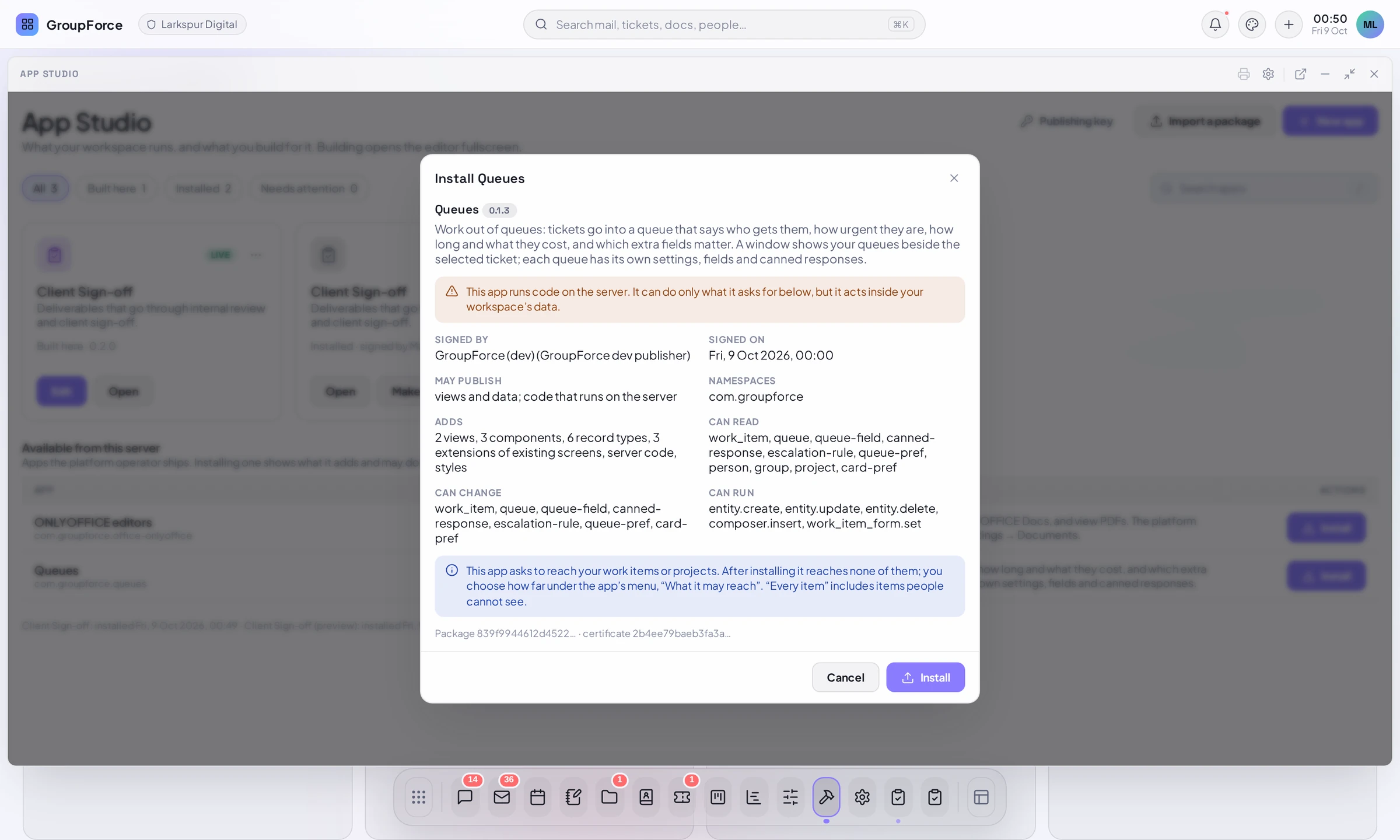
| Line | What it tells you |
|---|---|
Title and version |
“Install <App>” for a new app, “Update <App>” when an older version is installed. |
Warning |
Only for an app with server code: “This app runs code on the server. It can do only what it asks for below, but it acts inside your workspace’s data.” |
Signed by / Signed on |
The publisher’s organization and name from the certificate, and when it was signed. |
May publish |
What the certificate allows this publisher to ship: “views and data”, and/or “code that runs on the server”. |
Namespaces |
The prefixes the app’s id must fall inside. |
Adds |
How many views, components and record types, plus workflows, extensions of existing screens, server code and styles. |
Adds statuses / Offers document editors / Ships print templates |
Shown only when the app has them. |
Can read / Can change / Can run |
The record types the app may read and change, and the actions it may run. “nothing” when empty. |
Notice |
For an app that asks for work items or projects: “This app asks to reach your work items or projects. After installing it reaches none of them; you choose how far under the app’s menu, ‘What it may reach’. ‘Every item’ includes items people cannot see.” |
Package and certificate |
The first 16 characters of the package hash and of the certificate fingerprint. |
The buttons are Cancel and Install (or Update).
What it refuses
When the dialog cannot go ahead it says why and offers only Close:
| Case | Wording |
|---|---|
| The same version is installed | Version <v> is already installed. |
| A newer one is installed | A newer version (<installed>) is installed; this is <v>. |
| Another publisher | This app is installed from another publisher. Uninstall it first if you mean to replace it. |
| Failed verification | A red notice with the reason and every problem found: not signed, changed after it was signed, certificate not trusted, expired or revoked, a namespace or class the certificate does not cover, a manifest with errors, or sources that do not compile. In the list under the server catalog, the matching rows show “Installed”, “Newer <v> installed” or “From another publisher” instead of a button. |
| Other limits | A workspace can have at most 50 apps installed; one package can be at most 50 MB. |
The reasons for a failed verification are explained in Keys, certificates & signing.
After the install
Each installed app is a card on the App Studio home (Installed, with a Live, Switched off or Needs attention mark, and “signed by <org>” with the version). The card’s buttons and menu offer:
- Switch off / Switch on.
- Settings, when the app declares settings, such as which group is accounting.
- Browse records, when the app has record types: a table per type.
- Who can use the records: for each record type, everyone in the workspace (the default), administrators only, or chosen groups.
- What it may reach: work items, projects, when the app asks (next section).
- Make a copy to edit: a new app of your own from this one.
- Uninstall.
| Action | What happens |
|---|---|
Switch off |
Views, extensions, endpoints and hooks stop. Records are kept; administrators can still read them, and nobody can change them. The app’s timers wait. |
Update |
A package with the same app id, from the same signing organization and a higher version becomes the current one. The app keeps its on/off state and its settings. The old versions stay on record; there is no downgrade through the install dialog. |
Uninstall |
“<App> is removed for everyone in the workspace. Installing it again from the package brings it back, but not the records it holds: they are deleted with it.” Its reach grants go with it, and a reinstalled app starts with nothing. If views of another app use its record types, you must uninstall that app first. |
An app that was installed with a package that can no longer be read shows Needs attention and asks you to import a current package of it; records are kept.
What it may reach
Work items and projects belong to the platform, not to an app, so an app does not get them by being installed. A manifest that names work_item or project under what it may read or change only asks. You choose, per entity and per right:
| Right | Choices |
|---|---|
May read |
Nothing (the default) / Only the items of chosen projects / Every item in the workspace |
May change |
The same three. Only offered when the app asked to write. |
With “Only the items of chosen projects” you tick the projects, and may add “Work items that belong to no project”. “Every item in the workspace” includes items people cannot see, and the dialog says so. A change the app makes is recorded under the app’s name. Reading is whatever either right reaches (nobody can change what they cannot read).
Where: the card’s menu, What it may reach: work items, projects, opens a dialog titled “What <App> may reach”: “An app asks for what it wants when it is installed, but reaches nothing until you choose here. You can narrow or widen this at any time; each change is recorded.” The menu entry only exists for an app that asks. A change takes effect on the next request, groupforce enforces it on the records themselves, and the app’s own views are never wider than the person using them. The app acts as itself with no roles, so its reach is exactly what you chose, no more.
A reinstalled app starts again with nothing, because uninstalling removes the grants.
Plans
Installing apps is open to every plan. Building and publishing is not: it needs the Pro or Business plan, and App Studio is an add-on on Pro, included in Business. When the plan lacks a feature the server answers 403 with the sentence “<Feature> is not included in the <plan> plan. Change the plan in the billing console.” A workspace that moves to a plan without a feature keeps what is installed running: the checks apply when you install, update or publish, not to apps already installed. “Available from this server” is the operator’s own catalog. Prices are in the pricing guide.
What members see
People in the workspace never see the review dialog. They meet an installed app through its icon in the dock and launcher, which opens its home view in its own window, and through any extensions it adds to built-in windows. Those appear under a heading the app chose, with the caption Added by and the app’s name (Extension points). An app’s views run in the same browser sandbox as every other custom view: a worker with no access to the page, to cookies or to the network, which can only ask the host to do what the app’s manifest allows. What a person can do with the app’s records follows Who can use the records and the process’s own rules.
Before you ship an app of your own, see Test and publish from the Studio and Publishing checklist.