Test and publish from the Studio
Before anyone else sees your app you can run it in a preview of your own, on test data, and watch what its automations and server code do. When it behaves, you sign it in the browser and publish it to this workspace or as a package file. This page follows Client Sign-off from first preview to Live.
The Test & publish part
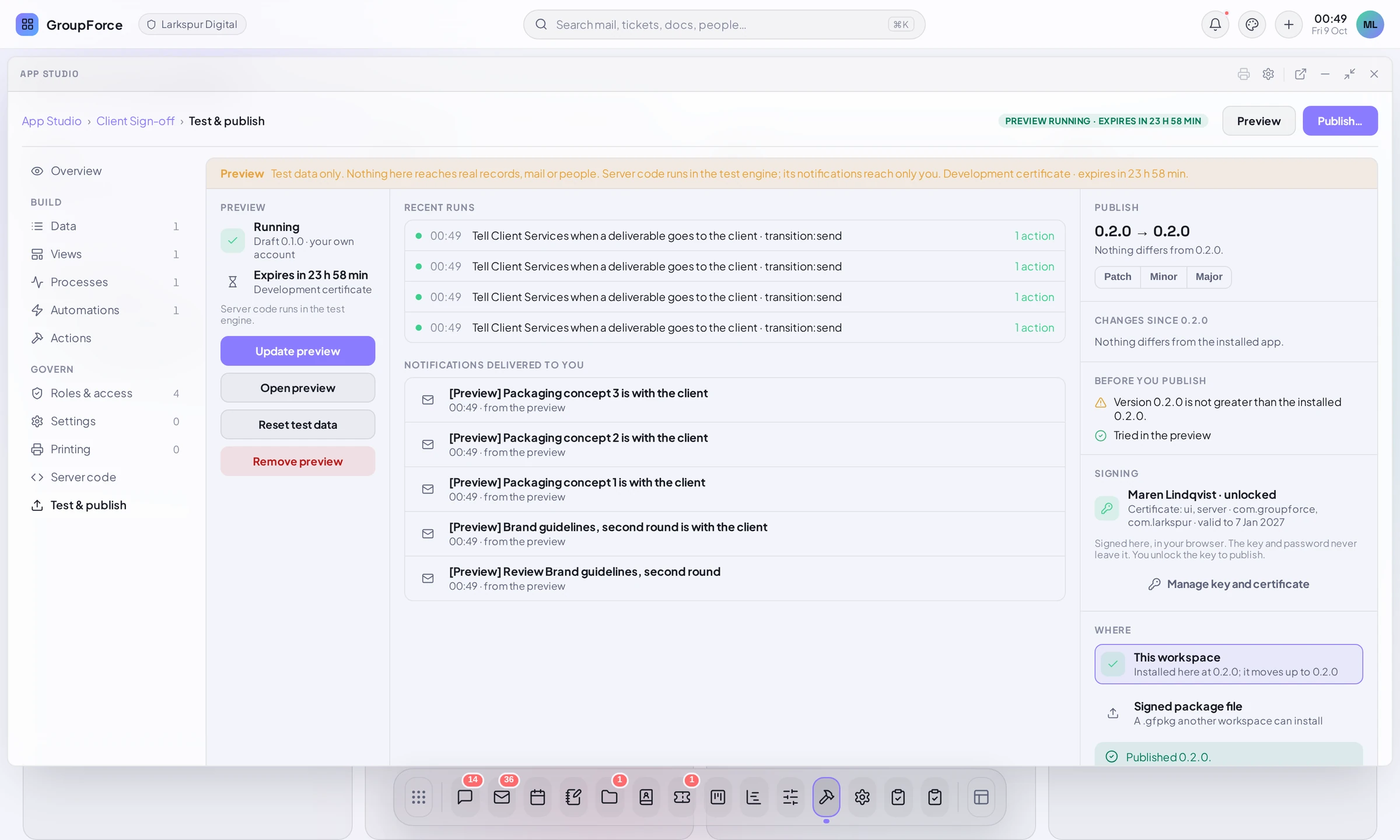
Test & publish (last in the Govern group; Preview and Publish… in the top bar open it too) is where the draft is tried and then shipped. A header chip says Preview not running or Preview running · expires in ….
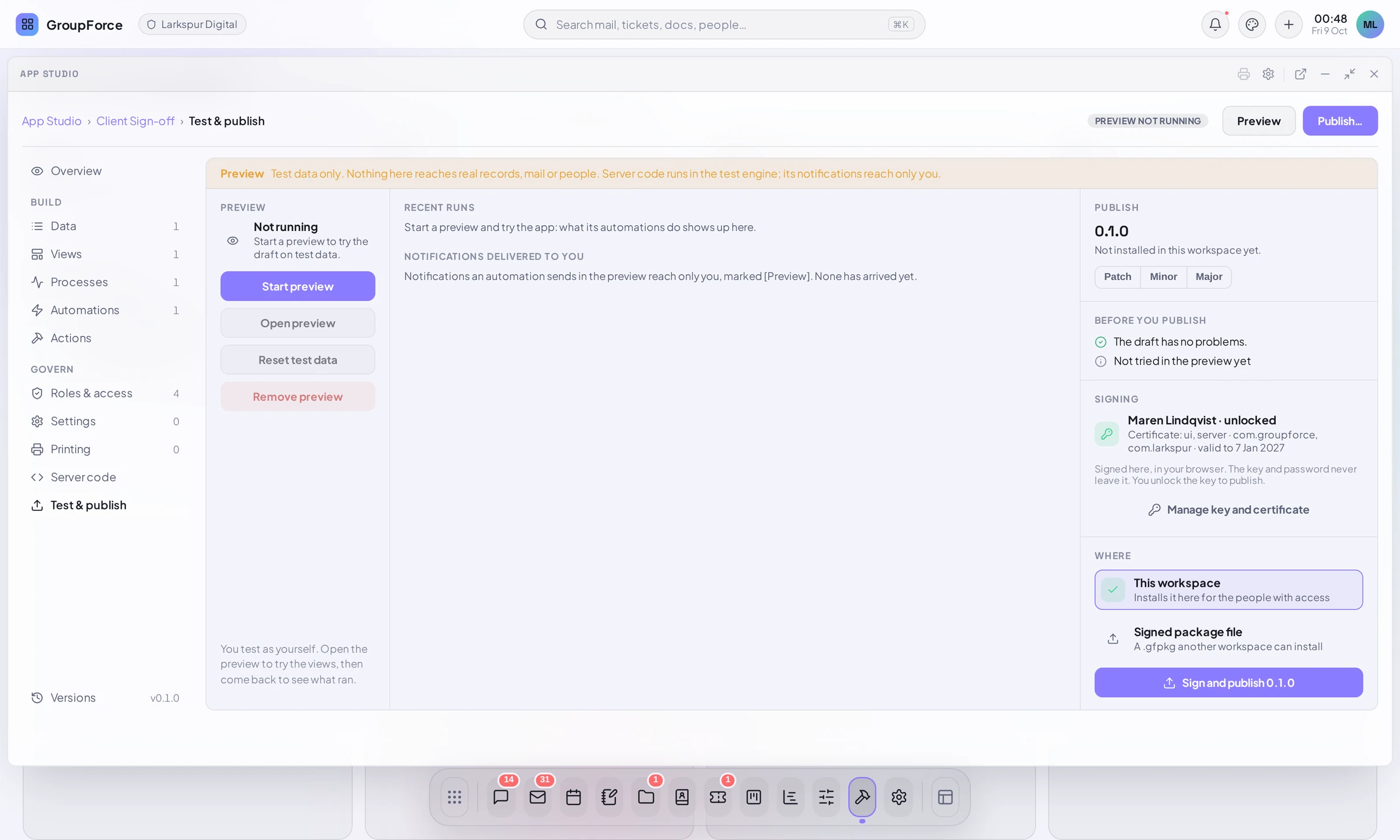
Both halves need a publishing key in this browser. A preview needs only the key, not a production certificate: the key wizard issues a development certificate straight away (Keys, certificates & signing).
Run a preview
The Preview rail has four buttons:
| Button | What it does |
|---|---|
Start preview / Update preview |
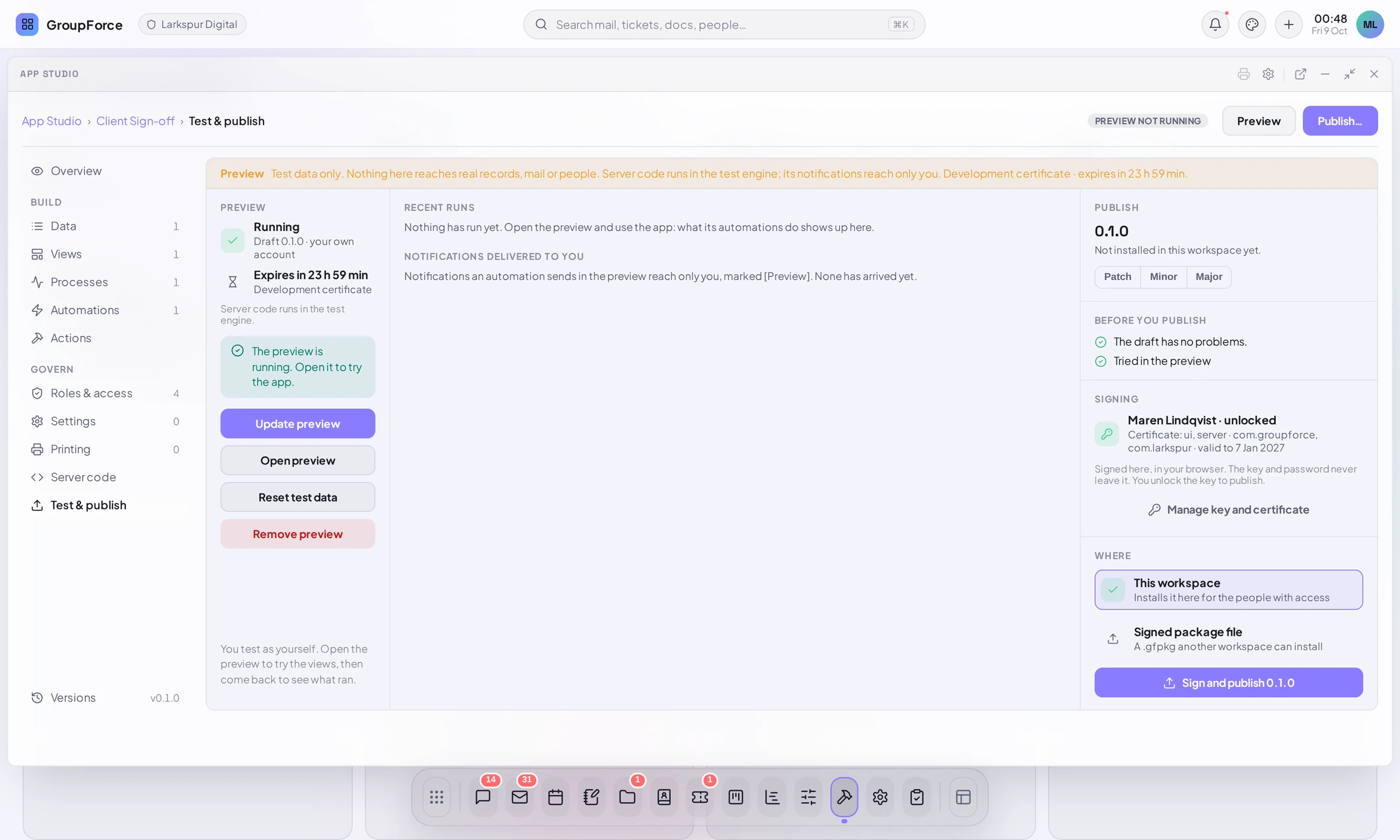
Installs the draft into your own preview slot. After a change to the draft, Update preview puts the new version there. Status: “Running”, the draft version, “your own account”, and when the development certificate expires. |
Open preview |
Opens the app as a window titled “<App> (preview)”. |
Reset test data |
Throws away the test records (“The test data is gone.”). |
Remove preview |
Takes the preview down (“The preview is removed.”). |
What a preview can and cannot do
The banner on the page: “Test data only. Nothing here reaches real records, mail or people. Server code runs in the test engine; its notifications reach only you.”
- Test data only. The preview has its own app id and its own records; the installed app’s data is not touched. Settings come from the slot, not from the live app.
- Your own slot. One per app and author. Nobody else sees it, and it can never be published.
- It expires. It lives as long as the development certificate (24 hours, this workspace only), and is stopped and removed when that runs out. The page then says “The certificate ran out”; start it again.
- Notifications reach only you, whoever the automation or code addressed, and are marked [Preview]. No mail is sent and nothing leaves the workspace.
- Server code runs in the test engine, which exists only where the operator runs engine containers. Without it the page says “Server code is not run here (no engine containers); its endpoints answer 503.” The first run may be slower while the test engine starts.
- No live work-item events. The platform delivers work-item and project events only to apps that are installed and switched on, never to a preview slot. Test hooks and automations of that kind in a real workspace after publishing.
Try the app as a person would
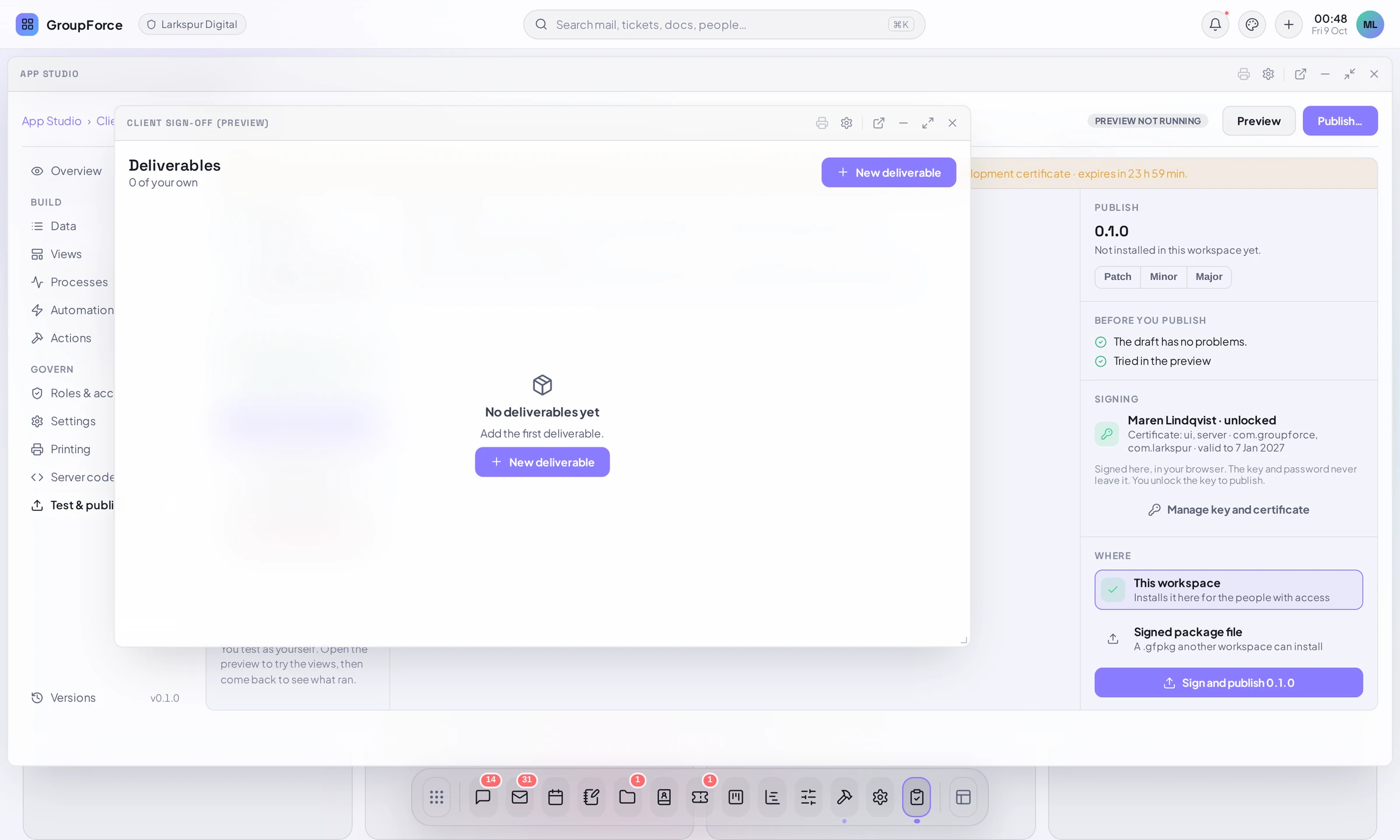
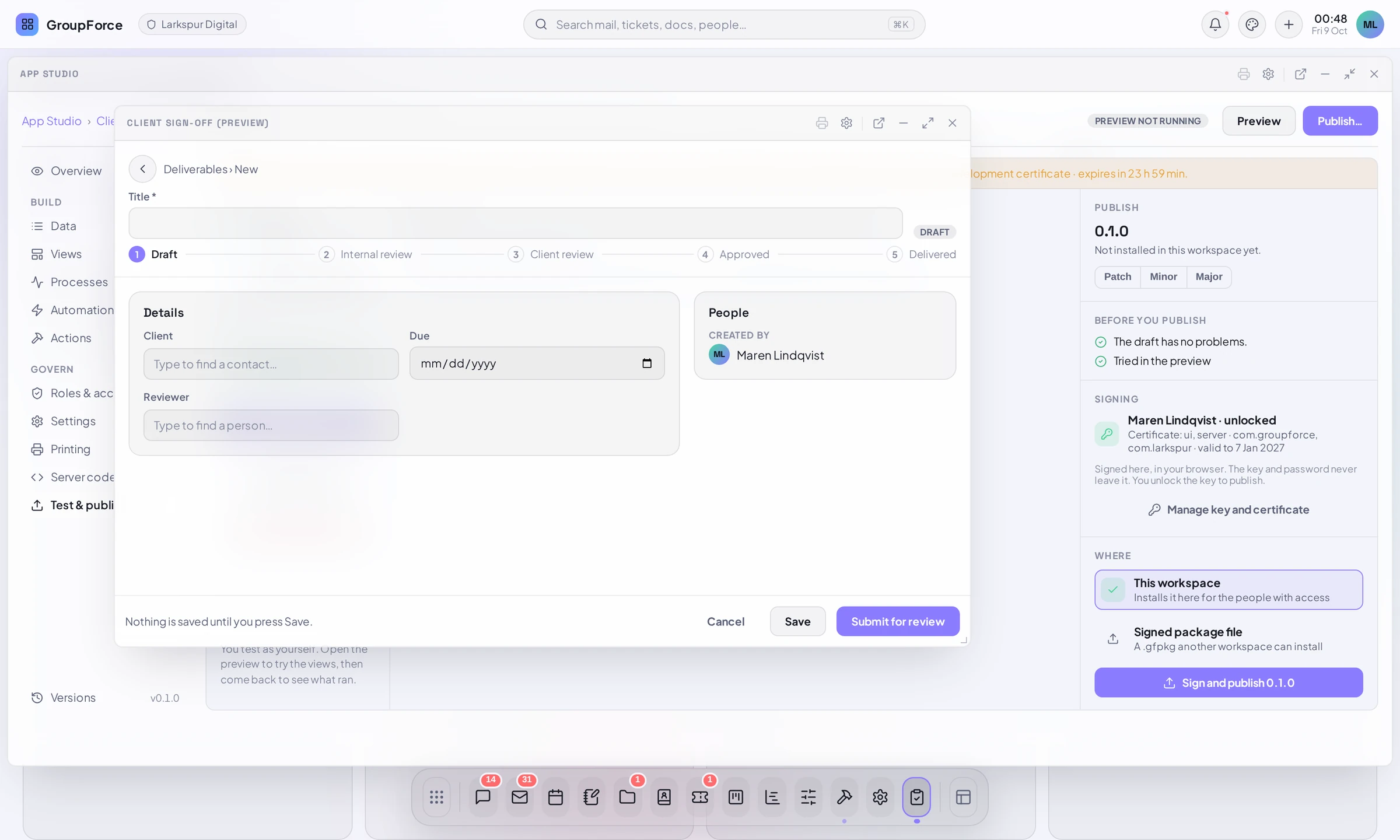
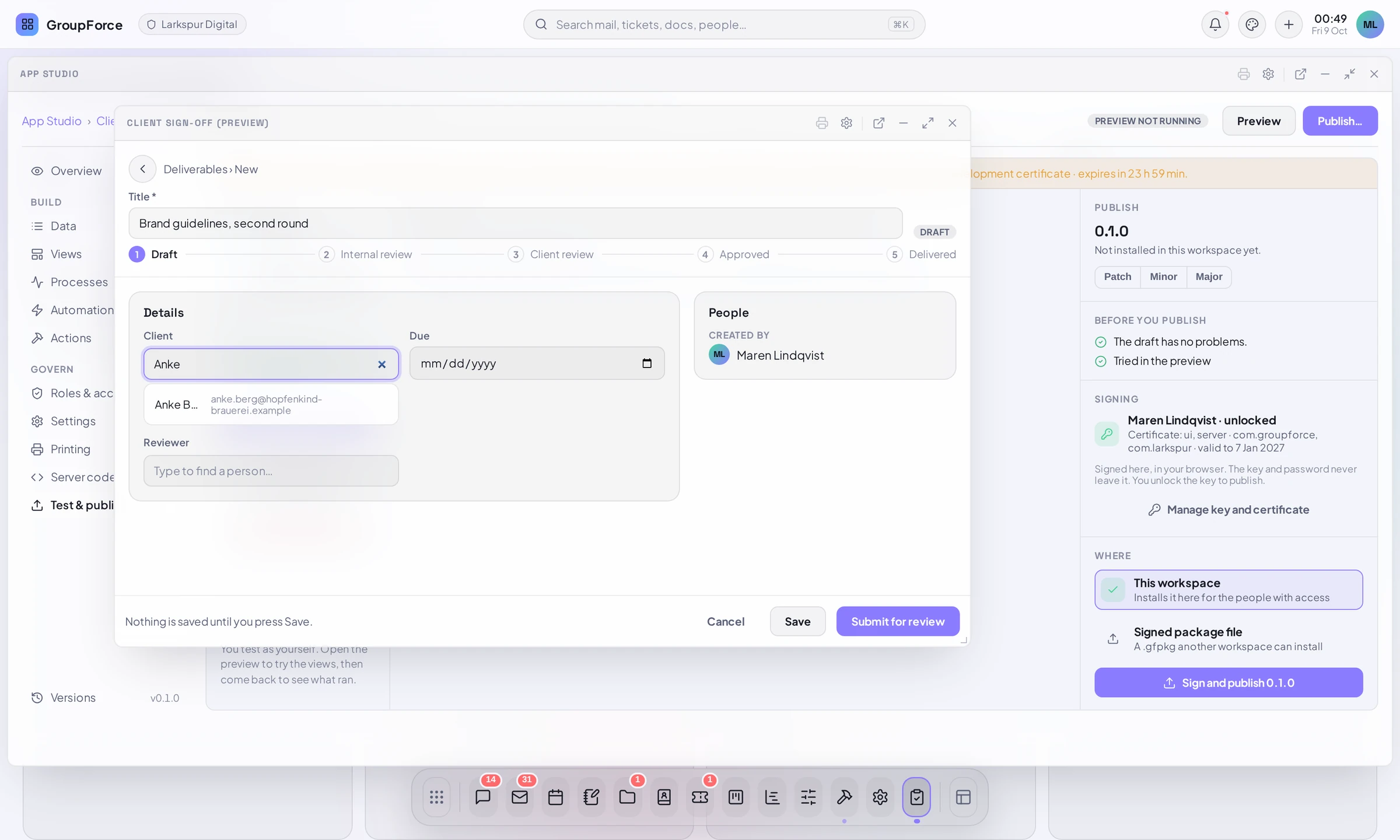
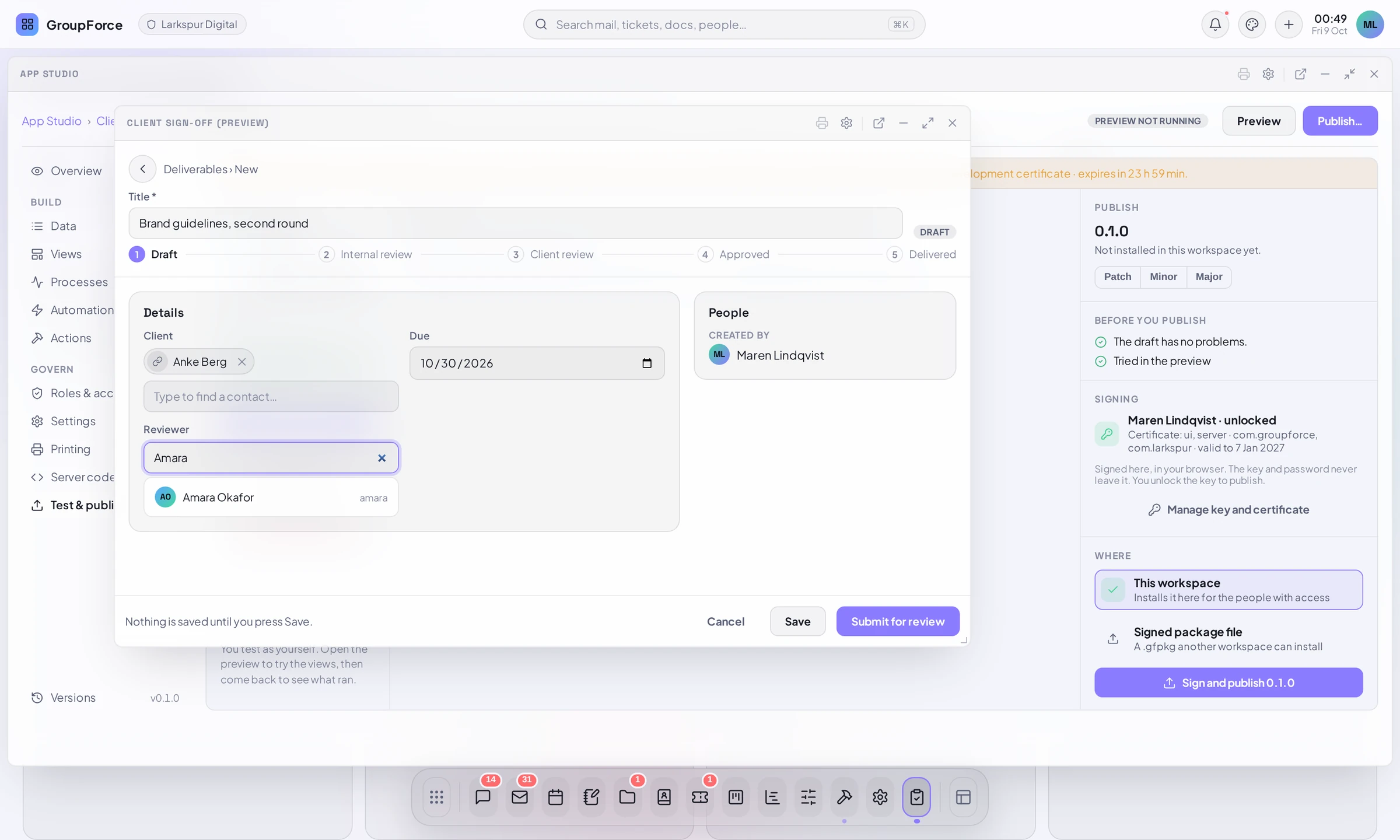
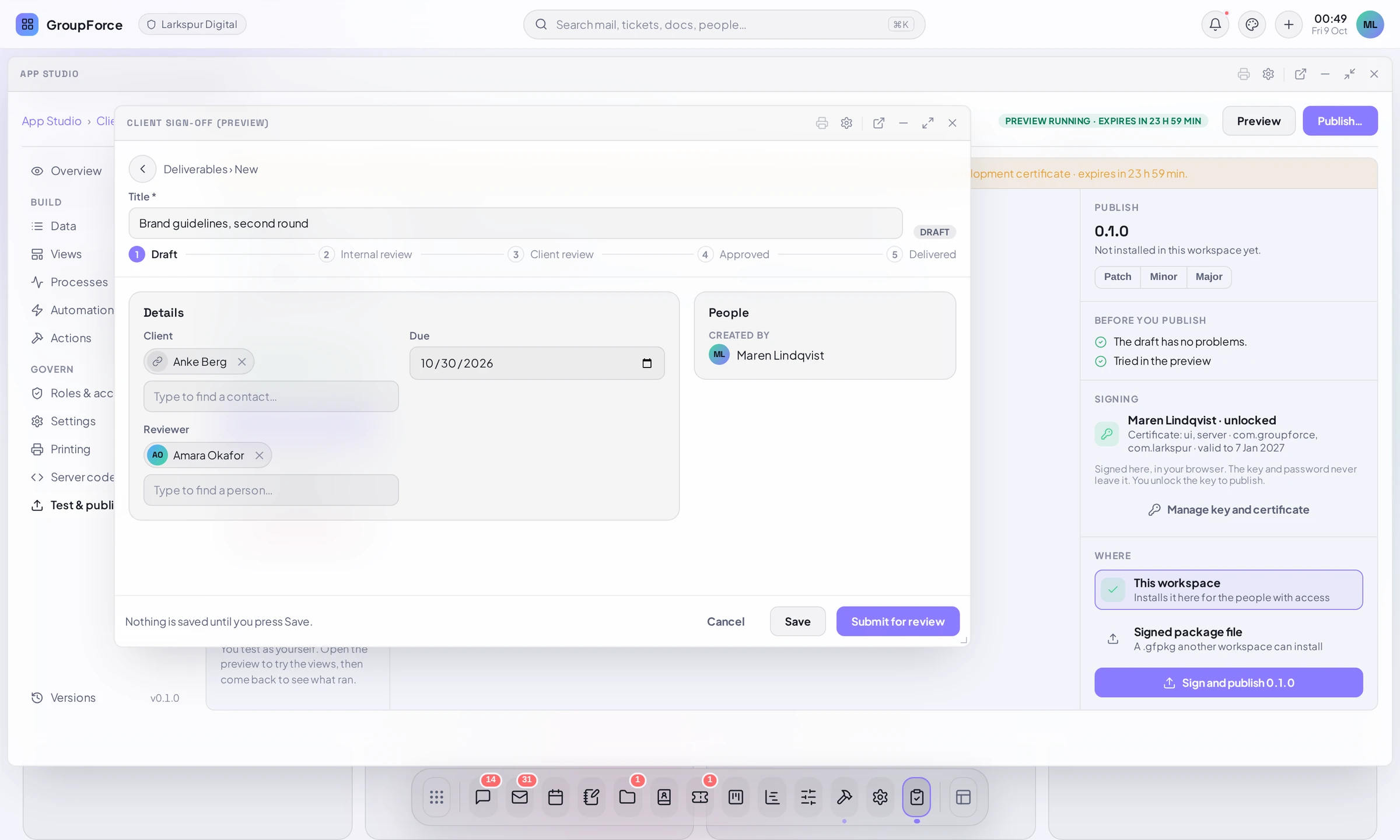
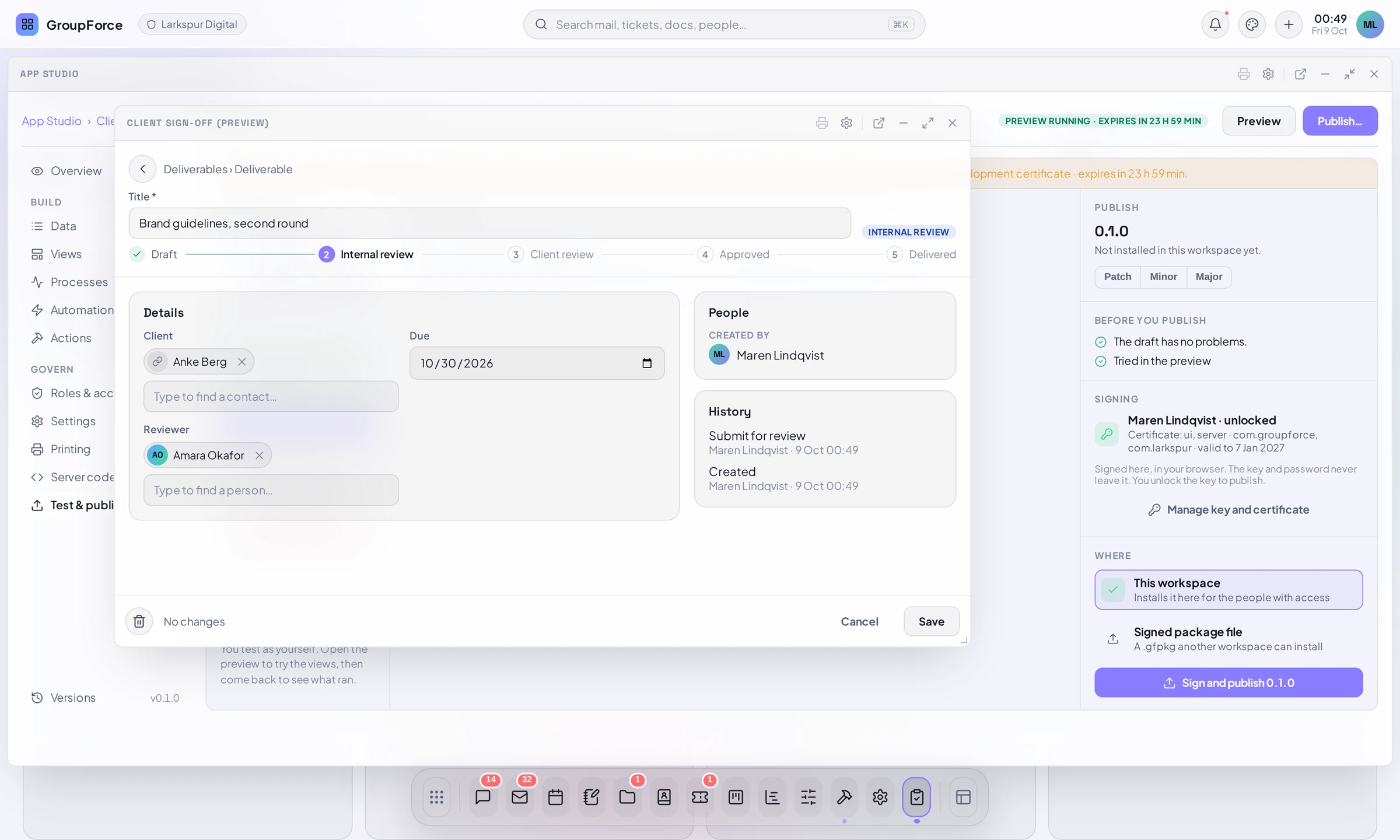
Open the preview and use the app yourself. The pictures follow one deliverable through Client Sign-off.
- Choose New deliverable. The form is the one drawn from your data.
- Pick the client: the field is a picker over your Contacts. Pick the reviewer: a picker over people.
- Fill in the title and due date, and press Submit for review. The record moves to Internal review. As reviewer, press Send to client, then Client approved.
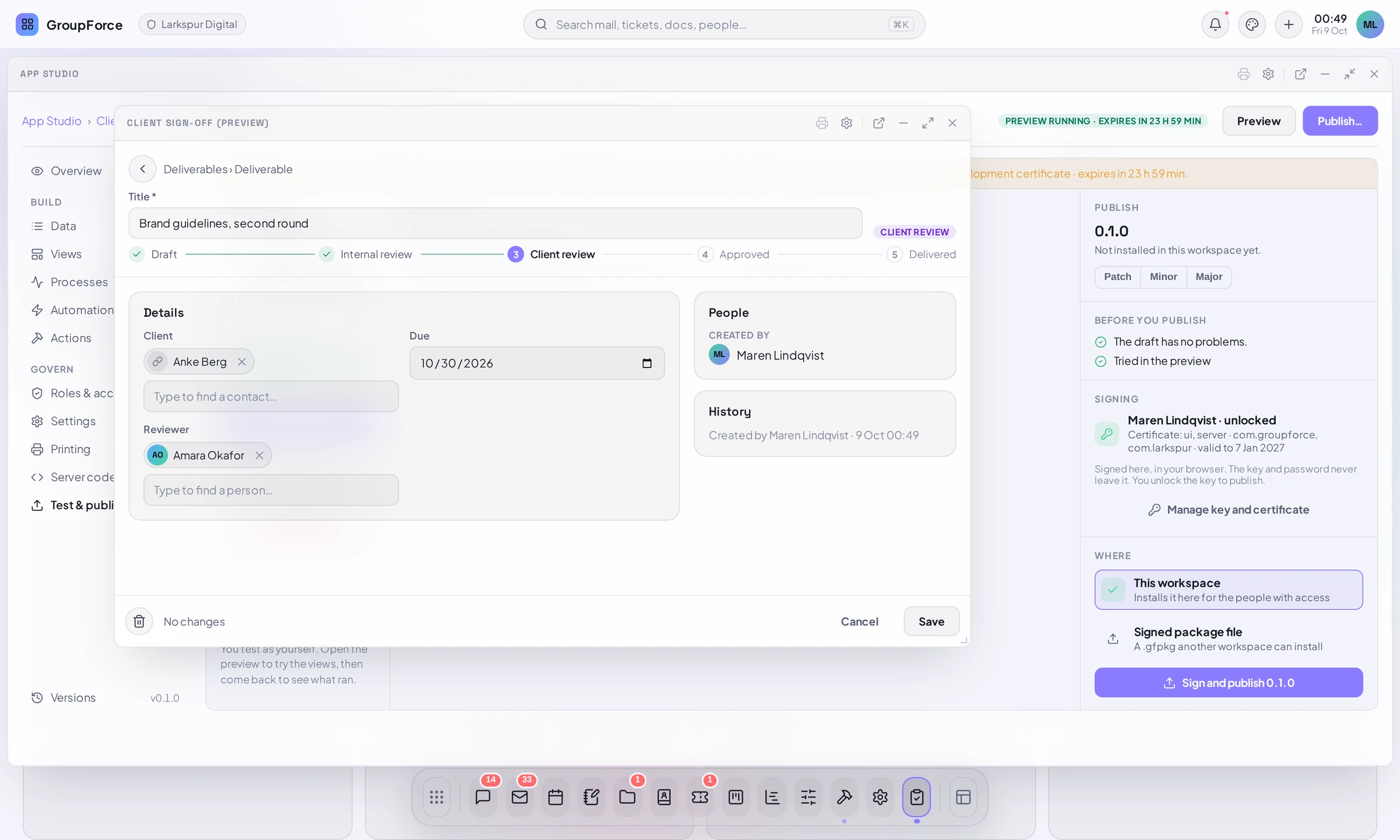
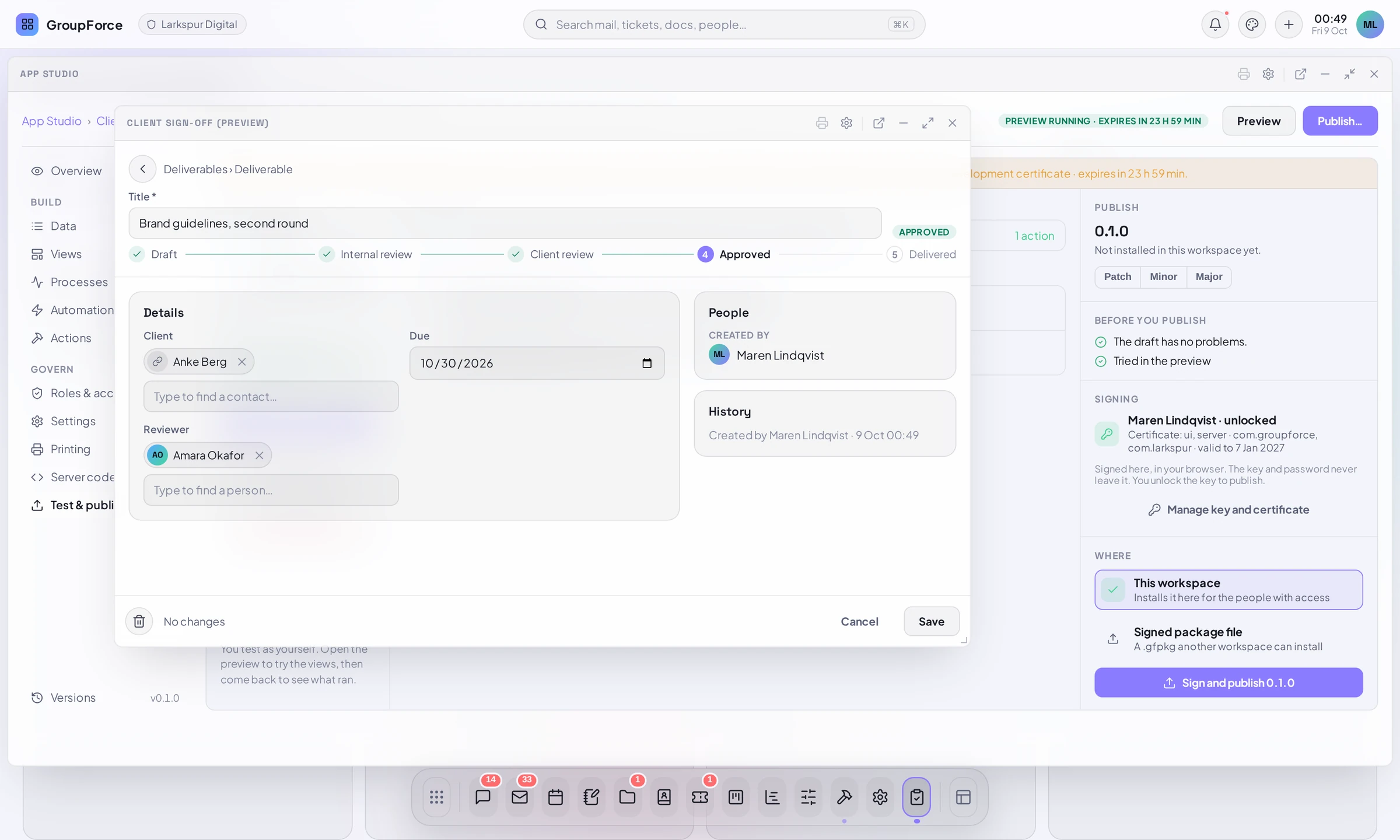
A guard saying no
The guard checkSend in the app’s server code allows one client at most three deliverables waiting for sign-off. With three already in Client review, a fourth Send to client is refused by the server, and the person is told, on the client field:
HTTP 422
This client already has 3 deliverables waiting for sign-off. Finish those first.
That is the real answer from the preview of the sample app. The date rule (due >= today) answers the same way before the guard is even asked. Server code is the subject of Server code & sandboxing.
Recent runs and [Preview] notifications
Back in the Studio, the centre of Test & publish shows what your tries caused. Recent runs lists every automation run of the preview: the time, the automation, the event (for a step, transition:send) and how many actions finished. Notifications delivered to you lists what the preview sent, each marked [Preview]. Before anything has run the page says “Nothing has run yet. Open the preview and use the app: what its automations do shows up here.”
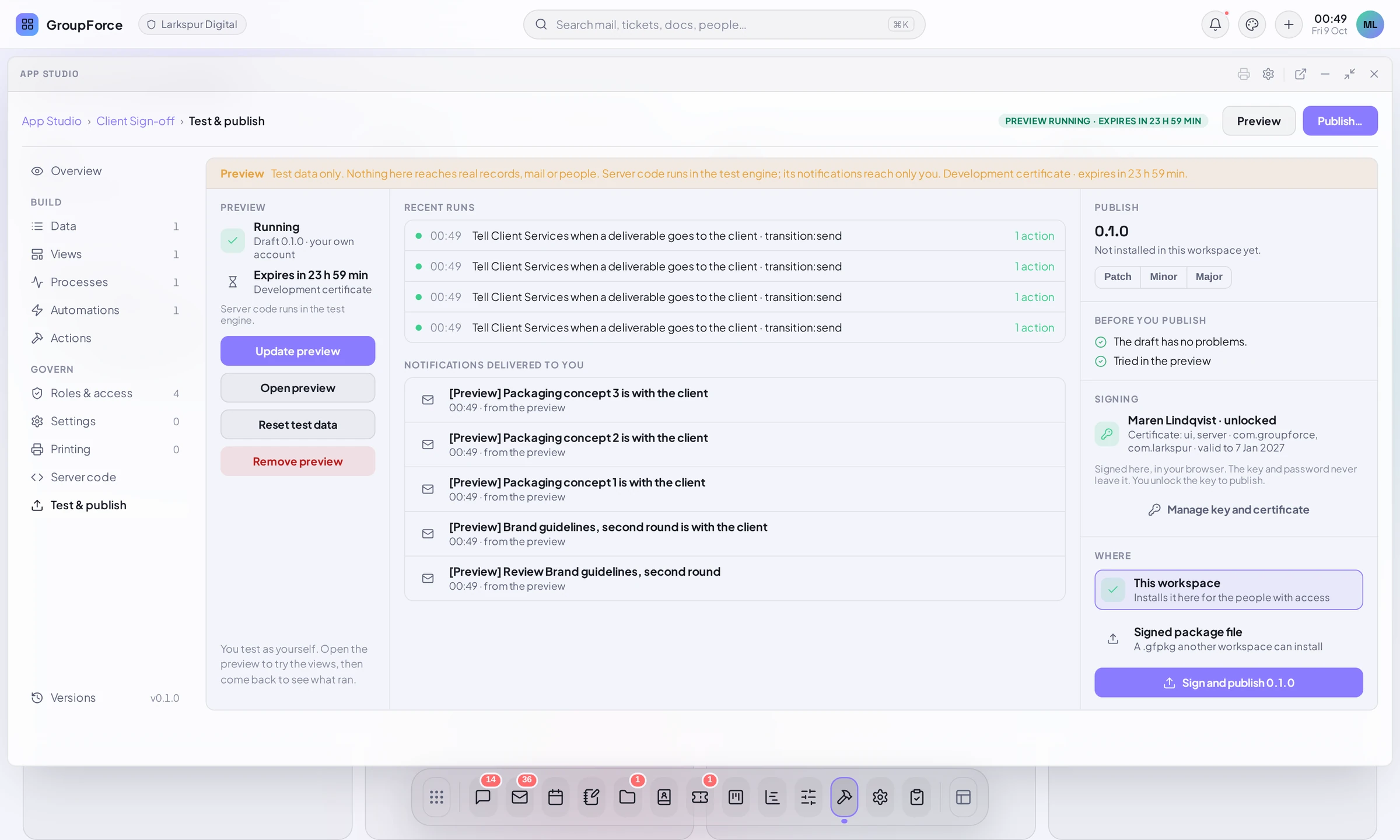
Under Before you publish, “Tried in the preview” turns green once the preview is running or has logged runs.
Publish
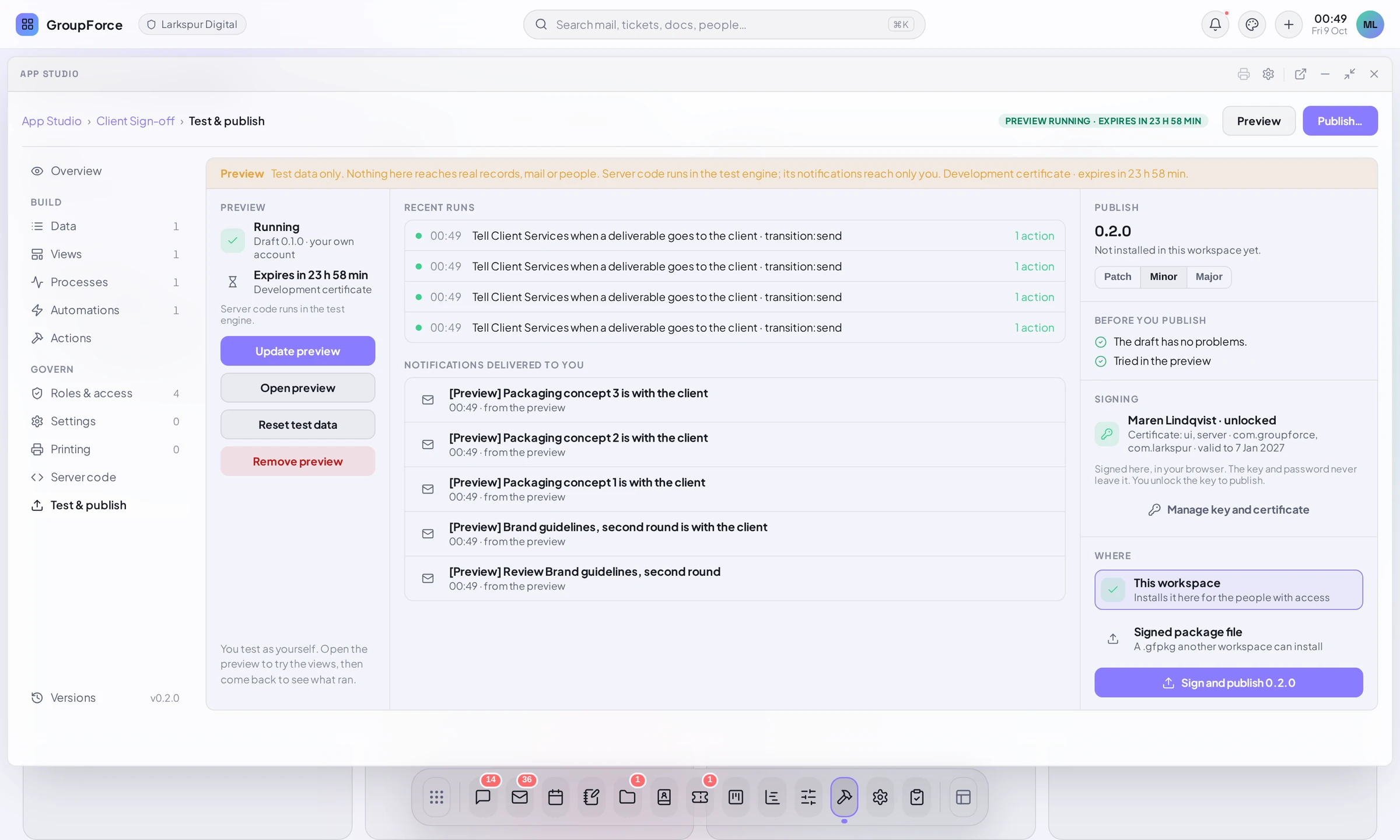
The right-hand panel is the publish half. Read it top to bottom.
- Version. The draft’s version and what is installed (“Not installed in this workspace yet.” the first time). Patch, Minor and Major bump it from the installed version. A published version must be higher than the installed one.
- Changes since <installed version>. What differs from the installed app, once there is one.
- Before you publish. “The draft has no problems.” or each problem the manifest has, each view that does not compile, and a version that is not higher than the installed one. The button stays off while any is listed. “Tried in the preview” or “Not tried in the preview yet” is advice, not a block.
- Signing. Your key, locked or unlocked, the certificate with its classes, namespaces and end date, and: “Signed here, in your browser. The key and password never leave it. You unlock the key to publish.” Manage key and certificate goes to the key wizard.
- Where. This workspace (“Installs it here for the people with access”, or “Installed here at <version>; it moves up to <new>”) or Signed package file (“A .gfpkg another workspace can install”). The file is saved by your browser as
<app id>-<version>.gfpkgand nothing is installed. - Press Sign and publish 0.2.0 (with your version). The Studio asks for the key’s password, signs in the browser and sends the signature to the server, which checks the package exactly as it would check one that arrived from outside.
Building and publishing apps needs the Pro or Business plan, and App Studio is an add-on on Pro and included in Business. Without them the server answers 403 with a sentence such as “App Studio is not included in the Basic plan. Change the plan in the billing console.” Prices are in the pricing guide.
After publishing
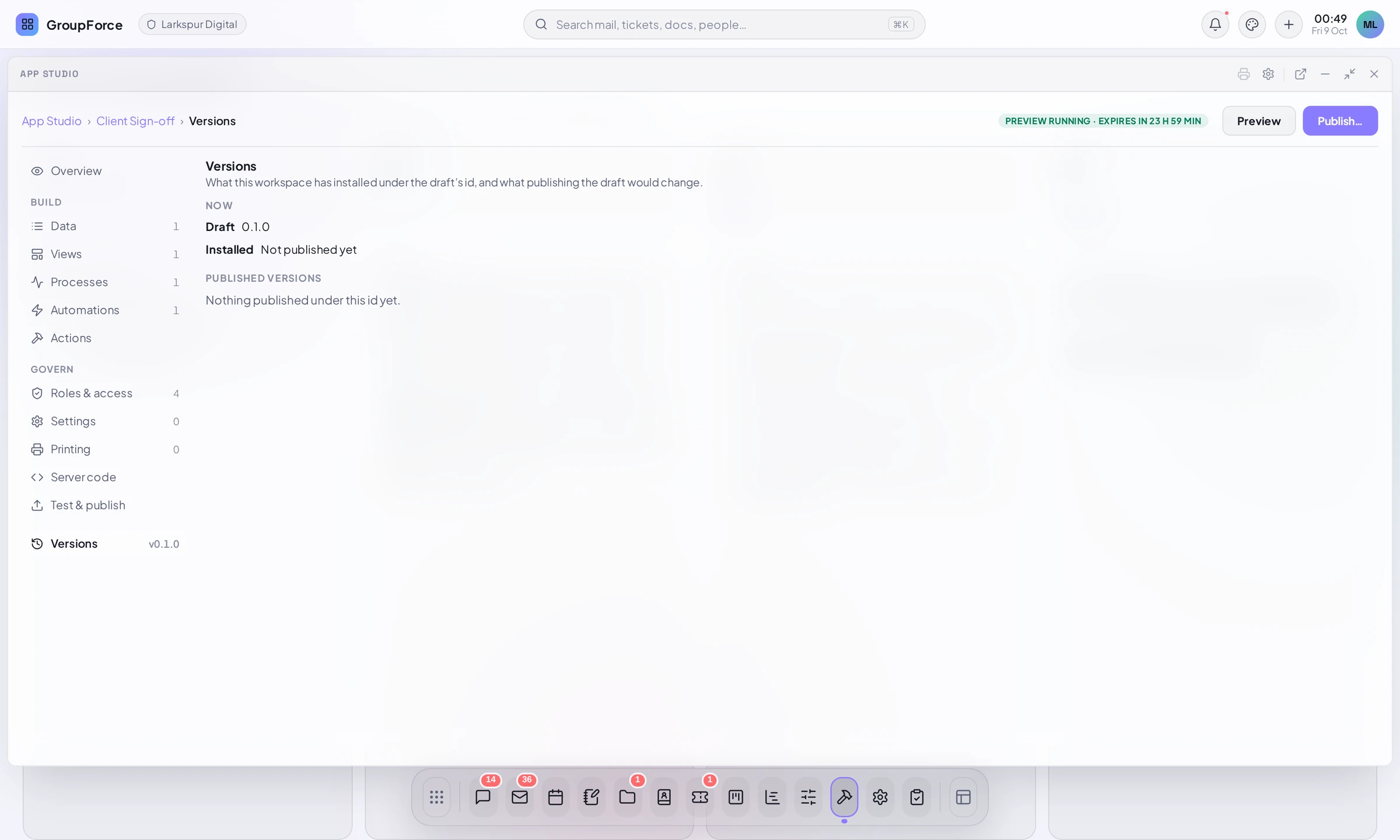
Versions (the entry at the foot of the part list) shows what is installed under the app’s id, “Changes since” the installed version, and the Published versions, each with the signer and the date.
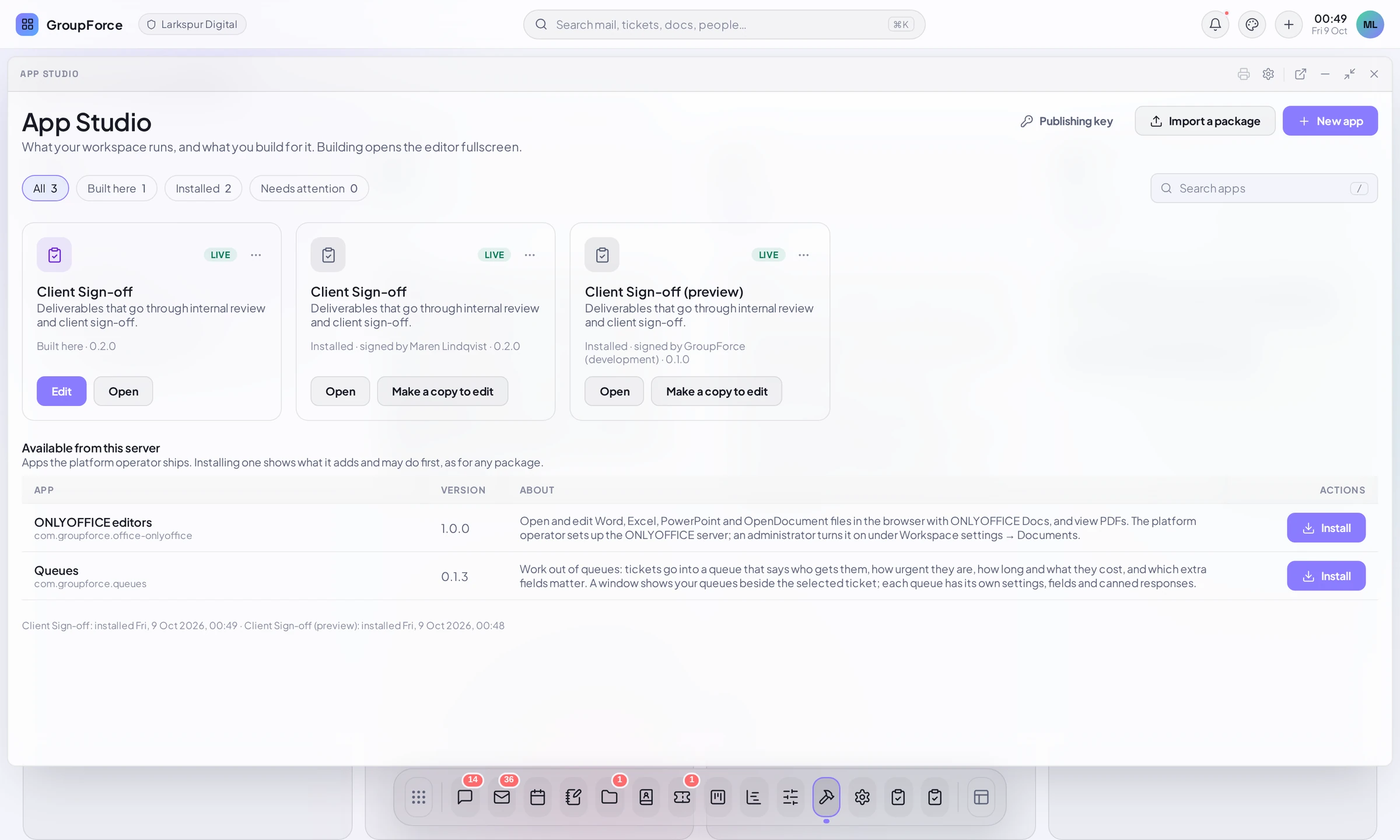
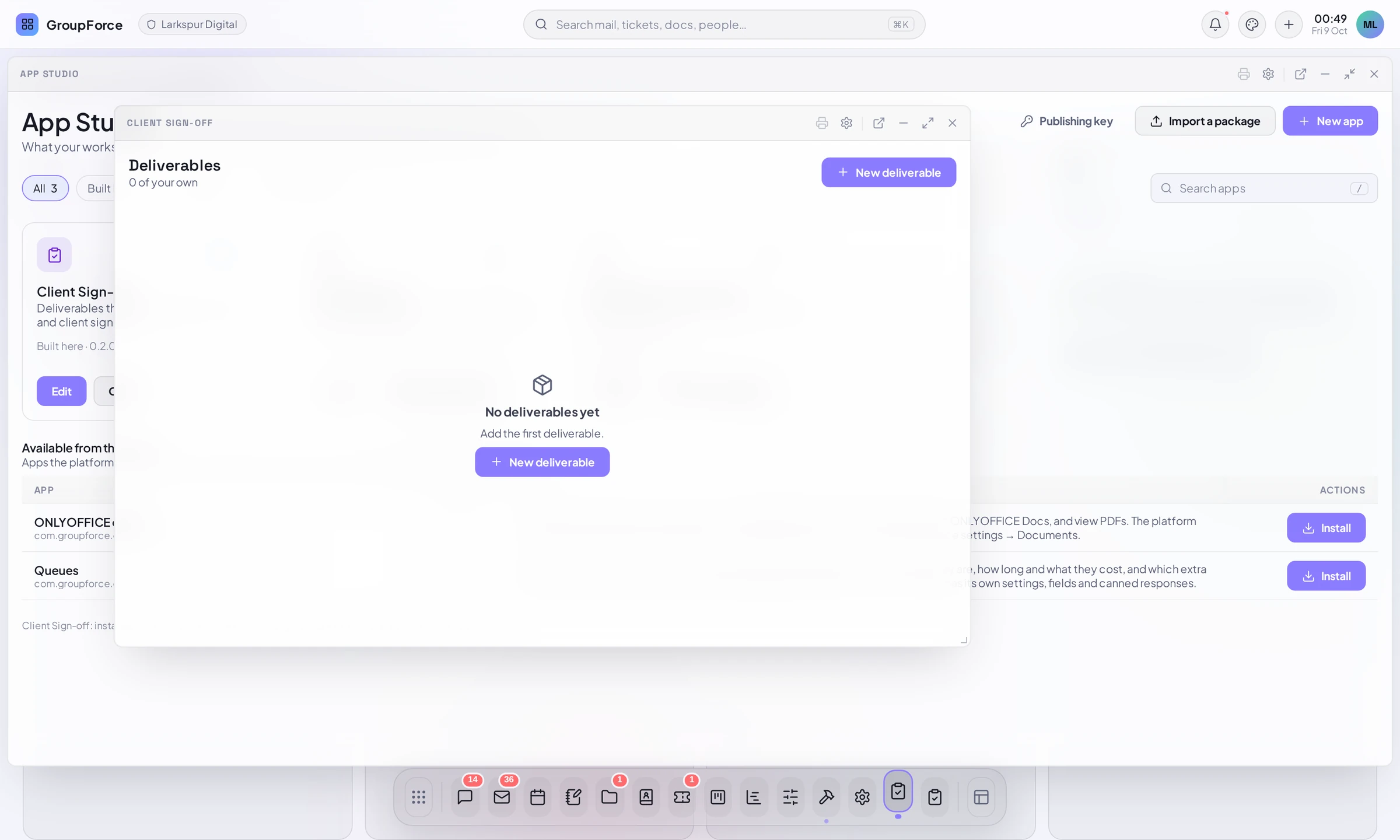
On the App Studio home the app is now a card marked Live next to the card for what you built here, and a separate card for the preview slot. The app has its own icon in the dock for everyone who may use it, and opens in its own window.
Installing a newer version keeps the app’s on/off state, settings and records. What the receiving administrator sees, and what a different workspace does with the .gfpkg file, is in Installing and updating apps. Keys and certificates are in Keys, certificates & signing: in the sample setup, certificate requests are signed at once; in a real installation an operator signs the request and the certificate returns to the Keys page by itself.
If something is refused
These are the wordings you can meet, from the Studio and from the server.
| You see | Why, and what to do |
|---|---|
| Version 0.2.0 is not greater than the installed 0.2.0. | Shown under Before you publish. Choose Patch, Minor or Major. |
| <App> <version> is already installed / a newer version of <App> (<v>) is installed; <v> is older | The server will not install the same or an older version over the installed one (409). |
| <App> is installed from <org>; this package is signed by <org>. Uninstall it first if that is intended. | The id already belongs to another publisher in this workspace (409). |
| The draft changed while you were signing; try again. | The server answered “the draft changed since it was prepared” (409): someone edited the draft after the Studio prepared what you signed. Press Sign and publish again. |
| The package was not accepted: “com.x.app” is not within a namespace the signer holds (…) | Namespace: the app id must begin with a namespace of your certificate (422, reason namespace). Rename the app or ask for a certificate that covers it. |
| The package was not accepted: the app declares code that runs on the server, which its signer’s certificate does not allow (it allows …) | Class: the certificate lacks the server class (422, reason class). Without server code the app needs only the ui class. |
| The operator has not issued this certificate. / The certificate has expired. | Untrusted or expired (422). Install the certificate your operator issued, or ask for a new one. |
| A preview certificate cannot publish. | A development certificate signs previews only. Finish the key wizard so that the production certificate is installed. |
| There is no certificate for this key yet. Install the one your operator issued. | The request has not been signed yet: wait for the operator; the Keys page picks it up. |
| The draft has problems that must be fixed before it is published | The server found problems in the manifest (422), listed with where. Fix them under the parts that name them. |
| … is not included in the <plan> plan. Change the plan in the billing console. | The workspace’s plan does not include building or publishing (403). |