Processes, roles and automations
A process says where a record can be and who may move it on. Roles & access shows who is who, read from the processes you drew. Automations do the things that should simply follow. This page walks through all three in the Client Sign-off app, and says plainly what automations cannot do yet.
A process: states and steps
A process gives the records of one model a state and says who may move them on. In App Studio it is the part Processes (group Build). It is the same thing the manifest calls a workflow, one per model at most. The state lives in a choice field of the model: for Client Sign-off that is status, whose choices are Draft, Internal review, Client review, Changes requested, Approved and Delivered.
The part opens with States: “The choices of the field that holds the state, grouped into the steps of the timeline.” The bands are the stages a record passes (1 · Draft, 2 · Internal review and so on); a record shows them as its timeline. Draft and Changes requested share the first band, because a record sent back is in the same stage as a new one. Each state box has three small buttons: rename, Start in … (the state new records begin in; the box says “starts here”) and remove. Add state adds a choice of the state field.
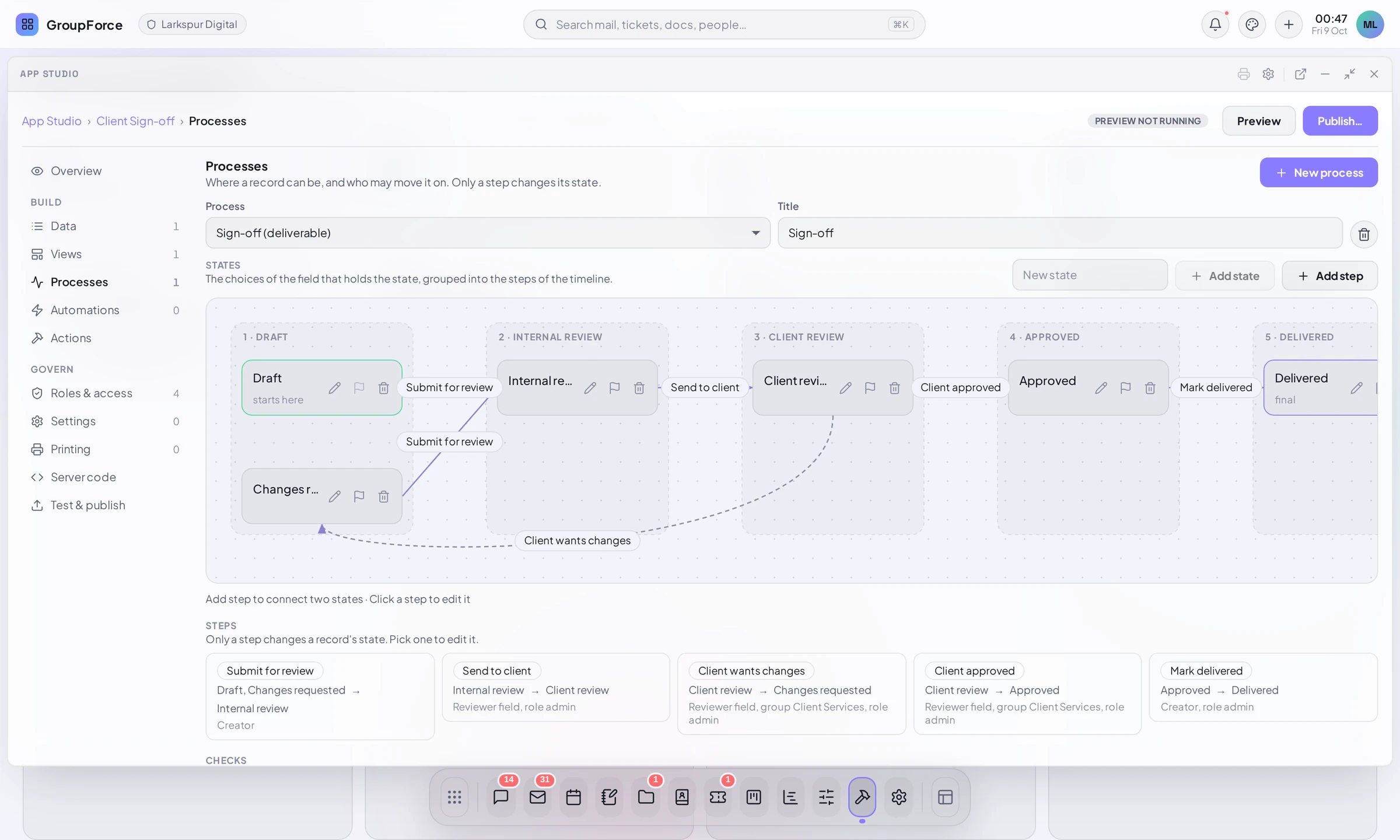
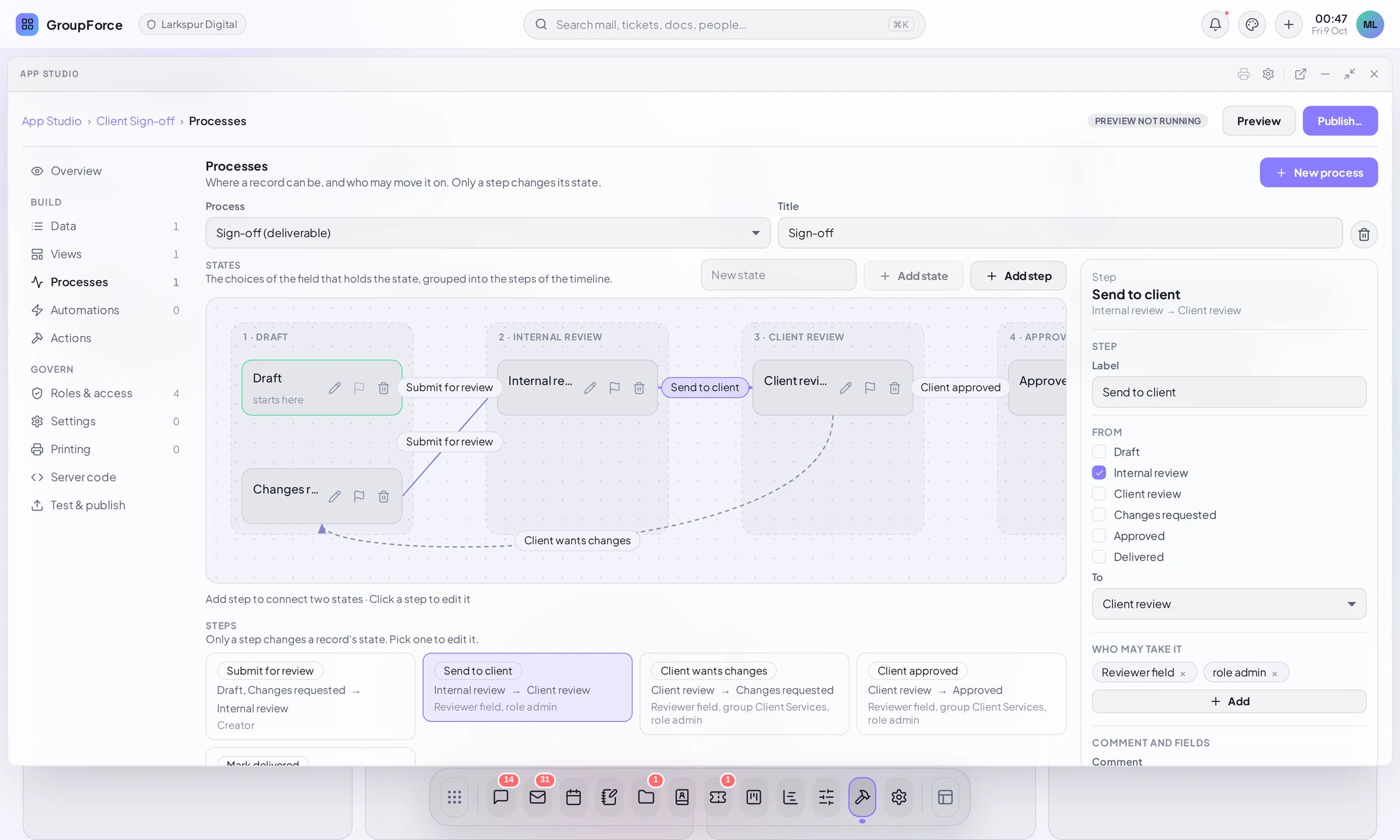
Steps are the arrows: “Only a step changes a record’s state.” Nobody edits the status field by hand. Add step asks for the label (“What the button says”), the states it starts from, the state it leads to, and who may take it. Click a step, in the diagram or in the list under it, to edit it in the panel on the right.
Who may take a step
Every step has a list of Who may take it, shown as chips. Each chip is a selector, which the panel shows in words (for example Reviewer field, group Client Services or role admin):
| Selector | Means |
|---|---|
creator |
The person who created the record. |
field:reviewer |
The person (or group) named in that field of each record. It is not a fixed list: it changes with the record. |
group:Client Services |
The people in that group in the workspace. The Add menu offers “A group, by name”. |
setting:<key> |
A group or person that each workspace chooses for itself in the app’s settings (see Settings below). |
role:admin |
The workspace administrators. Any other name after role: means everyone with an account role of that name. |
A step may have several chips; a person who matches any of them may take it. In the Client Sign-off, Client wants changes and Client approved are open to the Reviewer field, the group Client Services and administrators. A step with no chip at all can be taken by nobody, and the Studio says so (see Checks below).
The decision buttons of the record (Send to client, Client approved and so on) are shown to the people a step is for. An administrator may also edit a record in any state; everyone else edits only in the states the process allows (for Client Sign-off: Draft and Changes requested, and only the creator).
Comment, required fields and who is told
The step panel has these sections, top to bottom.
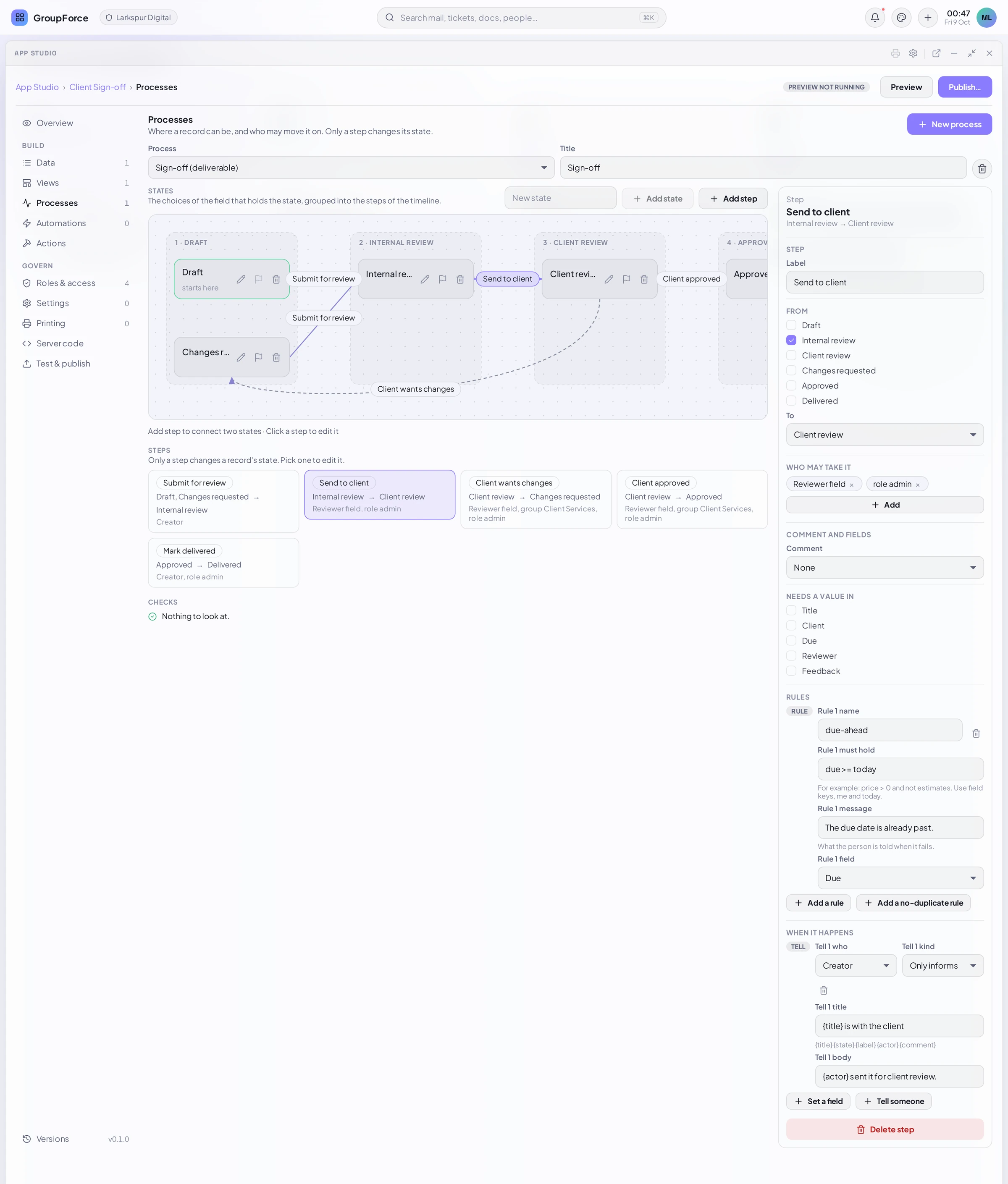
- Step: the label, the states it starts From (tick several) and the state it leads To.
- Who may take it: the chips above.
- Comment: None, Optional or Required. A step with a comment keeps it in the process’s comment field (a text or long-text field of the model). Client wants changes requires one; Client approved allows one.
- Needs a value in: a tick for every field that must be filled in before the step can be taken. Submit for review needs Title, Client, Due and Reviewer.
- Rules: conditions on the record, next section.
- When it happens: Set a field (to a value, to the person or group a selector names, or clear it) and Tell someone. Each notification has who (a selector), a kind (Asks them to act or Only informs), a title and an optional body. The placeholders are {title}, {state}, {label}, {actor} and {comment}. Every step of Client Sign-off tells someone.
- Server code (shown only when the app has server code): Check before, a handler that “may refuse or adjust the step”, and Run after, a handler that “runs once the step has happened”. You type the handler’s name. Send to client uses the guard
checkSend; writing it is the subject of Server code & sandboxing.
Rules: the platform checks the record for you
A rule is a check on the record as it would be after the step. The platform enforces it before any server code is asked, so a simple condition needs no code at all. Rules need requires.groupforce 7 or higher. A step may have up to 20.
Add a rule gives four boxes: a name, Rule 1 must hold, Rule 1 message (“What the person is told when it fails”) and Rule 1 field (the field the message is pinned to, or “No field in particular”). The sample app uses this one on Send to client:
check:   due >= today
message: The due date is already past.
field:   Due
Add a no-duplicate rule is the second kind, unique: it fails when the person already has another record in progress (in a state nobody may edit in and some step leaves) with the same values in up to four text, choice, date or number fields. “You already have one of these in progress.” is the starting message.
The language of a check
| Part | What is allowed |
|---|---|
Values |
numbers, texts in single or double quotes, true, false, a field’s key, me (whoever takes the step) and today |
Compare |
= (also ==), !=, >, >=, <, <=. A comparison with a missing value or an empty text is false, except = and !=. |
Combine |
and, or, not (or !), and parentheses. The parser also reads + and -. |
Functions |
count(a, b, …) how many are ticked or filled; size(list); has(list, x); empty(field) |
Examples from the guide of the language: price > 5000 and not estimates, count(a, b, c) = 1, has(managers, me). A check may read only fields of its own model; there is no property access, assignment or loop. The Studio shows a problem under the box while you type a check that does not parse or names a field that does not exist.
When a step is refused by rules, the answer is HTTP 422 with the first message on top and the messages of the rules that failed pinned to their fields (one message per field). {key} in a message is replaced by that field’s value. The same language is read by the browser, which ticks a checklist while the form is filled in, so the person sees the problem before pressing the button.
Checks the Studio runs
At the foot of Processes, Checks reads the process for you. It says:
- Nobody may take <step>. A step without a chip.
- <state> has no way out: a record that gets there stays there. A state no step leaves (the last such state, usually the end of the process, is not reported). The button + Add a ‘Resubmit’ step adds a way back.
- <state> is never entered: no step leads to it and it is not where records start. The button + Add a step into it opens the new-step dialog. <state> cannot be reached from <start>. Anything else the server finds wrong in the manifest is listed under Problems.
Similar warnings (a step nobody may take, a state with no way out) appear on the Overview’s “Ready to publish?” list, and a draft with problems cannot be published (Test and publish from the Studio).
Roles & access: one table, derived
Roles & access (group Govern) is not a place where you define roles. It is one table read from the data and the processes: “One table for who sees, changes and decides. It is read from the data and the processes; changing a cell changes them.”
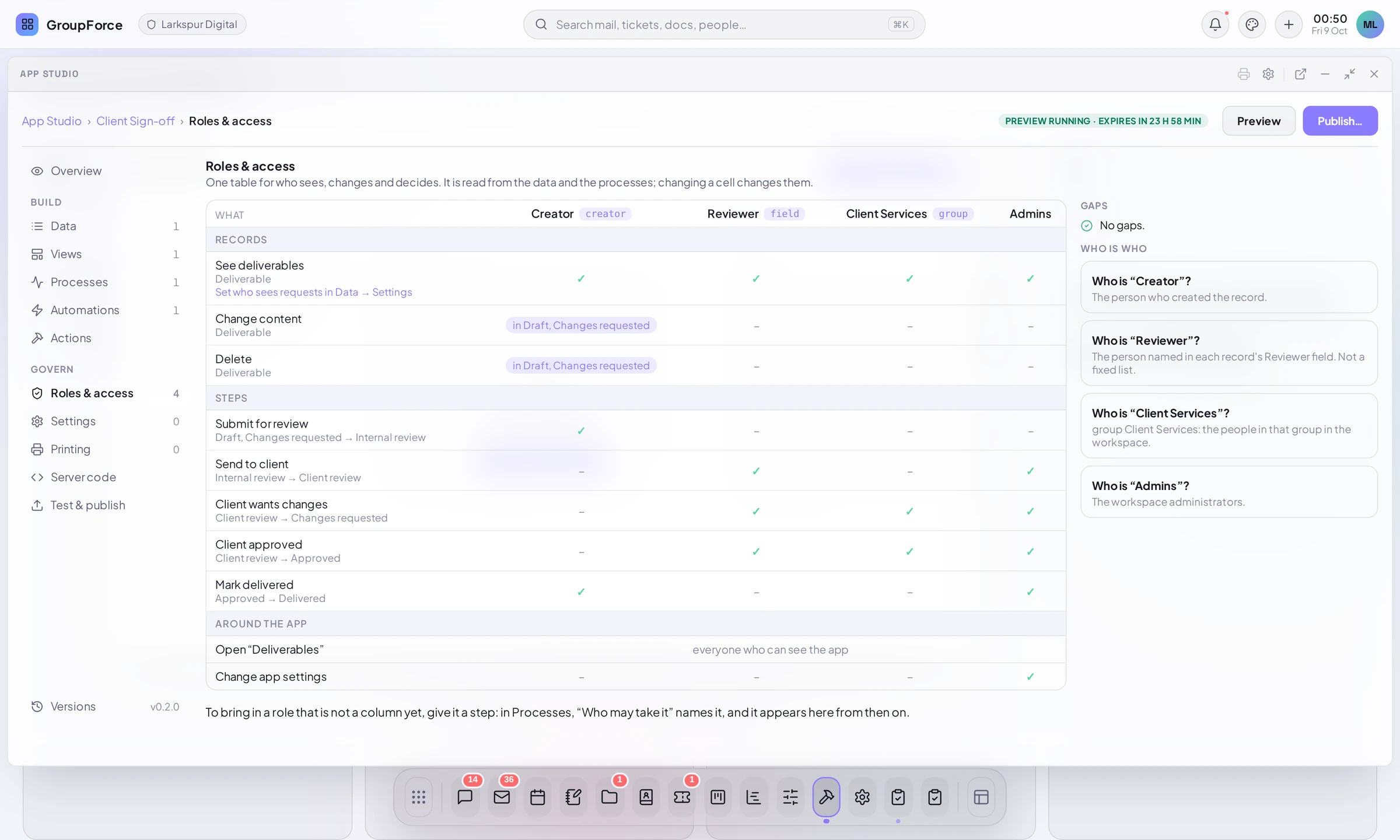
- Columns are the selectors your steps name, plus Admins. A column is a creator, a field, a group, a setting or a role; the small tag beside its name (creator, field, group) says which, and Admins has none.
- Records: See deliverables, Change content and Delete. Change and delete show in Draft, Changes requested for the creator because the process allows editing in those states only.
- Steps: one row per step, with a tick for each column that may take it. Clicking a tick on a step row adds or removes that selector in the process; it is the same edit as in the step panel.
- Around the app: who may open each view (everyone who can see the app) and who may change the app’s settings (administrators).
- Gaps lists what looks wrong: a step nobody may take (with the button “Let the creator take it”), a state that can be reached only through such a step, records nobody can change after creation (“Let the creator change them”), and a role that is a setting the app does not declare. With none it says “No gaps.”
- Who is who explains each column in words: Creator is “The person who created the record”, Reviewer is “The person named in each record’s Reviewer field. Not a fixed list.”, a group is “the people in that group in the workspace”, Admins is “The workspace administrators.”
To add a role, give it a step. The page says so itself: in Processes, “Who may take it” names it, and it appears here as a new column from then on. Who sees a record type at all is set under Data, then Settings (the link in the See deliverables row).
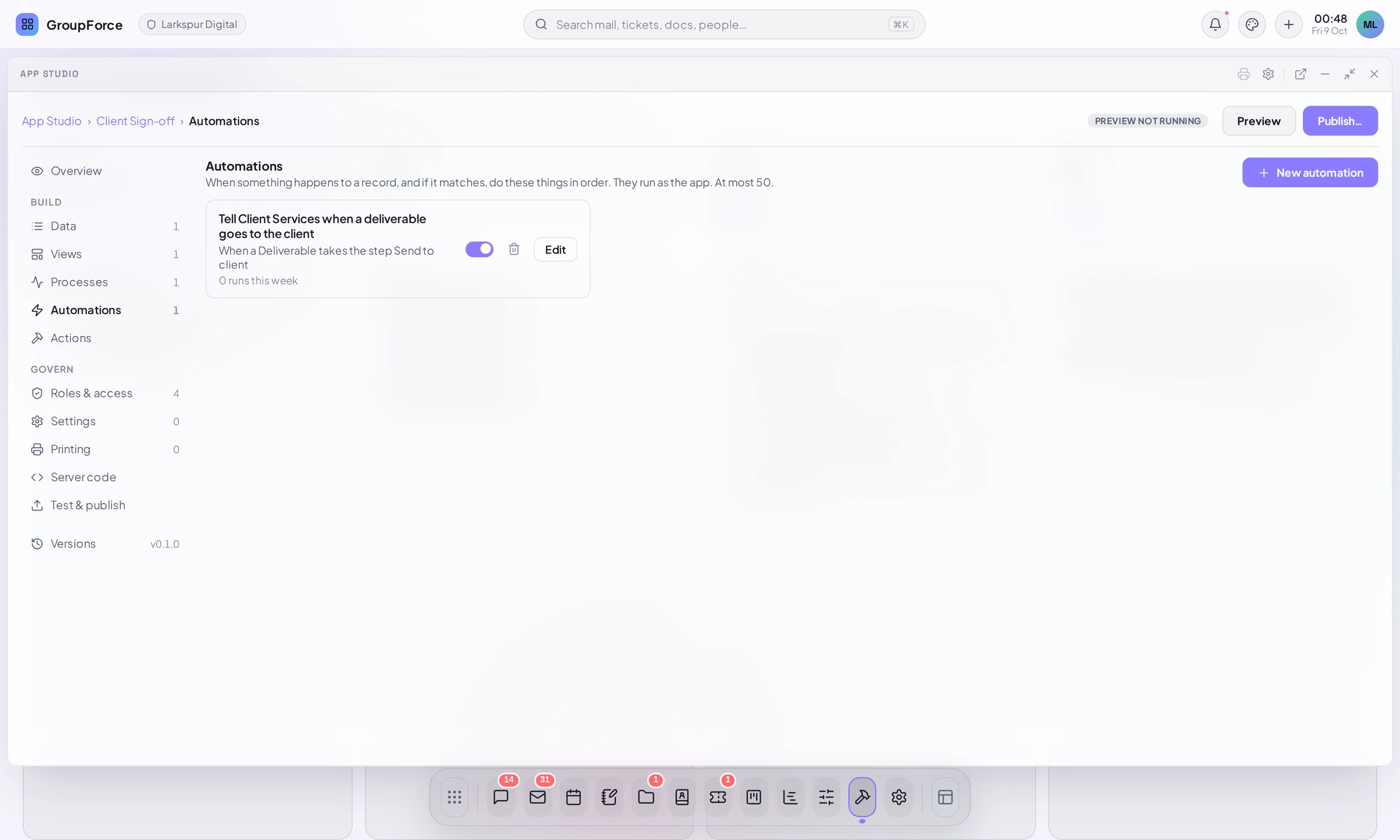
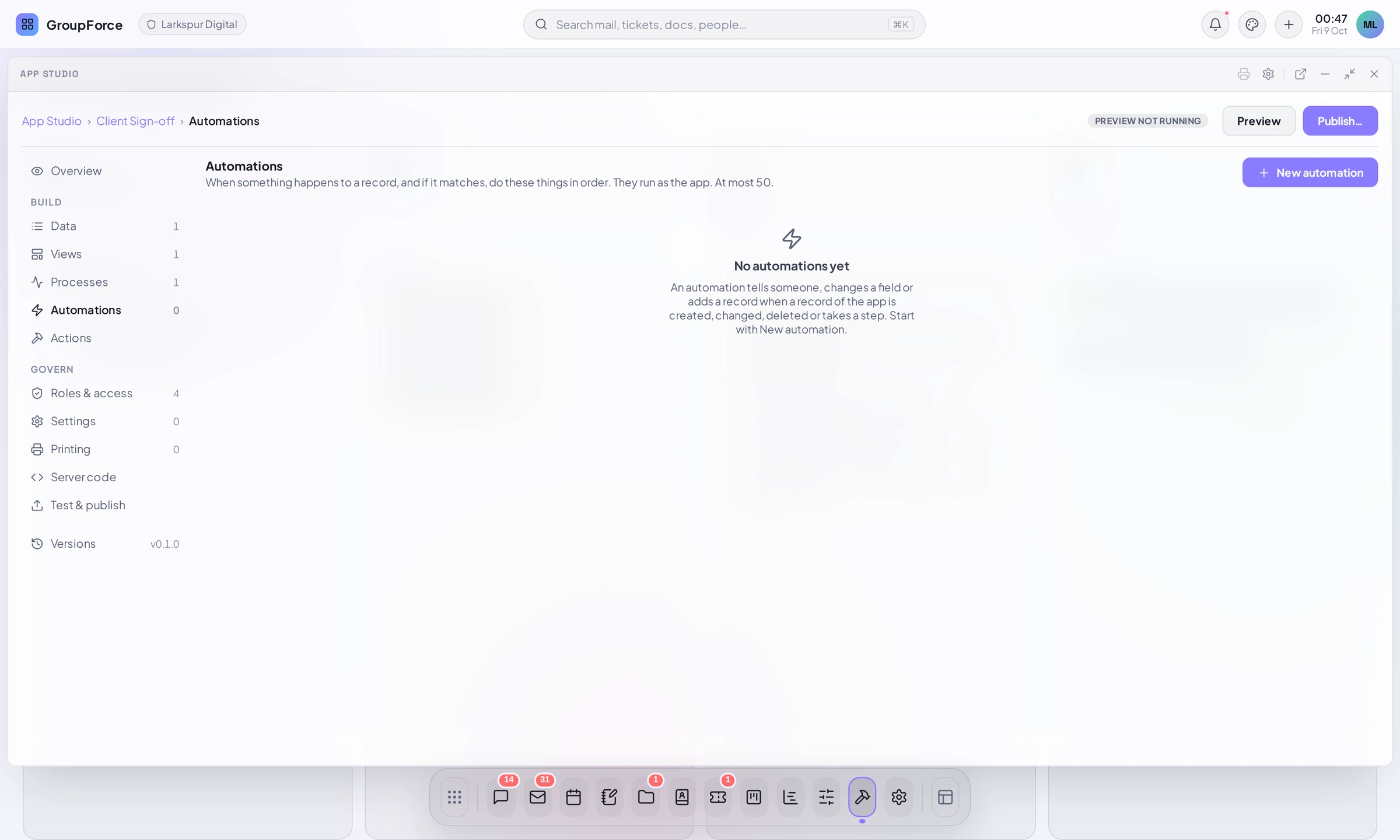
Automations
A process moves one record through its states, with people in charge. An automation is the other kind of logic: “when something happens to a record, and if it matches, do these things in order”. It has no states and no one has to press anything. Use a process for what a person decides, an automation for what should simply follow.
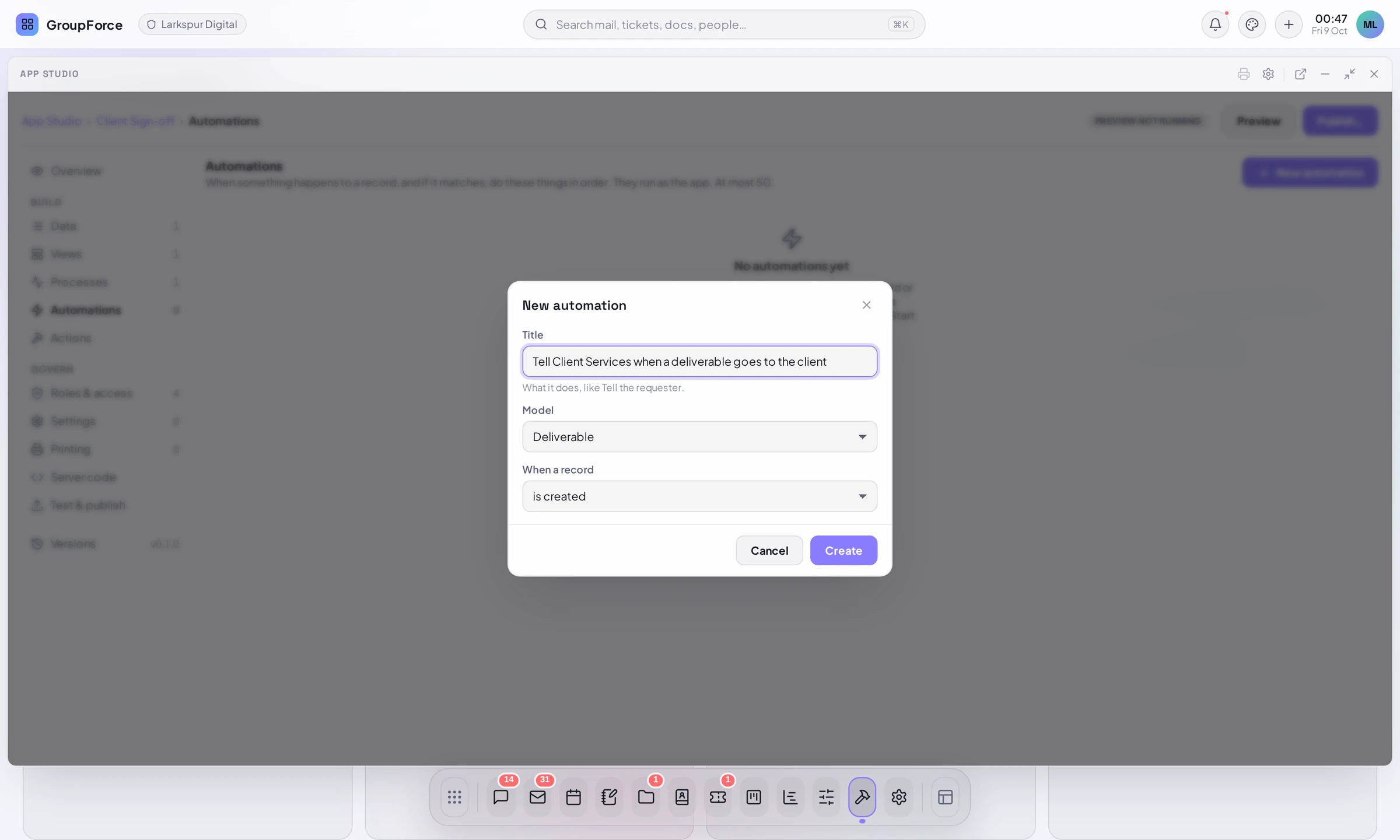
New automation asks for a title (“What it does, like Tell the requester.”), the model, and When a record: is created, is changed, is deleted or takes a step (then Step: a particular step, or any). It then opens the fullscreen flow editor. At most 50 automations per app.
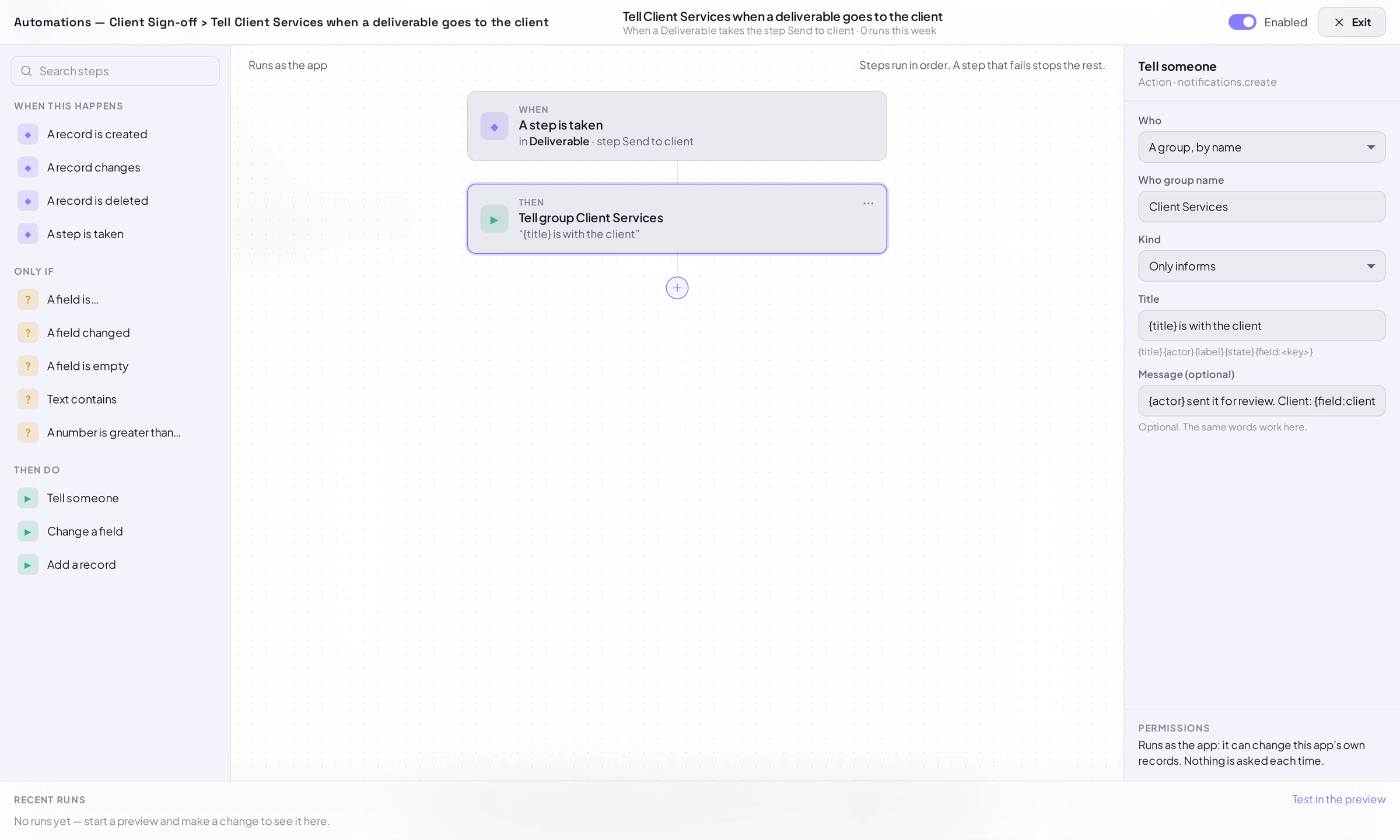
When, only if, then
- When this happens: A record is created, A record changes, A record is deleted, A step is taken. A step also counts as a change, so an automation on “A record changes” hears steps too.
- Only if (up to 20, all must be true): A field is…, A field changed, A field is empty, Text contains, A number is greater than…. The forms offer more comparisons for fields of the right type (not equal, at least, at most, in a list).
- Then do (1 to 20, run in order): Tell someone (a notification to the creator, whoever acted, a person or group field, a group by name or a setting; kind and title as for a step), Change a field (on the record that set it off), Add a record (to one of the app’s models; every required field must be given), and, only when the app has server code, Run server code (a handler of the module).
A step that fails stops the rest of that automation; other automations still run. Change a field is refused for the fields a process manages (the state, who is responsible, the comment).
Runs as the app
An automation runs as the app itself, not as the person who caused it: “Runs as the app: it can change this app’s own records. Nothing is asked each time.” Its notifications do not go to the person who made the change unless you pick whoever acted. A change made by an automation can set off other automations, but a chain stops after three; an automation that sets what is already there ends the chain by itself. Automations are not part of the change itself: the person gets their answer first, and a failure shows only in the run log.
Enabled, Recent runs
The Enabled switch in the editor (and the switch on the card) turns one off without deleting it. Recent runs at the foot of the editor lists what the automation did in your preview: the time, the record, and whether it worked, with “Test in the preview” as a shortcut. Before you have run one it says “No runs yet — start a preview and make a change to see it here.” A run in which the conditions did not hold is not a run and is not listed. The log keeps the newest 200 runs of an app.
Going further: work items and the clock
Automations built in App Studio work on the app’s own models, with the actions above, as a straight line of steps. For branching logic, or to work with work items, use a hook or a handler in server code (Server code & sandboxing, Work items, events and timers).
A package written by hand may also declare an automation on the platform’s own records: on: {entity: "work_item" | "work_item_comment", …} instead of a model (contract 8). It needs a subscriptions entry for the entity and event, and an administrator must have chosen what the app may reach (see Installing and updating apps); the actions allowed are notify, set_work_item (priority, status, due date, assignees and the app’s own custom fields; needs write access to work items) and call. The Studio lists such an automation and draws its flow, read-only: “Declared in the app’s manifest; this editor does not change it.”
To act at a given time, a timer is armed by server code (Work items, events and timers).
Actions, Printing and Settings
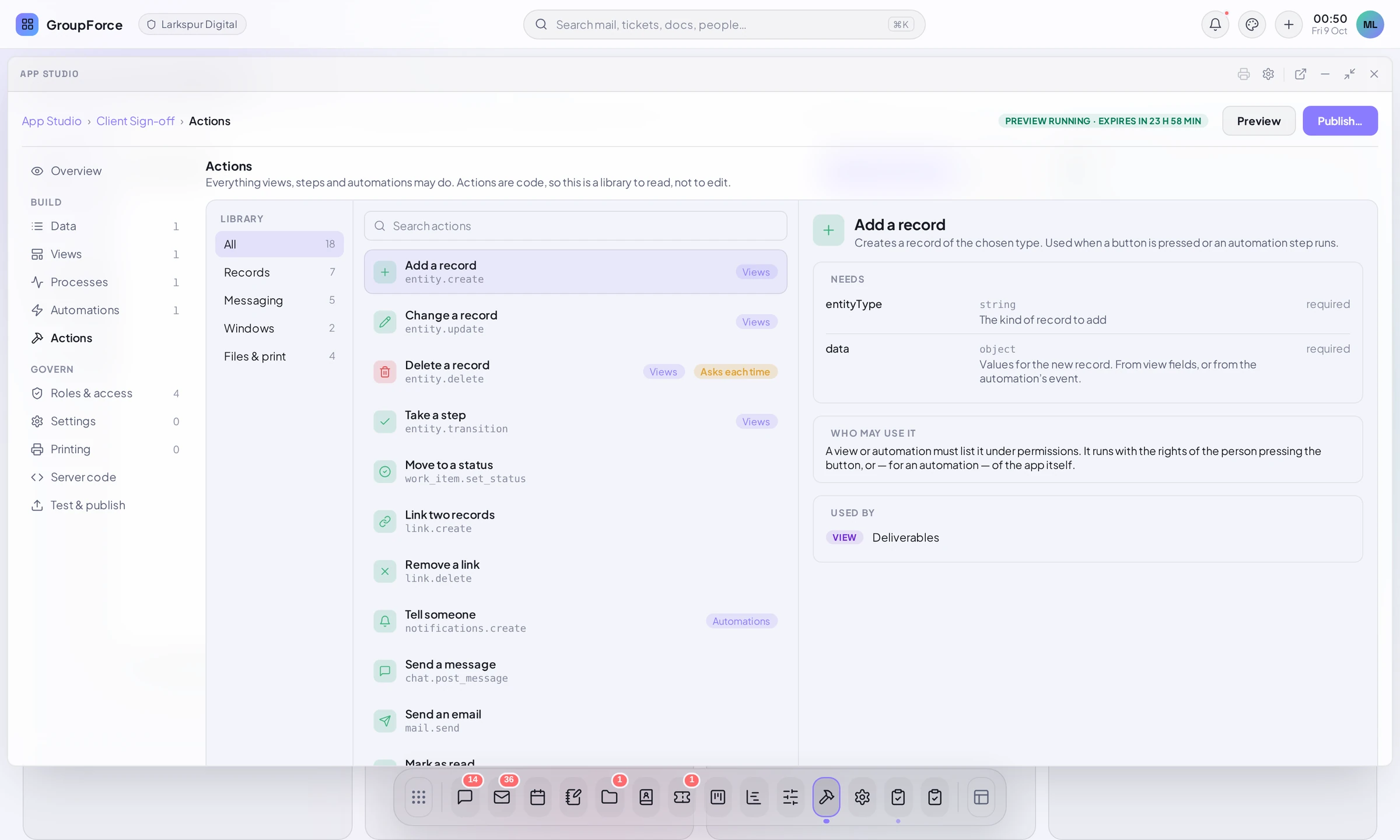
Actions (the last part under Build) is a library to read, not to edit: “Everything views, steps and automations may do. Actions are code, so this is a library to read, not to edit.” Choose a category on the left, search, and the detail shows what an action Needs, Who may use it (a view or automation must list it under permissions; an automation uses the rights of the app) and Used by in this app. Some are tagged Asks each time: the person must confirm.
Printing holds ODT templates for printing the records of the app’s models; a person picks one in the print settings while the app is on. Templates are written in an office program with {{ }} tags; the Studio part uploads and names them.
Settings has two halves. The app sets its name, description and icon in the dock and launcher. What each workspace decides declares settings, such as which group is accounting, so a step can say setting:<key> instead of a name written into the app. The administrator who installs the app fills them in on the app’s card, under Settings (Installing and updating apps).
The rest of the parts: Data and Views are in Data, views and the visual editor; Server code and the publishing key are in Server code & sandboxing and Keys, certificates & signing; Test & publish is next.