Data, views and the visual editor
App Studio’s Data part defines what a record holds; its Views part defines what people see and do. This page covers the field types, the layout of forms and lists, the fullscreen editor and the model-bound blocks that let a view be built without code, and what the editor can and cannot do with a view you wrote by hand.
Data: models and fields
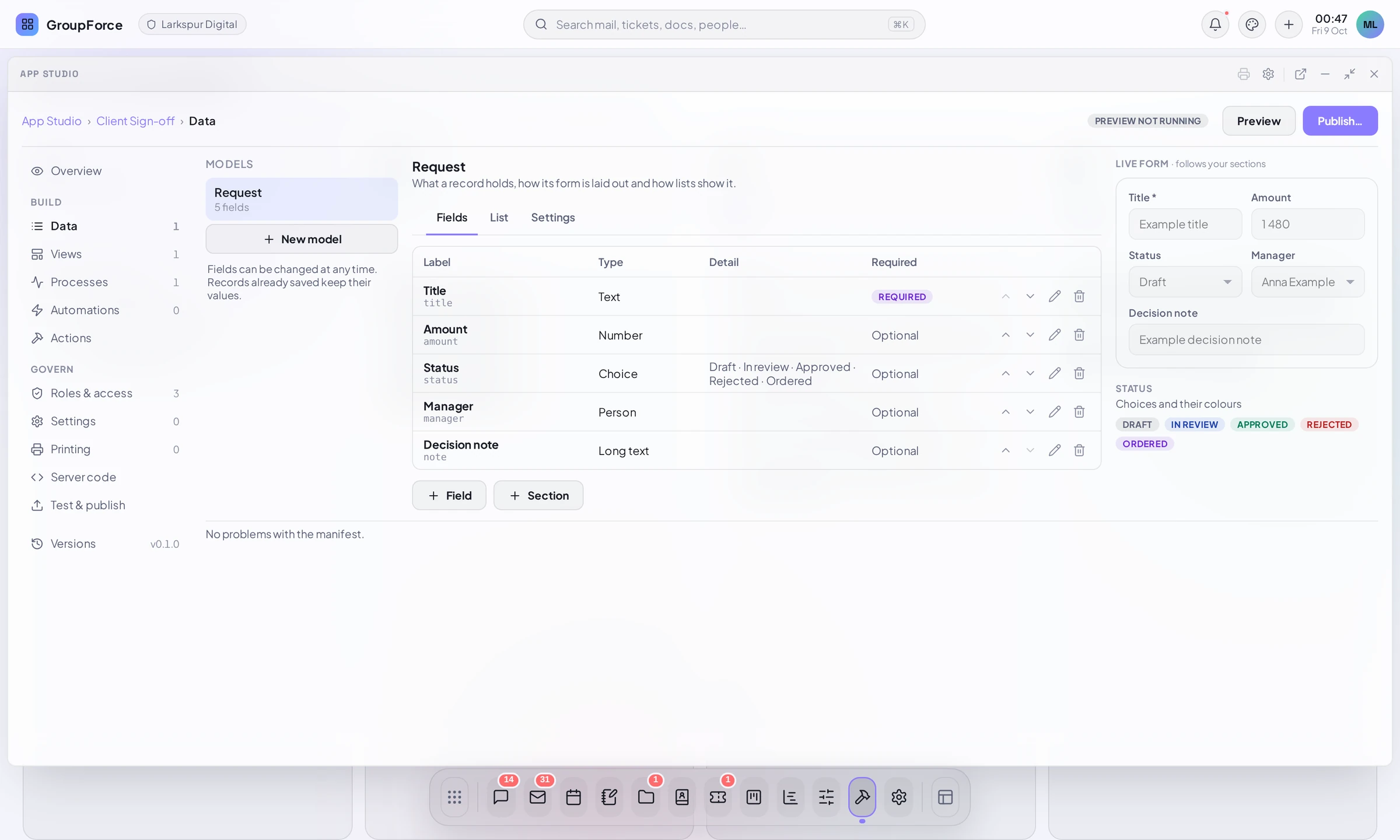
A model is a kind of record the app keeps. groupforce makes the storage, the API, search and the generic records browser from it. Open Data: the left column lists the models with their field counts and has + New model (a Title and an Id: lowercase letters, digits and hyphens, never changed afterwards). For the selected model the tabs are Fields, List and Settings. “Fields can be changed at any time. Records already saved keep their values.”
Field types
A field has a Label, a Key (lowercase letters, digits and underscores, which records use to name the field; a key that a list, a process or the visibility uses cannot change, change the label instead), a Type, Required, a Section and a Width (compact, normal, wide, full). The types:
| Type in App Studio | In app.json |
Notes |
|---|---|---|
Text |
text |
Up to 500 characters. |
Long text |
longtext |
Up to 100 000 characters. |
Number |
number |
|
Yes / no |
bool |
|
Date |
date |
Stored as 2026-09-26. |
Date and time |
datetime |
Stored as RFC 3339. |
Choice |
choice |
A list of choices, each with an optional colour: neutral, info, warning, success, danger or accent. The colours are hints for how a choice is drawn. |
Link to record |
ref |
A link to a record of another model of the app, or to a Contact (contact (built in)). |
Person |
user |
One account. |
People |
users |
Up to 20 accounts. |
Group |
group |
One group. |
Rows |
rows |
A small table inside the record: 1 to 12 typed columns (text, number, yes/no, date, date and time, choice) and a “Most rows” limit up to 200 (20 if empty). Contract 3. |
Sections and the live form
+ Section adds a titled section (a Title; up to 20 per model); a field names its section in its dialog, and the form groups its fields accordingly. Sections can be renamed, moved and deleted; deleting one keeps its fields, outside any section. The LIVE FORM at the right shows the form as it will look, with example values.
List and settings
- List: under Columns you choose the fields a list shows next to the title (at most four, in order); Under the title sets a Subtitle field; Order sets Sorted by and Direction. Without a sort a list shows the newest changed first.
- Settings: Names (Label, Plural), Other apps (Shared: Not shared, Others may read, or Others may read and change; shared models let views of other apps use these records) and Who sees a record (tick person, people or group fields: then only the creator, the people named in them and administrators see a record). Save settings saves; Delete model is refused while something names the model (a view, a process, a link field of another model, a print template, a hook or an extension), and says what does.
Views: the Views part
A view is what people see and use inside an app. Open Views. With no view it says “No views yet. A view is a screen of the app, built on a canvas. Start with New view.”
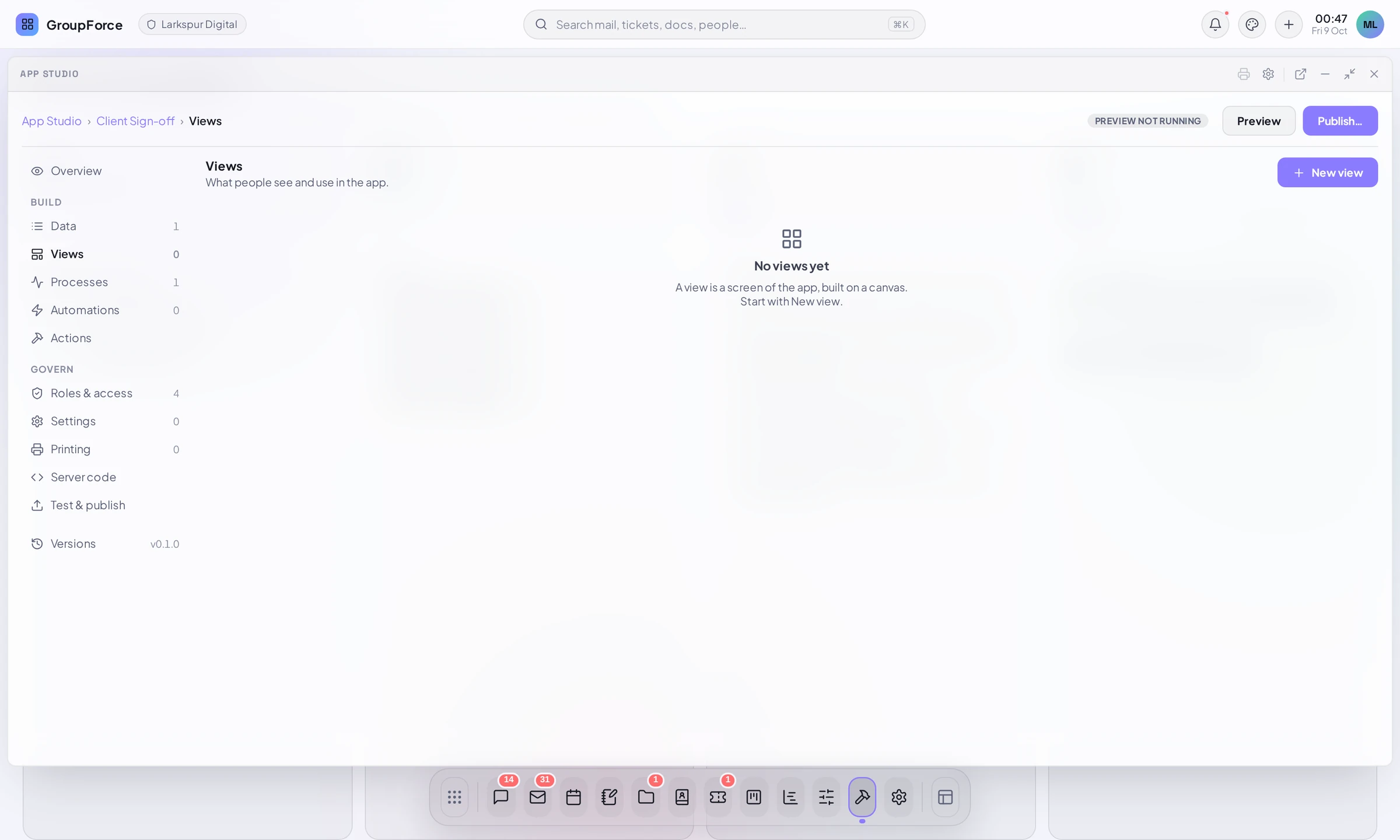
- Click New view.
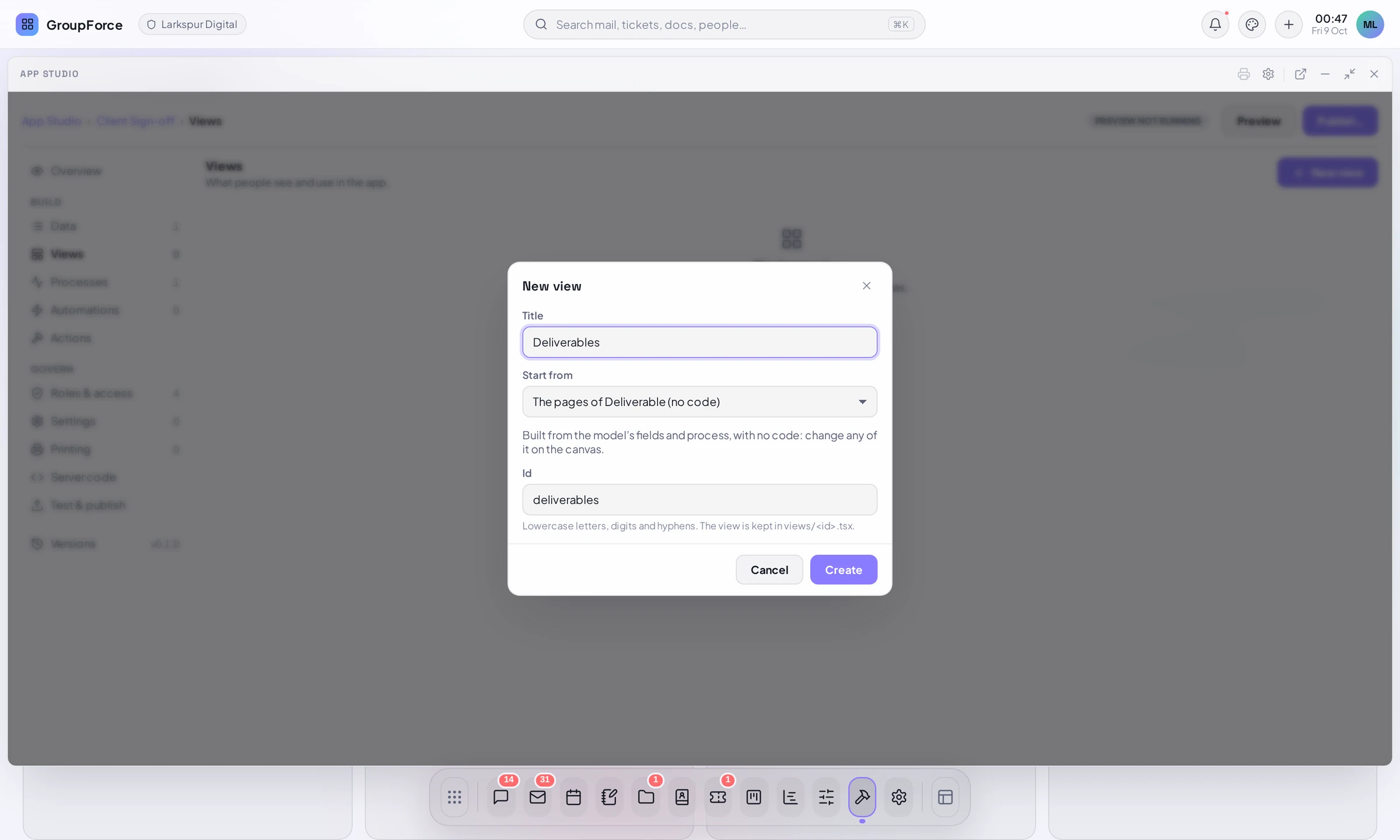
- Give it a Title. Choose Start from: The example (a table of contacts) for a small hand-written starting point, or The pages of <Model> (no code), which builds a list page and a record page from that model’s fields and process, with the view’s records and actions filled in.
- The Id is proposed from the title (lowercase letters, digits and hyphens) and names the source file,
views/<id>.tsx. Click Create.
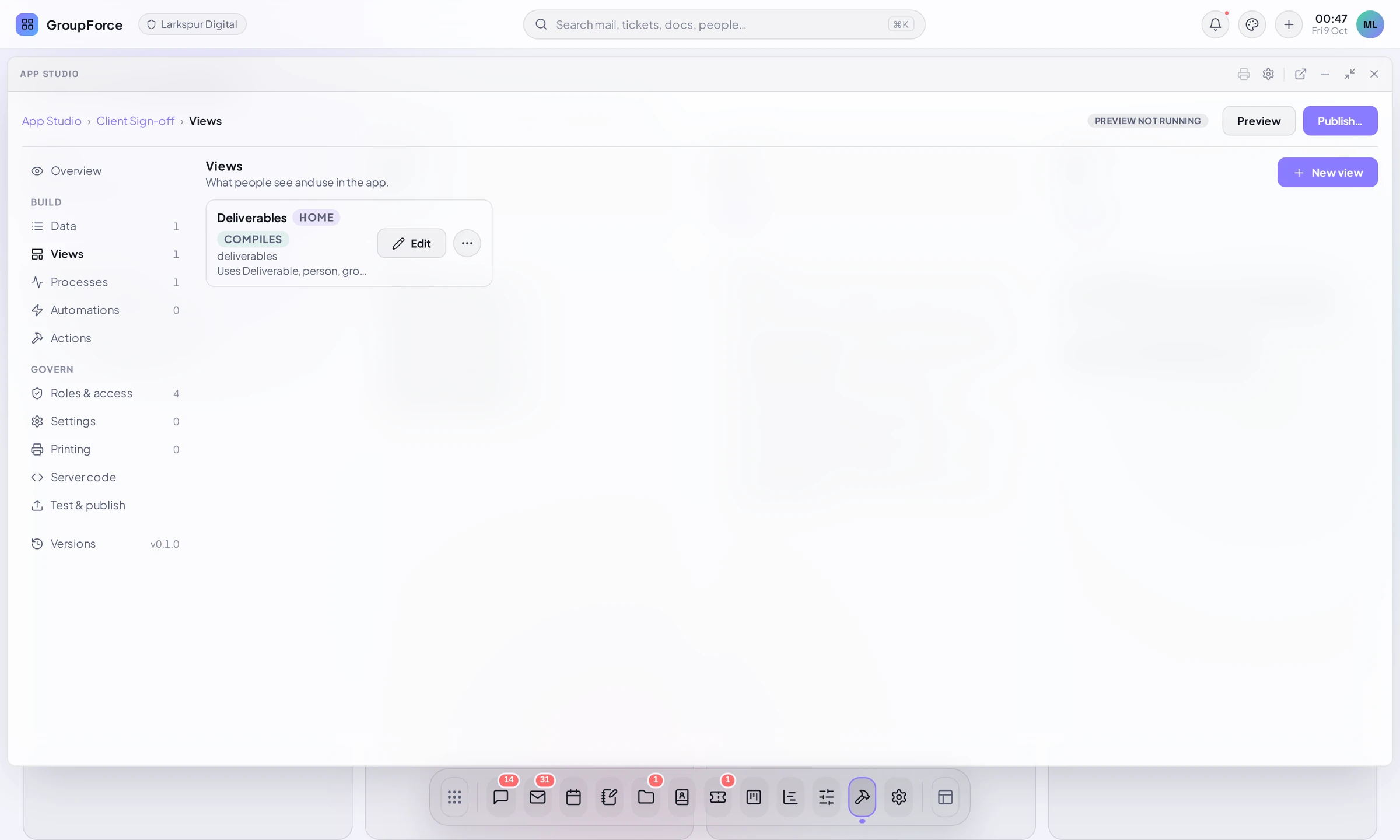
Exactly one view is the home view, the one the app’s icon opens. Edit opens the editor.
The fullscreen editor
Edit opens the visual editor over the whole desktop. Press Esc or click Exit to leave; a pending save is made first, and you land back in a maximized App Studio window on the Views part. Your changes are saved as you make them and the view is compiled after each save.
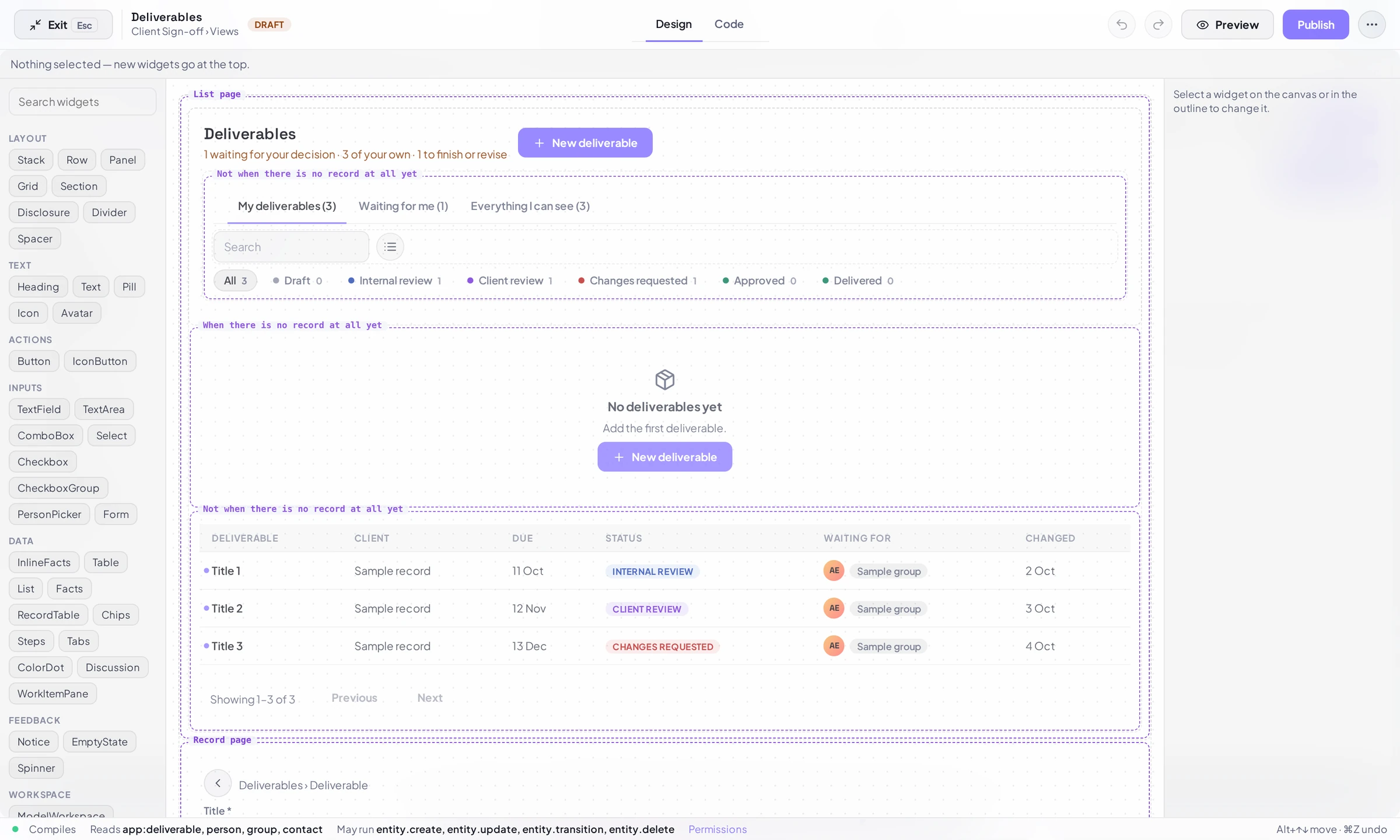
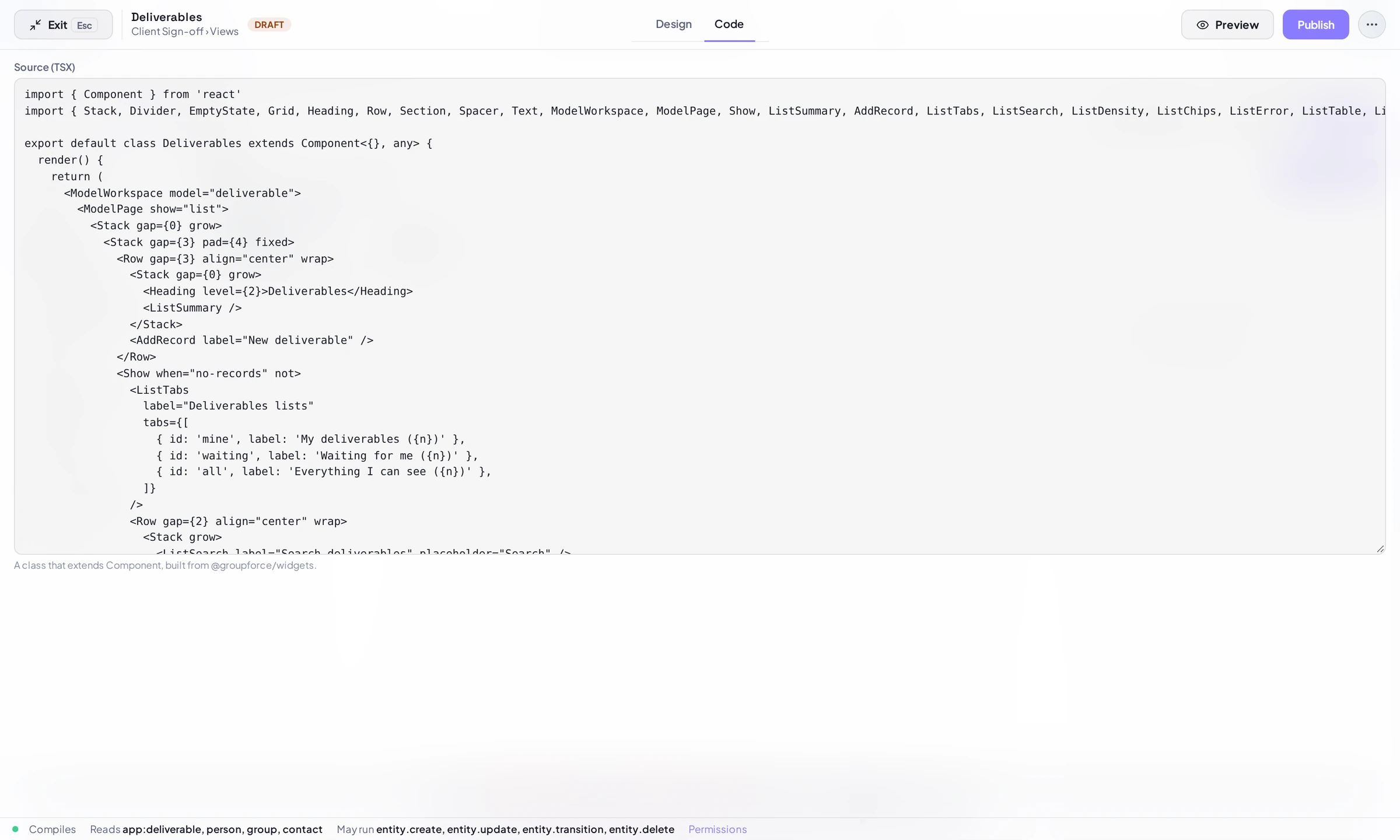
- Design and Code tabs. Both read and write the same source. Design edits it as a tree of widgets; Code shows the TSX.
- Palette. At the left, a Search widgets box and the widgets in groups: Layout, Text, Actions, Inputs, Data, Feedback, then Workspace, List, Record, Form and Bars for the model-bound blocks. Click a widget to add it (it goes inside the selected one or after it, or at the top when nothing is selected), or drag it onto the canvas.
- Outline. Under the palette, the tree of the view. Select a widget on the canvas or in the outline and the inspector at the right edits its properties. The line above the canvas says what is selected and where new widgets go.
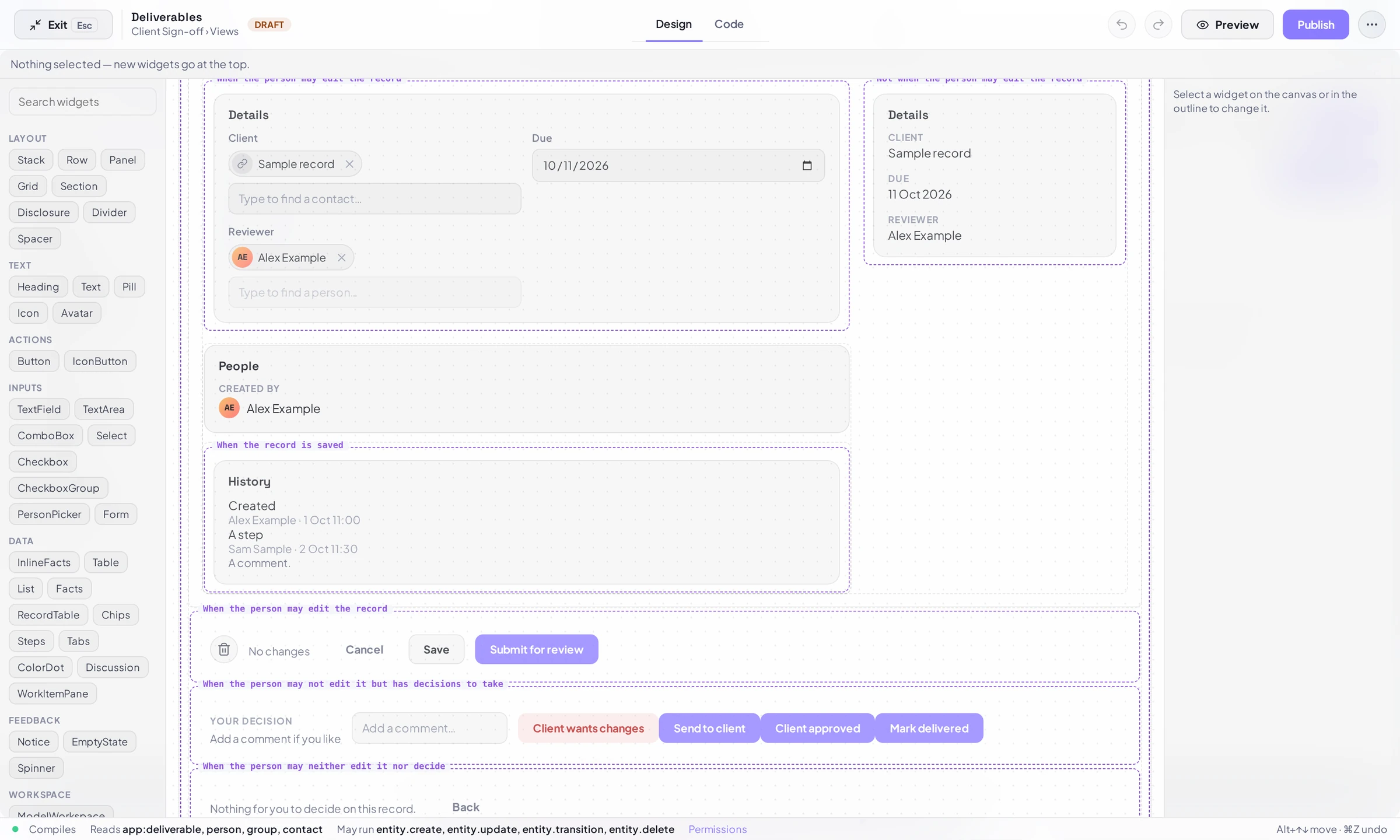
- Stand-in records. The canvas draws a block from stand-in records of the model, so you see layout and the kind of thing each block shows, not anyone’s data. Each condition of the page (“When there is no record at all yet”, “When the person may edit the record”…) is drawn under its own label so you can select and edit every variant.
- Undo and redo, Preview and Publish (both lead to Test & publish), and a menu with Rename, Make home and Delete.
The status line
At the foot of the editor one line says where the view stands: Compiles (or the problems, with their lines), Reads (the record types the view uses, e.g. app:deliverable, person, group, contact), May run (the actions its buttons and forms run, e.g. entity.create, entity.update, entity.transition, entity.delete) and Permissions, a link that lists what the app is allowed. What the view needs is written into the manifest and added to what the app may do, never taken away. In the Design tab the line also shows the shortcut hint “Alt+↑↓ move · ⌘Z undo”.
Model-bound blocks
A view made with The pages of <Model> (no code) is a tree of blocks. A block is a widget bound to a model: the list, the form, the buttons of the process. There are 38 of them in five groups, and ordinary layout widgets (Stack, Row, Grid, Section) arrange them.
| Group | Blocks | What they are |
|---|---|---|
Workspace |
ModelWorkspace, ModelPage, Show |
The model; the list page or the record page; “only while” a condition holds. Show when takes no-records, creating, saved, editable, deciding, watching or closed, and not inverts it. |
List |
ListSummary, AddRecord, ListTabs, ListSearch, ListDensity, ListChips, ListError, ListTable, ListRange, ListPager |
Mine / waiting for me / all with the numbers the server counts; search; status chips from the model’s choice field; the table (columns of kind title, number, status, people, date or text; formats money, short-date, date; columns that hide at narrow widths); the pager. |
Record |
RecordLeave, RecordCrumbs, ReadOnlyNote, RecordTitle, RecordSteps, RecordMessages, RecordNote, RecordWaiting, RecordFacts, RecordAmount, RecordUnticked, RecordCreator, RecordValue, RecordHistory, RecordChecklist |
The way back; the title; the timeline of the process; the server’s answers; who the record waits for; facts for a record that may not be edited; who is involved; what happened; rules ticked off as the form meets them. |
Form |
FormField, FormChecks |
One field of the model as the input its kind asks for, required and labelled from the model; several ticks as one question. |
Bars |
RecordDelete, RecordStep, RecordSave, RecordStatusText, DecisionHint, DecisionComment, DecisionButtons, ClosedText |
Delete (asks first); a step of the process as a button for whoever may take it; save; the comment and the decisions the process offers, the ones that send the record back drawn as dangerous and first. |
- Props are data only. A block’s props are text, numbers, switches and short lists of small records, never code and never a function. The generated view has no state, no handler and no condition written as code. Every prop is checked against the block’s schema before anything is drawn.
- Where the work happens. The page does it, with the signed-in person’s own permissions: records are read through the same paths the generic screens use, and writes go through the action registry (
entity.create,entity.update,entity.transition,entity.delete). Nothing the app’s author wrote runs in the page for a block. - A block refuses to read a model the view did not declare, or to run an action it did not declare. A
ModelWorkspacecan only name a model of its own app, and the installer checks that too. - What is derived. The model gives labels, kinds, required and the status choices with their colours; the process gives the timeline and the steps. “Approve” or “Decline” are not written into the view: they are the steps the server says this person may take as a decision.
- Authoring. In the inspector, the properties that name something of the model (
field, a step, themodel) are choices from the draft’s own model and process, and a rule is checked as you type. AModelWorkspacehas Fill both pages from the model, which replaces what is inside it with the standard list and record pages (Undo brings it back). Blocks need contract 7.
Link fields
A field of type Link to record (ref) is drawn as a picker. What it can point to: another model of the same app, or Contacts. A ref to any other built-in type is left off the generated pages, and a form field bound to one says “<type> records cannot be chosen from here.”
- The picker filters the target’s records as you type. What is stored is the record’s id; a record that is gone or unreadable shows as a gap. On a record that cannot be edited, and in a list column, the link shows the record’s title (for a Contact, the display name).
- The view must declare what it reads: the referenced type goes in the view’s
records(app:<model>orcontact). App Studio derives it from the model’s link fields; without it the block shows its usual refusal (“<label>: this view did not declare that it uses customer records.”). - A model with thousands of records is searched in the page, not on the server.
Not built: links to organisations, projects or work items, reverse links (“all tickets of this customer”), and a link inside a rows field.
A view you wrote by hand
A view written in code (Your first app in code) opens in the same editor, with limits. The source stays the one truth: the editor rewrites only the tree a method returns and moves nothing else in the file.
- Parts. The editor offers every method of the view’s class whose last
returnis a tree of widgets, not onlyrender(). Whenrender()is code that chooses between pages, the parts are the ones it hands over to (record(),list(), then what they call), the editor says “render() is code that chooses between these parts”, and a switch above the canvas picks the part. A change is written back into that method’sreturn. - Dashed, read-only previews. Code between widgets stays a marker. The editor also draws, dashed and read-only, what a condition or list would draw (elements written inside
cond && <Notice/>) and the page athis.form()call hands over to, with an “Open form()” button to edit it. Lists the view builds are drawn with stand-ins. - A widget inside a piece of code is not selectable. Selecting the code shows “A piece of code between widgets (a condition, a list). Edit it in the Code tab.” Open the page the widget lives in to edit it.
- The canvas is the layout, not the finished view. It is not run.
- If the editor cannot read the view at all, it says so and the Design tab shows a notice: “It is still a valid view if it compiles — edit it in the Code tab.”
Switch to code when the view needs state of its own, behaviour on a click, a call to the app’s server endpoints, or a layout blocks cannot express. The model-bound blocks need none of that, so start from them and go to code for the rest: Your first app in code and Server code & sandboxing.
What the generated source looks like
This is the bottom of the record page that App Studio generated for Client Sign-off (views/deliverables.tsx, 186 lines in all): the three bars for editing, for deciding and for watching. It is layout and props. There is no this., no =>, no .map, no state:
<Show when="editable">
  <Row gap={3} align="center" pad={3} fixed wrap>
    <RecordDelete label="Delete deliverable" />
    <RecordStatusText />
    <Spacer />
    <RecordLeave label="Cancel" confirmLabel="Discard changes" />
    <RecordSave label="Save" />
    <RecordStep step="submit" variant="primary" whenNew />
  </Row>
</Show>
<Show when="deciding">
  <Row gap={3} align="center" pad={3} fixed wrap>
    <Stack gap={0}>
      <Text label>Your decision</Text>
      <DecisionHint />
    </Stack>
    <Stack grow>
      <DecisionComment placeholder="Add a comment…" />
    </Stack>
    <DecisionButtons />
  </Row>
</Show>
<Show when="watching">
  <Row gap={3} align="center" pad={3} fixed>
    <ClosedText />
    <Spacer />
    <RecordLeave label="Back" immediate />
  </Row>
DecisionButtons draws whatever steps the process offers this person; RecordStep step="submit" names a step of the process by id. Everything behavioural comes from the model and the process, which is why the view can be rearranged freely in the Design tab.